Ensure that you are signed in to the SOTI Connect web console as an administrator with the Modify
Rules permission.
About this task
Compliance policies categorize devices as non-compliant by evaluating them against
defined rules. Each rule includes one or more non-compliant criteria.
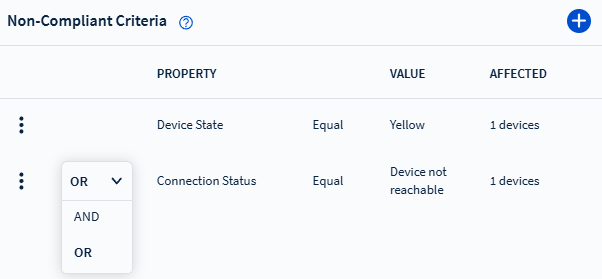
Note: When a compliance policy includes multiple non-compliant
criteria, a drop-down list containing AND and OR appears:
Select OR to detect non-compliance when any of the criteria are
met.
Select AND to detect non-compliance when all criteria must be
met.
The selection automatically applies to all non-compliant criteria in
the rule.
Procedure
From the SOTI Connect main menu, select
Rules.
Select Compliance Rules from the rules type pane on the left.
Select
New Rule.
The Add New Rule window appears.
Enter a name and description for the rule, then select Next to continue
to the Select Items tab.
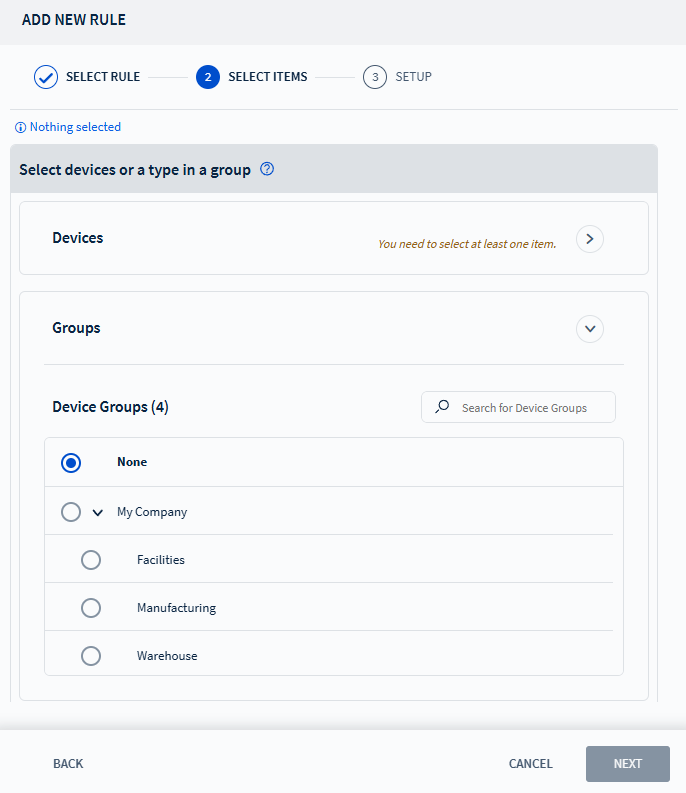
Choose the target scope: Devices, Groups, or Device Types, then select
Next to navigate to the Setup tab. See Choosing a Device for more
details.
Note: Specifying a group limits the selection to device
types available for that group.
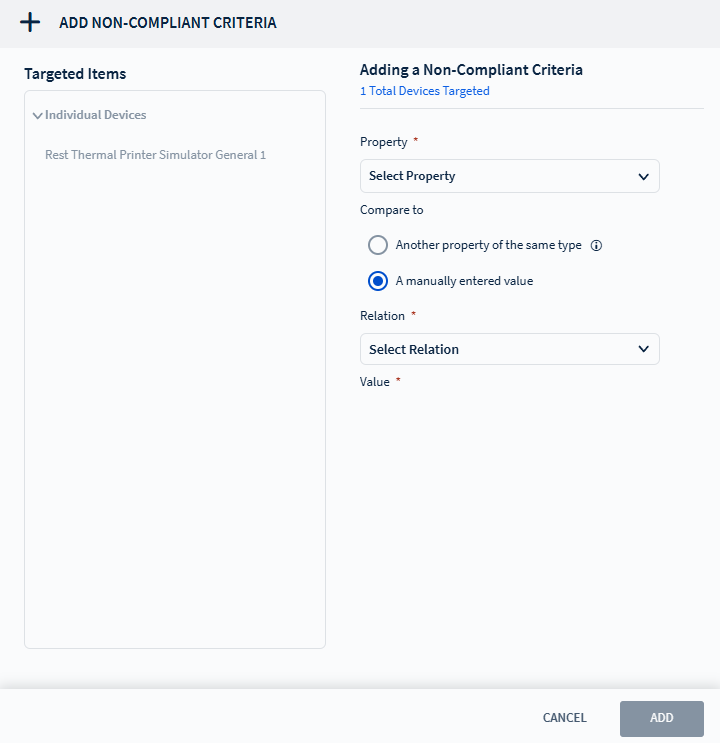
Select to define a Non-Compliant
Criteria.
The Add Non-Compliant Criteria window appears.
Note: Compliance rule only supports
non-compliant criteria.


 Note: Specifying a group limits the selection to device types available for that group.
 Note: Compliance rule only supports non-compliant criteria.