
Devices View
Use this view to manage and interact with your devices. You can organize items into groups, search and filter based on keywords and properties, and quickly gain insights into your deployment through visual charts. Additionally, you can perform a range of actions on selected devices directly from this view.
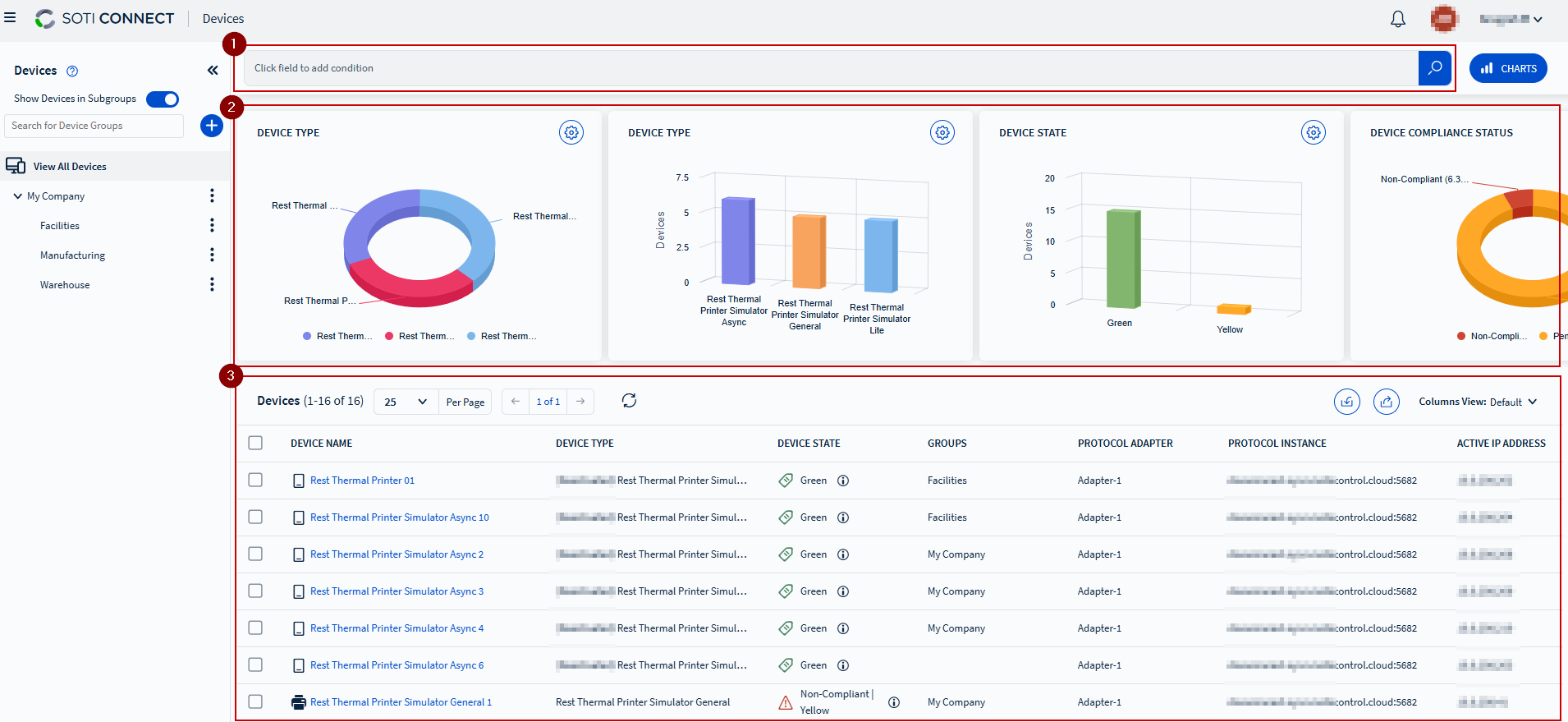
- The left pane displays device groups in a hierarchical tree view. Expand a device group to view its subgroups. Selecting a device group shows the devices belonging to that group in the devices list on the right.
- The right pane is divided into three sections:
- Top section: Search bar to filter devices.
- Middle section: Displays charts with statistics for the selected device.
- Bottom section: Lists all devices in the selected group. Selecting any device in the list opens the Device view, displaying specific operational details.
Charts
- Add or remove charts from the display by scrolling to the far right and selecting , then selecting the charts you want displayed.
- Use the Charts button to toggle the chart section on and off.
- To export a status report of all devices in a device group, select the Export
Devices button and choose either Export to CSV, Export to
Excel, or Export to PDF.Note: The exported report includes only the columns currently displayed.
Device Group Options
Select the button next to a device group to access the following options:
| Add Group | Opens the Add Group dialog box to create a new subgroup under the selected device group. |
| Group Details | Opens the group information panel to view group details, add group rules, and add notes. |
| Color Tag | Allows you to customize the color for the selected group. |
| Rename | Opens the Rename Group dialog box to rename the device group. |
| Delete | Deletes the selected device group and all its subgroups. |