
Setting User Preferences
About this task
Important: User preferences override
global preferences set in .
General
| Default to Device Specific Mode | By default, SOTI Connect displays common fields across different device types using a consistent, abstracted value. Select this option if you want to view the actual value of the device instead. |
| Start with Charts Hidden | By default, charts in the Devices view are displayed when you log in. Select this option if you want charts to be hidden by default. |
| System of Measurement | Choose whether SOTI Connect displays measurements in metric, imperial, or uses the global system preference from . |
| Color Theme | Choose your preferred console appearance:
|
| Preferred Language | Select your preferred display language from the drop-down list. |
Date and Time
| Preferred Timezone | Select your preferred time zone from the drop-down list. |
| Date Format | Select your preferred date format from the drop-down list. |
To customize user preference settings for your SOTI Connect environment:
Procedure
-
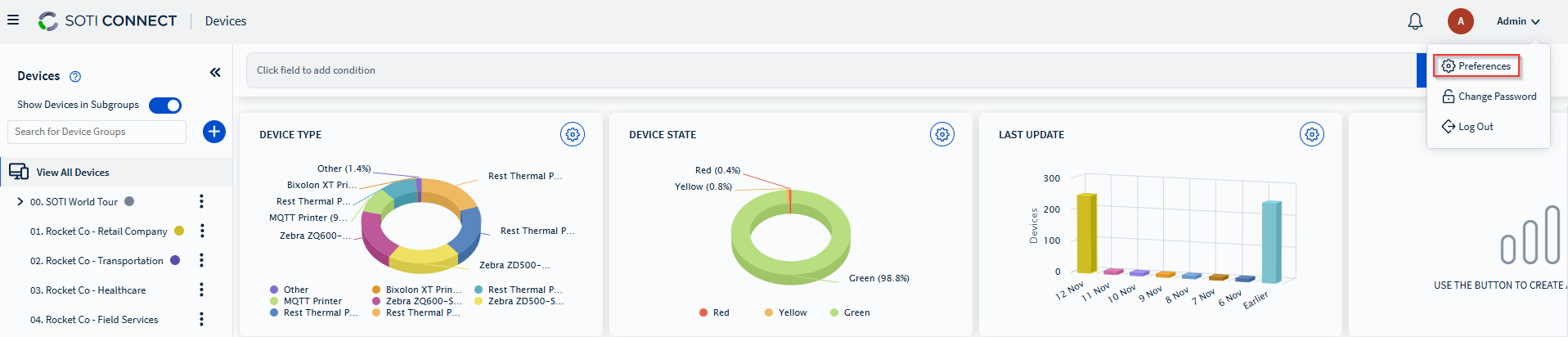
Navigate to the menu bar in the top-right corner and select your username to
open the user menu.
-
Select Preferences. The Preferences dialog box opens.
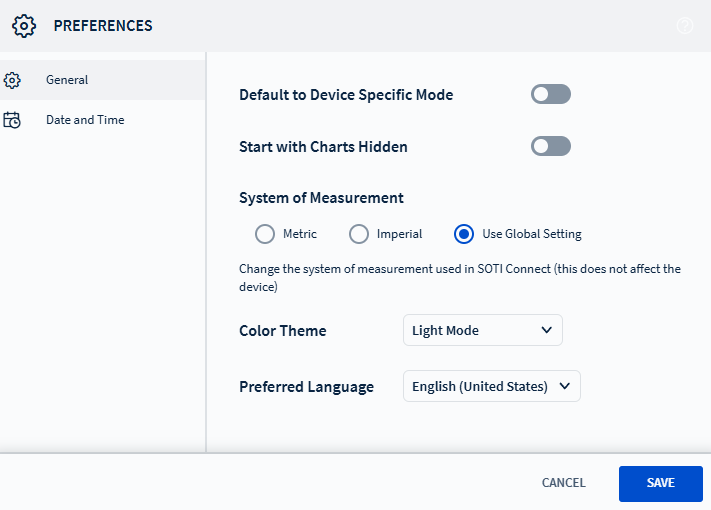
- In the Preferences dialog box, set your desired user preferences.
- Select Save to save your changes.