
Conditional Rules
About this task
Conditional Rules enable SOTI Connect administrators to configure automatic device actions based on predefined conditions. This allows for dynamic, event-driven device management without requiring manual intervention.
Note:
- In SOTI Connect 2025.0, former Individual Automation Rules (IAR) and Group Automation Rules (GAR) have been combined into Conditional Rules, offering a more streamlined and efficient approach to automation.
- When creating a Conditional Rule, if you select a group, you must bundle it with either a device, a device type, or both during the device selection step. Unlike GAR, selecting only a group is not permitted.
- You can select up to 100 devices when configuring Conditional Rules with the Apply Actions to All Selected Devices toggle enabled.
- The Apply Actions to All Selected Devices toggle automatically enables the Transition Logic Setting, ensuring actions only trigger when the condition first becomes true.
Procedure
- From the SOTI Connect main menu, select Rules.
- In the left-hand pane, select Conditional Rules.
-
Select
New Rule to create a new Conditional rule. The Add New Rule window
appears.
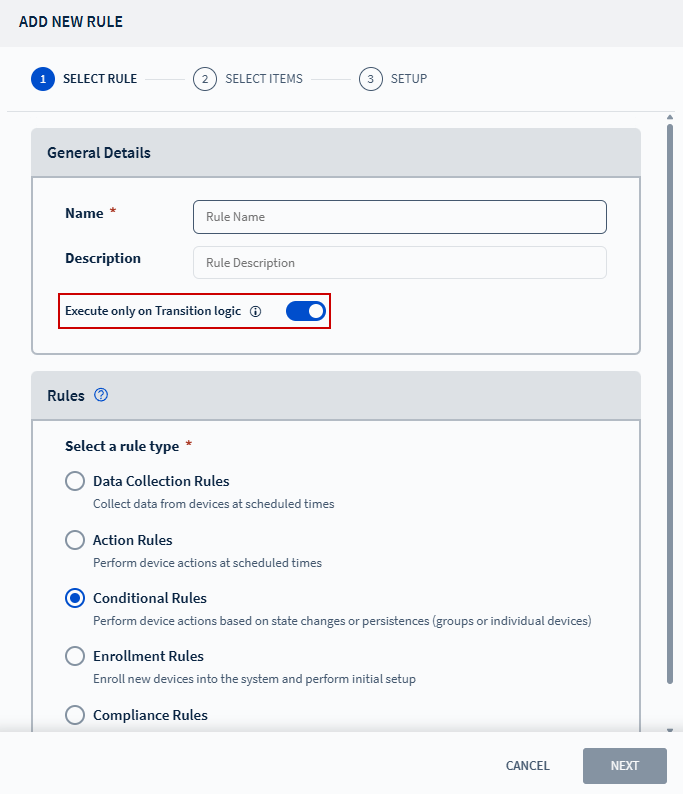
- Enter a name and description for the conditional rule.
- Enable the Execute Only On Transition Logic toggle to prevent the rule from triggering multiple times, then select Next to navigate to the Select Items tab.
- Choose the target scope: Devices, Groups, or Device Types, then select Next to navigate to the Setup tab. See Choosing a Device for more details.
-
Configure the conditions under which the rule triggers:
- If Statements: Specify the conditions that must be met in order for this rule to trigger. See Using If Statements for more details.
- When Statements: Specify the time schedule for this rule to trigger. See Using When Statements for more details.
- Optional:
Select Apply Actions to All Selected Devices to enable Transition Logic
Setting.
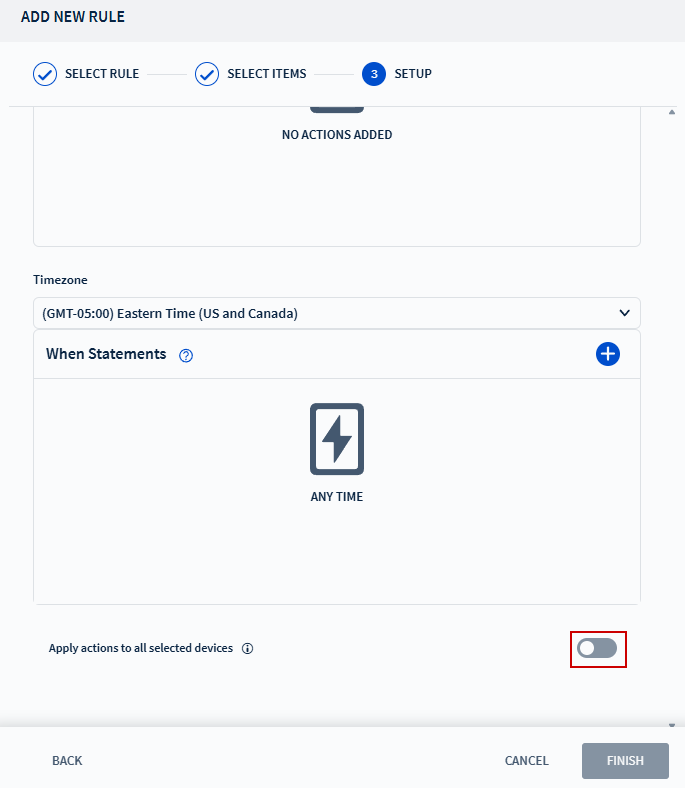
- Select Finish to complete the setup.
Results
Warning: For SOTI Connect
2025.0
conditional rule configured with Apply Actions to All Selected Devices
toggle enabled to include more than 100 devices, the UI does not immediately
process the device number update. Instead, it displays the number of devices per
the previous configuration. The rule does not appear as disabled, even though it
is disabled in the background.
As a temporary workaround to overcome the
issue:
- Edit the rule again without making any changes.
- Save the rule.