The Rules History view displays all rule alerts triggered by SOTI Connect. The list is sorted with the most recent rules at the
top. All rule alerts are logged and can be filtered by specific intervals.
If SOTI Connect fails to execute a rule, the event appears as a
Rule Alert in the list. You can filter the view by:
All History: Displays all rules.
Alerts Only: Displays only rules that generated alerts.
Note: When migrating to SOTI Connect 2025.0, the installer archives the existing Rule
History into a .zip package containing a
*.csv file. After archiving, the old Rule History is
deleted, and a new Rule History begins collecting from SOTI Connect 2025.0 onward. The archive of old Rule History is
placed in:
C:\ProgramData\SOTI\Connect\Archive\RuleHistory
The Rules History view displays the following details:
Start Date/ Time
The rule’s start date and time.
End Date/ Time
The rule’s end date and time.
Duration
The total time required to execute the rule.
Rule Name
The name of the rule.
Rule Type
The category of the created rule.
Rule Executed
Shows whether the rule executed successfully.
Note: The rule history shows a rule as "In
progress" for 30 seconds, even after all actions are
complete. This is by design to accommodate complex rule
processes with multiple devices.
Result
The execution status of the rule’s actions. For example, if a
rule applies to two devices with three actions each, plus one
retry, the total results would be: 2 devices * (3 actions + 1 retry)
= 8 results.
Devices
The number of devices involved. Each device has its own
result, indicating whether the rule’s actions met user
expectations.
Understanding Rules History
SOTI Connect organizes results into three levels:
Rule level
Displays overall rule information, including actions executed
and whether SOTI Connect applied the rule to devices.
Action level
Provides details about each action, such as execution
duration and whether it applied to the device.
Device level
Provides results for each device. Can be filtered by
Action Name or Status.
Note: An action may display as Failed in the
Result column, but the device might still display as Successful in the
Devices column. This depends on user expectations. For example, if failures were
anticipated and the rule was configured to handle them (via retries or continue
actions), the system marks the outcome as successful.
Consider the following scenario:
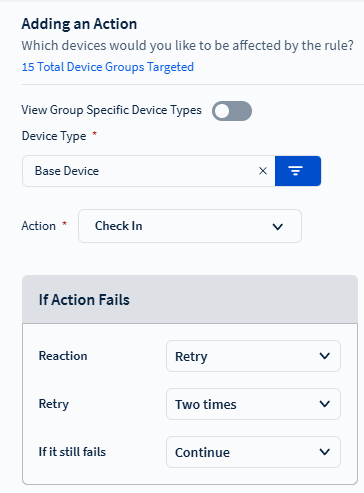
A user sets up a Check-in action to perform a device check-in.
They configure a Retry option in case the check-in fails.
If the retry fails, a Continue action handles the failure.
If both the initial check-in and retry fail, but the user anticipated these
failures, the system still marks the result as Successful at the device,
action, and rule levels.