
Enrollment Rules
About this task
Enrollment rules enable SOTI Connect administrators to enroll new devices into the system and perform initial configuration without manual intervention.
This feature reduces administrative effort by defining rules that determine:
- When devices should be enrolled: Enrollment can be triggered automatically when devices are discovered or approved.
- Which devices are eligible: Rules can be customized to specific device types or conditions.
- What happens during enrollment: Credentials, configuration actions, and other initial settings can be pre-defined.
Using Enrollment Rules, administrators can:
- Save time by eliminating the need to manually search for and enroll each device.
- Ensure consistency in device setup by applying standardized configurations to every newly enrolled device.
- Improve security and compliance by ensuring that only approved or discovered devices are enrolled according to company policies.
- Scale device management for large device fleets or multi-site deployments.
Warning: When using enrollment rules with parallel
actions, a device action may execute before the enrollment action. In this case, the
action will not be applied to the device. To avoid this issue, use "Execute
Sequentially".
Procedure
- From the SOTI Connect main menu, select Rules.
- Select Enrollment Rules from the rules type pane on the left.
-
Select
New Rule to create a new enrollment policy.
The Add New Rule window appears.
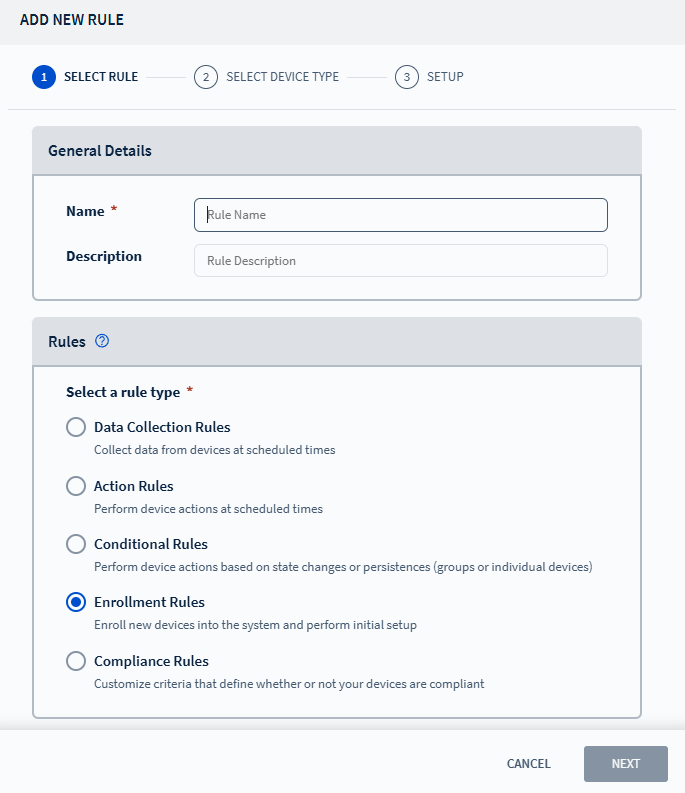
- Enter a name and description for the enrollment rule, then select Next to navigate to the Select Device Type tab.
-
Choose the applicable device type(s) for the enrollment policy, then select
Next to navigate to the Setup tab.
.png)
-
Enable the Discover Automatically toggle to auto-discover devices on the
registered Protocol Adapter (PA).
Note: If this toggle is disabled, the user must manually select Search For New Devices on the PA instance to discover new devices. See Discovering Devices for more details.
-
Configure the device enrollment behavior:
.png)
Device Event Specify the system event that triggers device enrollment: - Device is Discovered
- Device is Approved
Frequency Define how often the rule should evaluate for new devices. Start Date Set the date when the enrollment rule should become active. Start Time Set the time when the enrollment rule should become active. Username Enter the default username to assign to devices during enrollment. (SATO printers only). Password Enter the corresponding password for the username. (SATO printers only). Public Community String Enter the Public Community String details. (SNMP printers only). Private Community String Enter the Private Community String details. (SNMP printers only). - Configure any additional actions for device enrollment. See Adding Actions for details.
- Select Finish.