
Checking Device Compliance
Before you begin
About this task
In this
example, the device state is manually changed to simulate a non-compliance
condition.
Note: This example assumes a compliance rule is
assigned to the device, where setting the state to Yellow marks the
device as Non-Compliant.
Procedure
- From the SOTI Connect main menu, select Devices.
- In the Devices view, select a device included in the compliance rule.
-
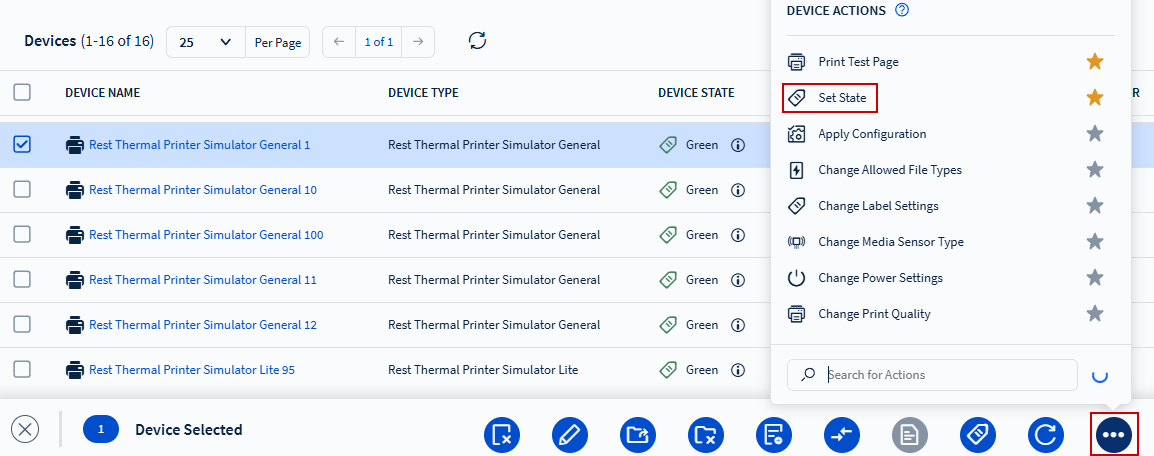
Select the button, then choose
Set State from the device actions menu.
-
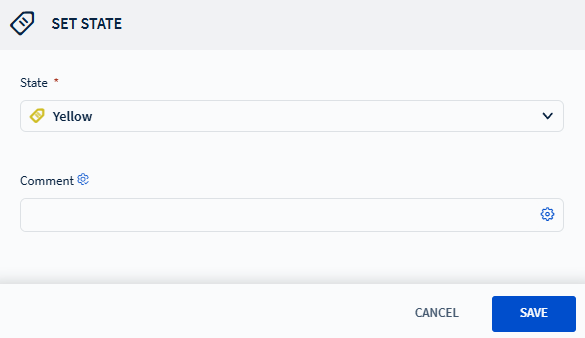
Set State to Yellow, then add an optional
comment. Select Save.
 The compliance policy flags the device as Non-Compliant.
Results
Non-Compliant | Yellow.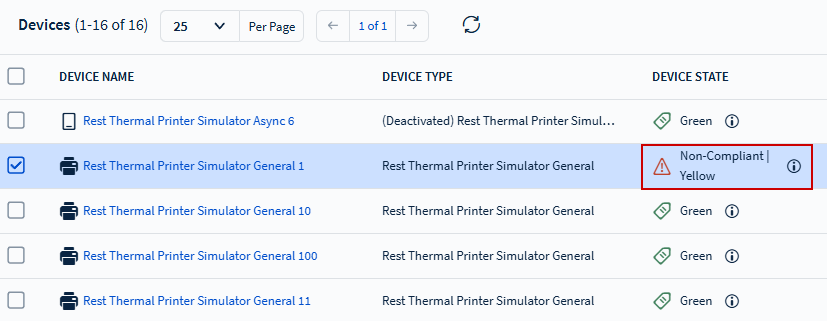
Note: The Device State column shows both the state
(Green, Yellow, or Red) and, if applicable, the non-compliant
status.
What to do next
- Select the icon to view the recent device state history.
- To view the full history, select the device, then scroll to the bottom of the Device Details tab to open the Device State History panel. See Device Details Tab for more details.