
Pushing a File Using a Conditional Rule
About this task
Procedure
- From the SOTI Connect main menu, navigate to Rules.
- In the Rules view, select New Rule.
- In the wizard, provide a name and description for the rule.
- Select Conditional Rules, then select Next.
- In the Select Items tab, choose the device(s) to which you want to push a file, then select Next.
- In the Setup tab, under the If Statements section, select the button.
- Define the conditions that must be met for this rule to be triggered, then select Add. See Using If Statement for more details.
-
From the action list, select Download File From File Store. Choose
Select File, then locate the file you want to push, then select
Add.
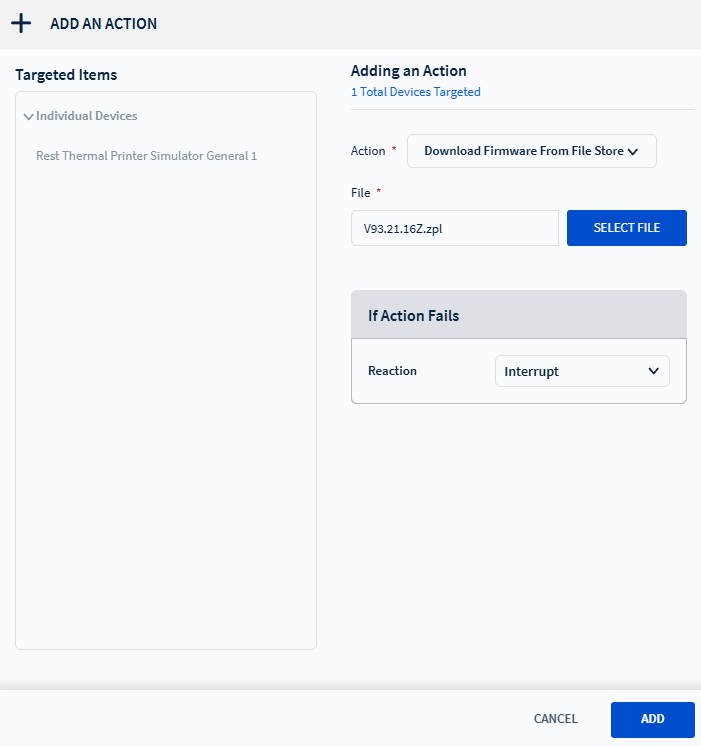 Note: Depending on the device and file type, the action may appear as Download File From File Store, Download Firmware From File Store, or a similar option.
 - Optional: In the Setup tab, under the When Statements section, select the button to define the time-based schedule for when the rule should trigger. See Using When Statement for more details.
- Select Finish to complete the wizard.