
Adding a Firmware File to the File Store
About this task
Procedure
- Navigate to . The File Store view appears.
-
Select Upload File.
The Upload File window appears.
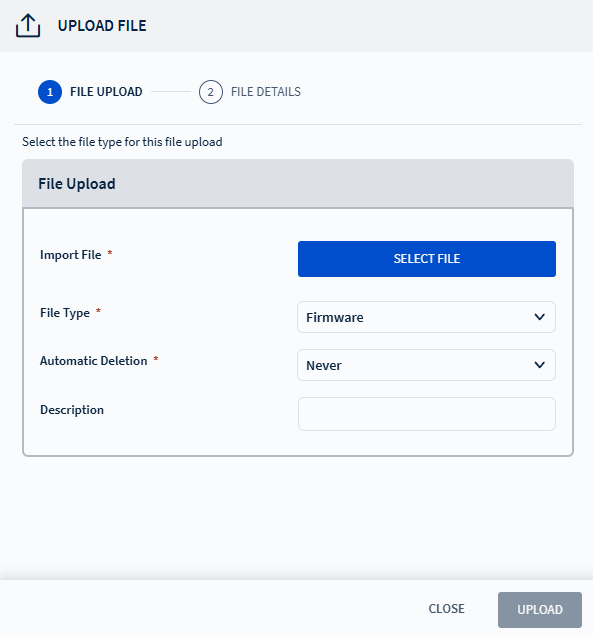
- From the File Type drop-down list, choose Firmware.
- Use the Select File button to upload the firmware file from your computer.
-
Configure Automatic Deletion:
- Never: The file remains until manually deleted.
- Date: Select a specific deletion date.
- Optional: Add a description for the file.
-
Select Upload to complete upload.
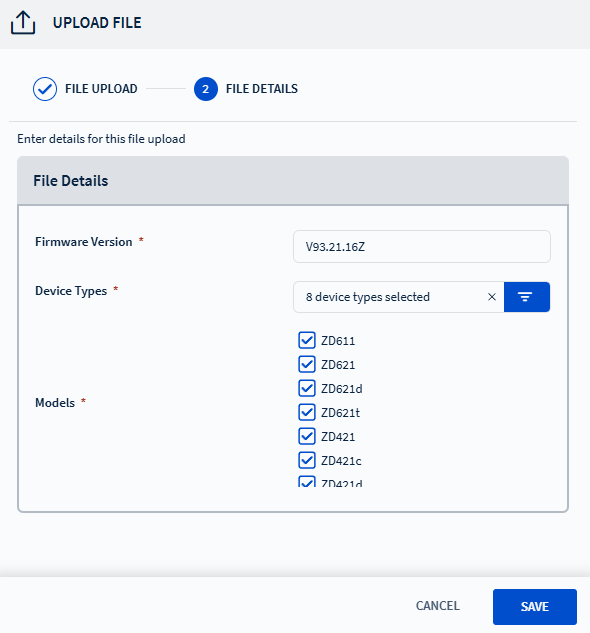
The File Details view appears.
-
Enter the Firmware Version.
Note: The firmware version auto fills if the uploaded file includes metadata for versioning.
-
The applicable Device Types and Models are auto selected.
Note: Users can explicitly select device types and models if required.
- Select Save to finish uploading the firmware file to the File Store.