
Adding an Untyped File to the File Store
About this task
Procedure
- Navigate to . The File Store view appears.
-
Select Upload File.
The Upload File window appears.
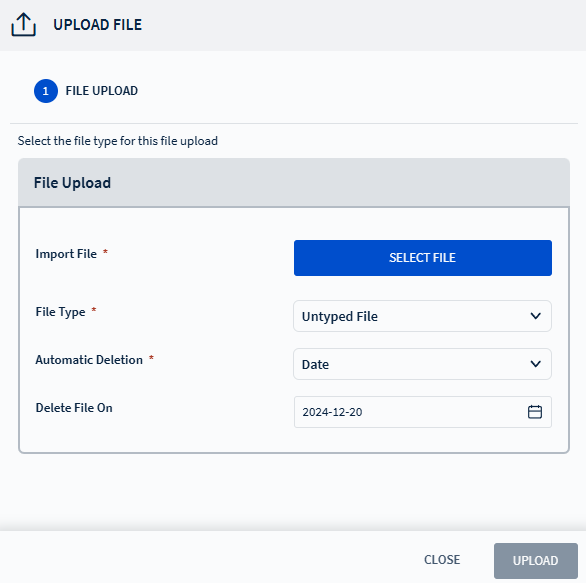
- From the File Type drop-down list, choose Untyped File.
- Use the Select File button to upload the file from your computer.
-
Set the automatic file deletion date:
- Never: The file remains until manually deleted.
- Date: Select a specific deletion date.
- Optional: Add a description for the file.
- Select Upload to complete upload.
- Select Done to close the Upload File window.