
Pushing a File Using a Device Action
About this task
Note: To prevent
performance issues, avoid downloading firmware files larger than 350 MB on multiple
devices at once.
Procedure
- From the SOTI Connect main menu, navigate to Devices.
- In the left pane, select the device group that contains the target device(s). The devices in the selected group appear in the right pane.
-
In the right pane, do one of the following:
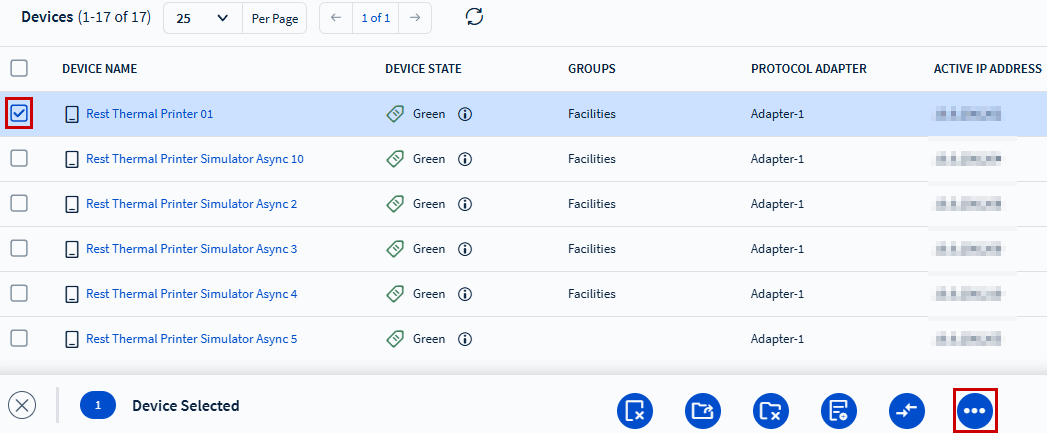
- Select the checkbox beside one or more devices. The Device Action
Bar appears.
- Select a device name. The Device Information panel opens.

- Select the checkbox beside one or more devices. The Device Action
Bar appears.
- In the Device Action Bar or the Device Information panel, select the More button to open the Device Actions menu.
-
From the menu, select Download File From File Store. The Download
File From File Store dialog box opens.
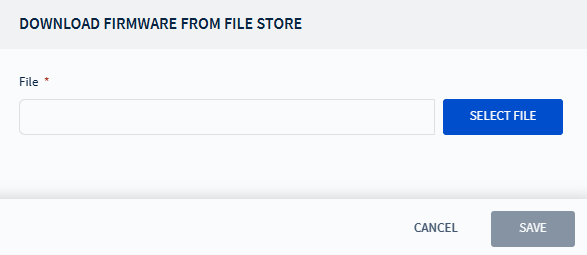 Note: Depending on the device and file type, the action may appear as Download File From File Store, Download Firmware From File Store, or a similar option.
 - In the dialog box, choose Select File, then locate the file you want to push to the device.
- Select Save.