
Bulk Import of Custom Attribute Values
About this task
Important:
- Existing values are overwritten by values in the bulk import file.
- If duplicate entries exist in the import file, the last processed entry is used.
- Rules trigger once at the end of the upload for all applicable devices.
- This feature does not automatically create custom attributes. It assigns values only to attributes that already exist in the system.
Procedure
-
From the SOTI Connect main menu, navigate to .
- Select the Bulk Import Custom Attribute Values icon.
- The Bulk Import Custom Attribute Values window opens.
- Select Upload to import the bulk custom attribute import file. See File Format for the Bulk Custom Attribute Values Import File for details.
- Select Submit to upload the file.
-
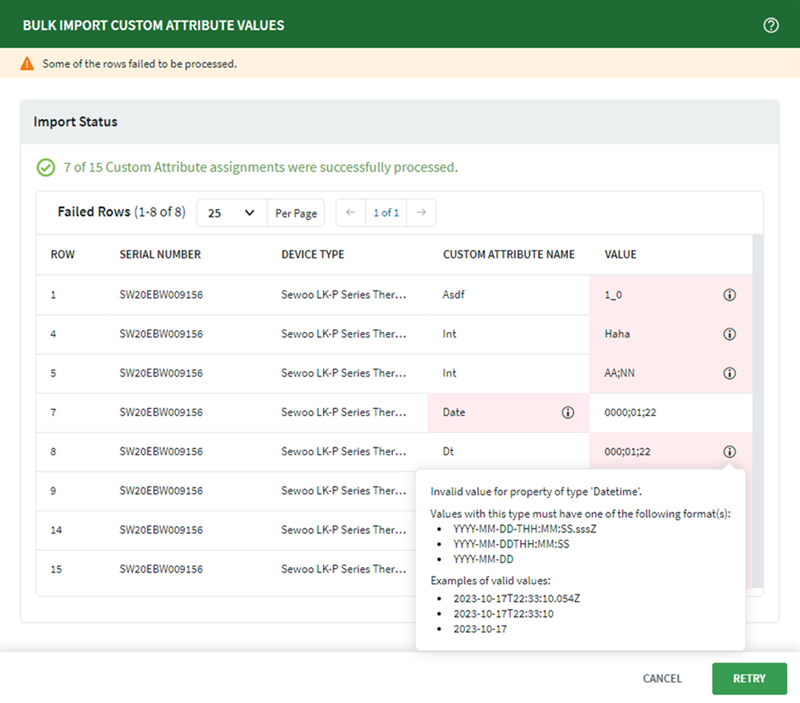
Review the results. The status of the bulk import displays, including the
number of successful assignments and a table containing diagnostic information
about any custom attribute value assignments that were not processed. One column
per failed row in the bulk import custom attribute values file displays in red
and includes an Information
icon. Select the information icon in each row
to view diagnostic details. Selecting the Information icon opens a pop-up
display with diagnostic information on why this row was not processed.
-
Resolve any errors using the diagnostic information, then select Retry
to re-upload the corrected file.
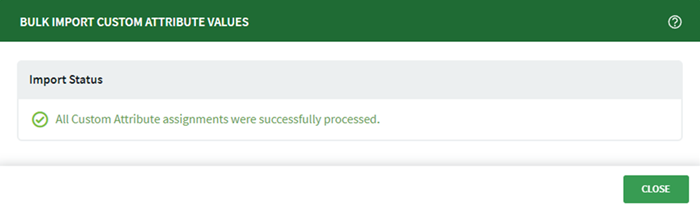
- Once the import is successful, select Close.
Results
File Format of the Bulk Custom Attribute Values Import File
About this task
- The import file must be in .csv format.
- Administrator permissions are required to perform this operation.
- The .csv file must follow this column
order:
serial number, device type name, property name, property valueNote: Headers are optional but the column order must be maintained. - The Device Type Name must match the one associated with the given serial number.
- Maximum file size: 100,000 rows.
- Supported value types: Text, Integer, Float, Boolean, Datetime, Geolocation, and IPv4 Address.
Value Format Examples
- Datetime accepted formats:
YYYY-MM-DDTHH:MM:SS.sssZ,YYYY-MM-DDTHH:MM:SS,YYYY-MM-DD. For example,2023-10-17T22:33:10.054Zor2023-10-17 - Geolocation accepted format:
latitude;longitude;altitude(values separated by semicolons). For example,27.2;35.6;409.
Note: Use the American numeric format for
decimal values (for example,
25.5, not
25,5).