This task provides instructions on creating a Certificate Authority (CA) in
SOTI Connect.
Procedure
From the SOTI Connect main menu, select
Administration.
In the left pane, select Device Certificates and Certificate Authorities > Certificate Authorities.
Select
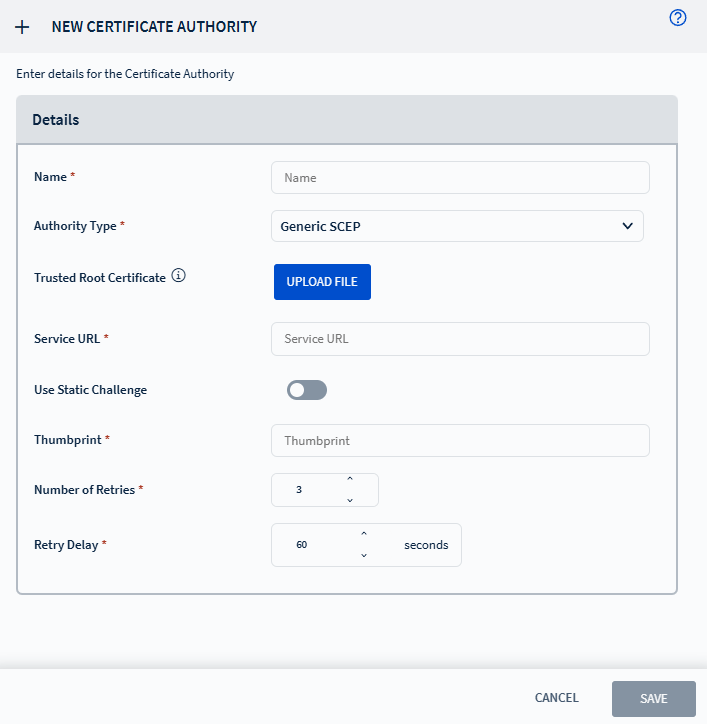
New Certificate Authority. The New Certificate Authority window
appears.
Enter a name for the certificate authority.
Select the authority type from the list:
Generic SCEP
ADCS
EJBCA
Add the trusted root certificate. Select Upload File to locate the
file.
Enter the Service URL details.
Optional: Enable Use Static Challenge, then enter the Static Challenge Key
details.
Enter the thumbprint details for the certificate authority.
Configure the number of retries and retry delay.
Select Save.
Results
The Certificate Authority is created and available for
issuing and managing device certificates in SOTI Connect.
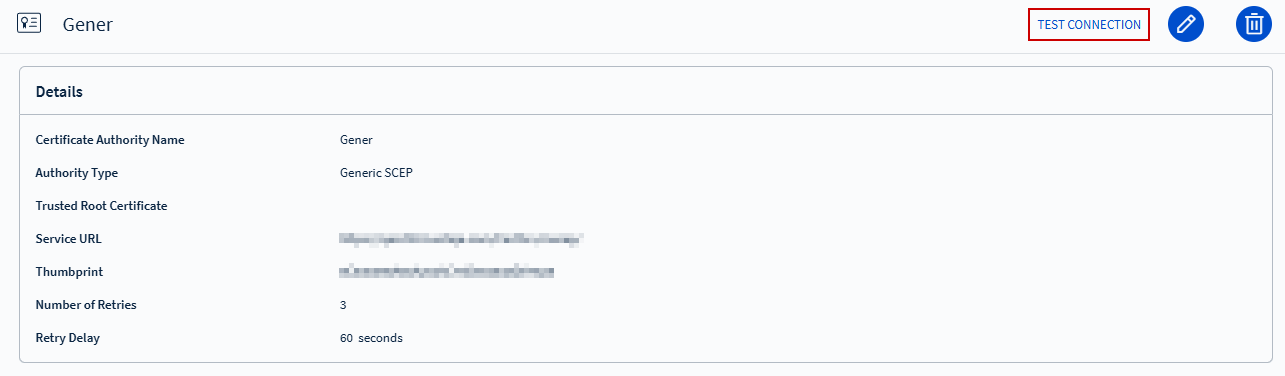
Select
the configured Certificate Authority, then select Test Connection to verify
connectivity.
If your CA template connects successfully, you will see a "Connection
Succeeded" message.
If your CA template does not connect, you will see a "Connection Failed"
message. Check that your service URL is correct and active, and that your
static challenge key and thumbprint are correct.