
Updating SOTI Connect System Certificates
About this task
- Upload a root certificate from a trusted certificate authority.
- SOTI Connect generates child certificates for each component.
- SOTI Connect deploys and activates the certificates across the system.
Note: After you update certificates using the SOTI Connect
installer, restart all services for the changes to take effect.
Tip: Certificates can also be managed using the SOTI Connect installer. See Configuring Components for details.
Procedure
- From the SOTI Connect main menu select Administration. The Administration view opens.
-
On the left pane, select Certificate Management. The Certificate
Management view opens.
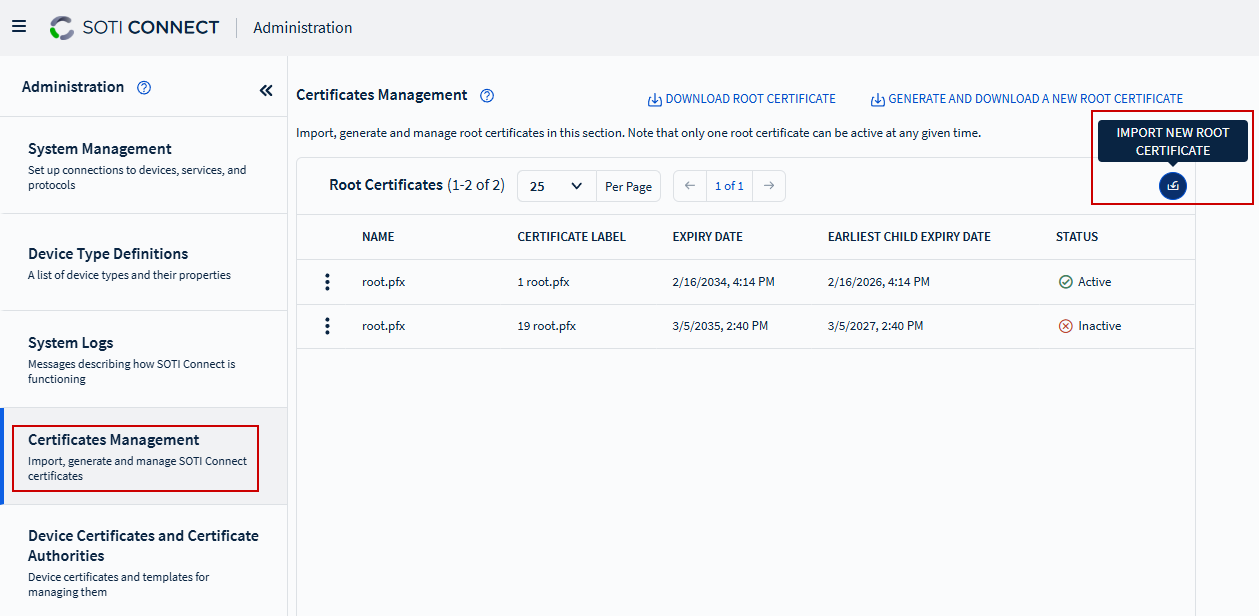
- On the right pane, select Import New Root Certificate. The Import New Root Certificate dialog box opens.
-
Select Upload File and choose the root certificate file.
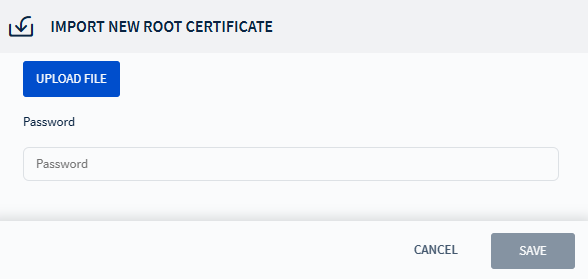 Note: Only upload PFX format files obtained from a trusted certificate authority.
 - Enter the password, if the uploaded certificate requires one.
- Select Upload. The dialog box closes, and the root certificate appears in the list.
-
From the menu beside the uploaded root certificate, select
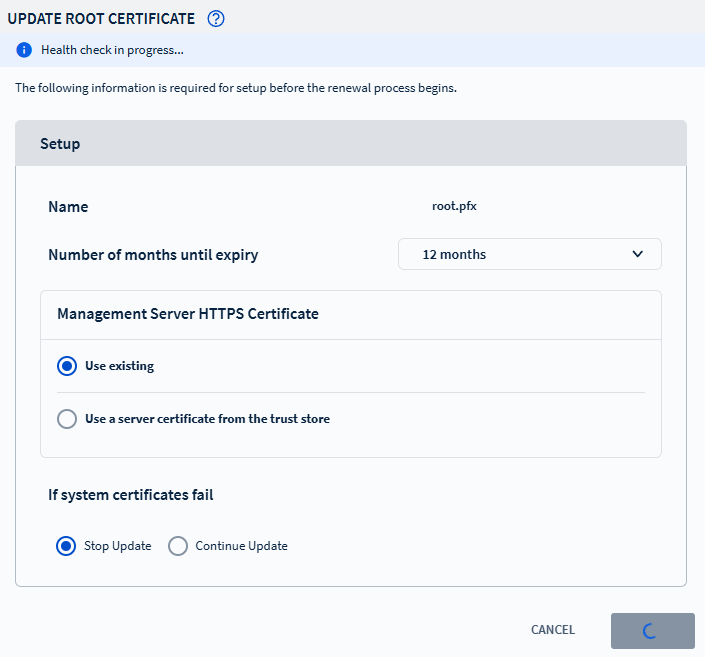
Update. The Update Root Certificate dialog box opens.
-
Configure the following options:
Number of Months Until Expiry Select the timeframe (months) for generated child certificates to expire. Management Server HTTPS Certificate Choose one of the following:: - Use Existing
- Use a Server Certificate From the Trust Store
If System Certificates Fail Choose how the system should respond if an error occurs during the update: - Stop Update
- Continue Update
Note: SOTI recommends selecting Stop Update for clear visibility into failed steps and corrective actions. - Select Update.
Results
Troubleshooting: If an error occurs, a list of successful and
failed actions appears with the following options:
- Abort: Roll back to the previous certificate set.
- Override: Ignore errors and continue updating remaining components.
- Retry: Repeat the failed action.
- Continue Update: Generate, deploy, and activate certificates while disregarding errors.