Deleting a Device
About this task
Warning: Deleting a device permanently
removes all historical data associated with that device. If the device is
re-enrolled, it registers as a new device.
Tip:
- Use Unenroll if you want to temporarily stop managing a device while keeping the option to re-enroll it later. See Unenrolling a Device for details.
- Use Delete if you want to permanently remove the device from SOTI Connect.
You can delete devices from SOTI Connect using two
methods:
From the Rejected or Unenrolled View
Procedure
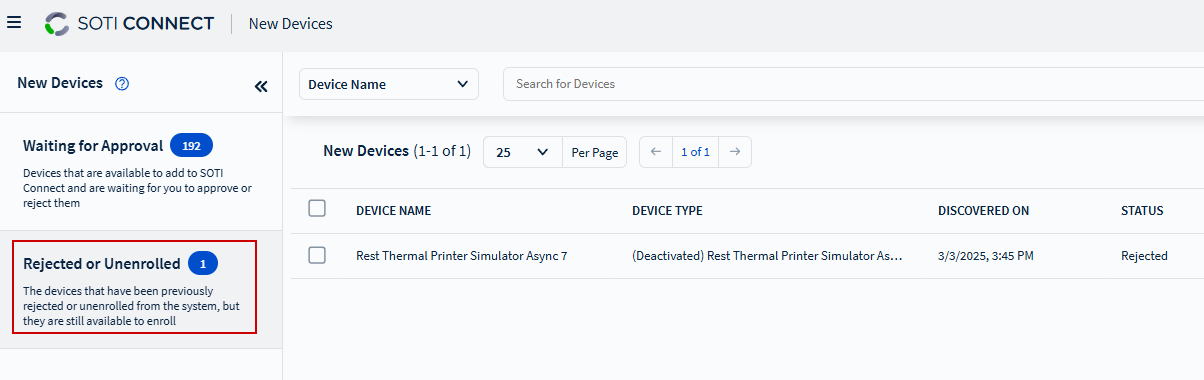
- From the SOTI Connect main menu, select New Devices. The New Devices view opens.
-
In the left pane, select Rejected or Unenrolled view.
-
In the right pane, select the checkbox next to the device(s) you want to
delete. The device action bar appears.
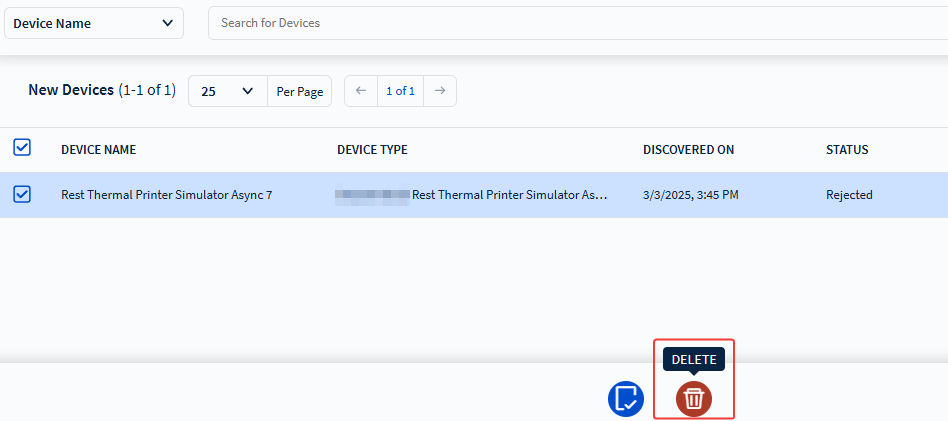
- On the device action bar, select Delete. A confirmation dialog box appears.
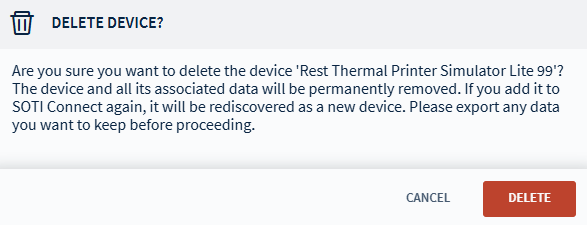
- In the confirmation dialog box, select Delete.
Deleting a Device Using Device Action
About this task
Procedure
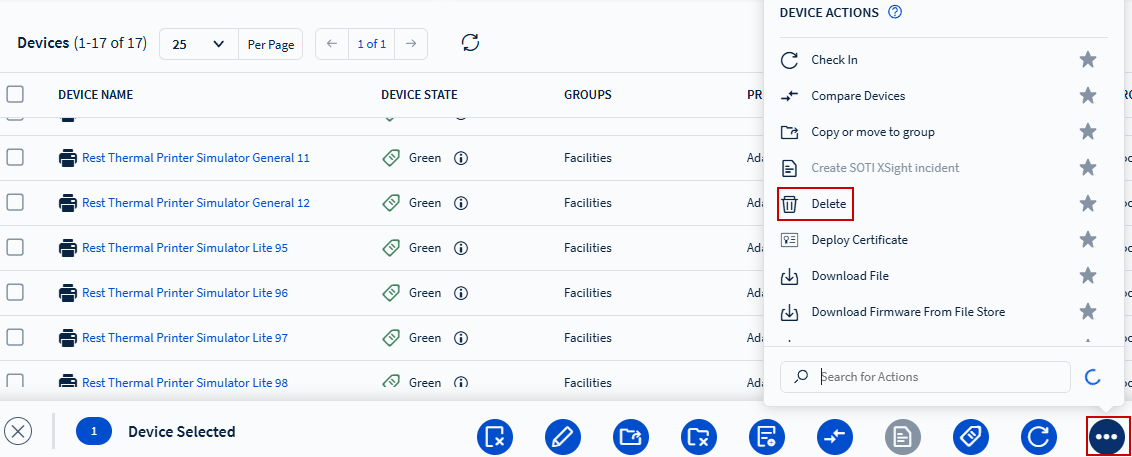
- From the SOTI Connect main menu, select Devices. The Devices view opens.
- Select the device you want to delete.
-
Select
More and choose
Delete.
-
In the confirmation dialog box, select Delete.