
Managing User Passkeys as an Administrator
As a SOTI Identity administrator, manage a user's passkeys to prevent unauthorized access.
Before you begin
About this task
Administrators can disable a user's passkey authentication from either the Users list or the User Details window. Delete or deactivate a user’s passkeys immediately if suspicious login activity is detected to prevent unauthorized access to the application.
Procedure
- Log in to the SOTI Identity console as an administrator.
-
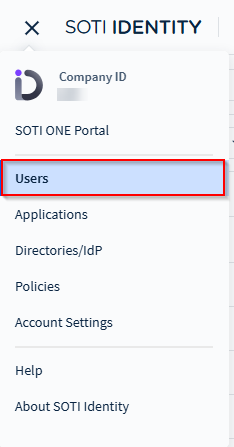
Select the main menu (), then select
Users. The Users section
opens.
- From the Directory dropdown, select SOTI Identity.
-
Choose one of the following methods to open the Revoke
Passkeys window:
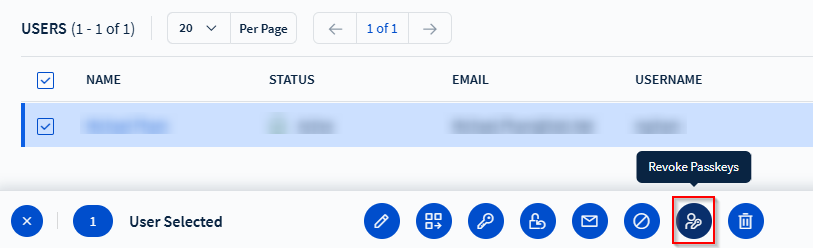
- From the Users list:
- Select the checkbox next to the user.
- In the action bar, select Revoke
Passkeys.
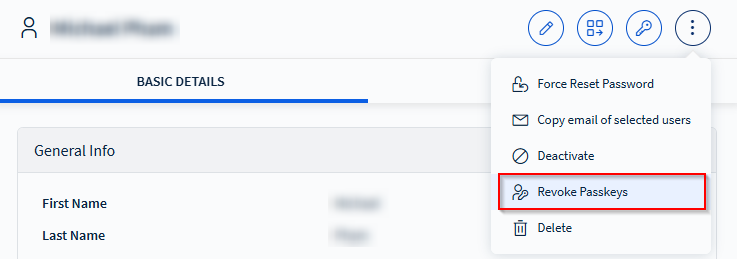
- From the User Details window:
- Select the username to open the User Details window.
- Select More (), then select
Revoke Passkeys.
- From the Users list:
- In the Revoke Passkeys window, select the passkey you want to manage.
-
Choose one of the following actions:
- Deactivate: Temporarily deactivate the passkey. The user cannot use it
to sign in until you enable it again.Note: The passkey cannot be deleted from the user's end until it is reactivated by the administrator.
- Activate: Reactivate a previously deactivated passkey to restore user access. Once activated, the user can use the passkey to sign in again.
- Delete: Permanently remove the passkey from the user's account.
- Deactivate: Temporarily deactivate the passkey. The user cannot use it
to sign in until you enable it again.