
Configuring User Session Timeout
Set a custom time period to end inactive user sessions and improve session management in SOTI Identity.
Before you begin
About this task
By default, users were logged out automatically after a fixed inactivity period, without warning, causing unexpected logouts and potential data loss. The User Session Timeout setting enables administrators to define a specific duration for user session expiration. A built-in timeout prompt now alerts users before automatic logout, allowing them to stay signed in or save their work. You can find this setting by navigating to .
Procedure
- In SOTI Identity, from the main menu and navigate to .
-
Enter the desired duration in hours in the End User Session
After field.
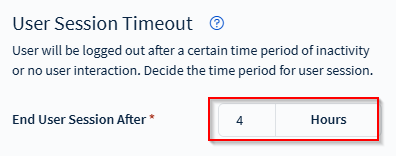 Note: You can enter a time period of 1 to 12 hours.
 - Select Save.
Results
SOTI Identity automatically ends inactive user sessions after the configured amount of time. Users receive a prompt before timeout, allowing them to stay signed in or save their work.