
Backup and Restore Operations in SOTI Connect
Before you begin
- Sign in to the server as an administrator.
- Ensure you have permissions to run the SOTI Connect installer and perform backup or restore operations.
- Verify that you have a working SOTI Connect instance and a
valid SQL database backup (
SotiConnectManagementServer). - If the backup file is stored on a network share, ensure the SQL Server service account has read access.
About this task
System Copy Tool
Use the System Copy Tool to backup and restore your SOTI Connect instance. The tool creates a one-to-one replica of your SOTI Connect system, preserving all configurations, enrolled devices, and associated data. This is useful for:- Testing and troubleshooting
- Debugging
- Performing upgrades without affecting the production environment
Note:
- The System Copy tool is available in SOTI Connect 2025.0.2 and later (backward compatible with 2024.0 and later).
- Backup and restore options are hidden in the installer. To enable them, hold
Ctrland double-click anywhere on the first installer screen.
A SOTI Connect backup includes:
- Database backups (
.bak) and database properties (for example, recovery model, collation) - SQL Server configuration properties (for example, global timeouts, min/max memory)
- ProgramData files for each SOTI Connect component (configurations, logs, and encryption certificates)
- All File Store files
- Root and HTTP certificates
- A manifest file with details required for restoration
Important:
- The
.backupfile is encrypted. During restoration, it is decrypted to disk and securely deleted once the process completes. - Windows Trust Store certificates are not included and must be manually imported on each target VM.
- Backups are extracted fully to local storage before cleanup.
For detailed procedures, see:
ConnectUserCopy Utility
The System Copy tool also includes
ConnectUserCopy utility, which supports migration or cloning of
user-related data between SOTI Connect instances. It is
typically used for replicating key configuration and user settings during migration,
testing, or environment duplication. Supported data types include:
- User settings
- Configurations
- Rules and Rules History
- Custom attributes
- Certificate templates
- SMS and email templates
- Device data, including device state, device groups, and certificate metadata
Restriction: ConnectUserCopy does not copy
files or file storage data, device history or telemetry data, encryption
certificates, Global Settings, or Tenant ID.
Database-Level Restoration (Manual Method)
Use this procedure to restore a SOTI Connect database to another machine using a manual SQL and
file-based restoration. Use this method when:
- A full system backup is unavailable
- Performing an advanced manual clone
Requirements:
- Valid SQL database backup (
.bak) - ProgramData folder from the source system (containing certificates, configuration files, and ComponentIdStore.dat)
Important:
- Always unregister API instances on cloned environments to prevent conflicts with the production SOTI Connect instance.
- For distributed restore environments, follow this restoration order: SQL → Primary MS → Failover MS and other components.
- Preserve ProgramData\Certificates and ProgramData\Config folders.
- Restored instances do not reconnect to Protocol Adapters (PAs) or Identity Provider (IDP) by default. They must be reconfigured.
Manual Restoration Procedure:
- Restore the SQL database under a new name on SQL Server (for example, TestMsDb).
- Install the same version of SOTI Connect as the source instance. Verify the build version in ProductVersionStore.dat or the restored database.
- Overwrite the ProgramData paths on the target machine with files from the source instance.
- Re-extract the Device Type Definitions (DTD) using
PowerShell:
ExtractDtdFromDatabase.ps1
- Disable IDP integration if enabled.
- Update the SSL certificate thumbprint if the original certificate from the TrustStore certificate is unavailable.
- Reset the Administrator password via SQL, if necessary.
- Update the clientId file for front-end authentication.
Back Up Procedure for All-in-One Installation
Procedure
- Launch the SOTI Connect installer as an administrator.
-
Hold
Ctrland double-click anywhere on the SOTI Connect Setup screen to reveal more options.Additional options appear.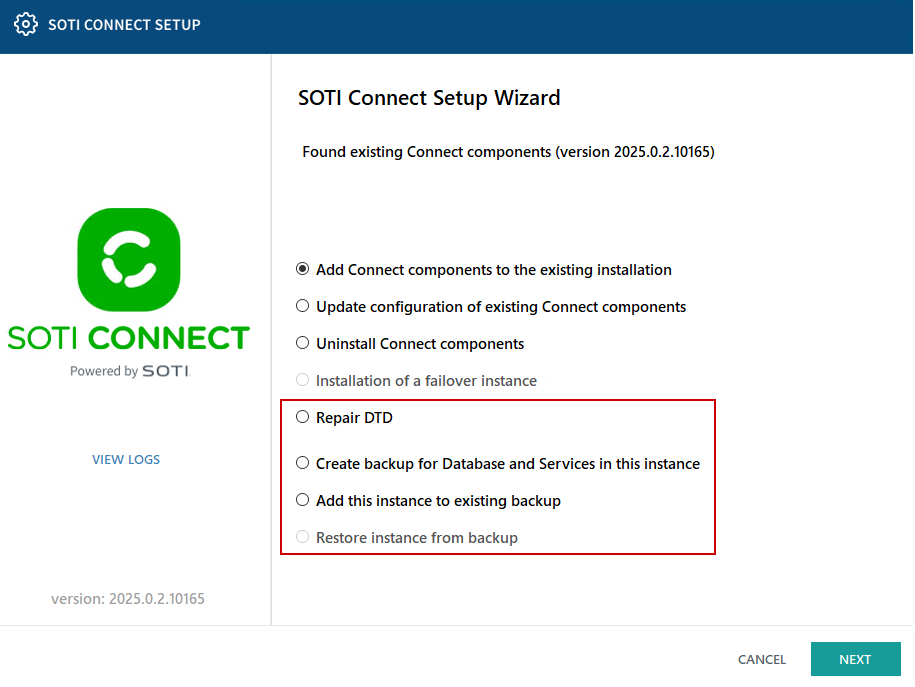
- Select Create Backup for Database and Services in This Instance.
- Select Next and follow the installer prompts.
Results
- The backup file is saved to your chosen location.
- A restoration key appears on screen, record and store it securely.
Back Up Procedure for Distributed Installation
Procedure
- Stop all SOTI Connect components on every VM.
-
On the SQL database VM, launch the SOTI Connect
installer as an administrator.
Important:
- If the Management Server and SQL Server are on the same VM, run the installer there.
- If SQL Server is on a different VM, run it on that VM.
- SQL backups are only accessible locally.
-
Hold
Ctrland double-click anywhere on the SOTI Connect Setup screen to reveal more options.Additional options appear.
- Select Create Backup for Database and Services in This Instance.
- Copy the backup file to the next VM and run the SOTI Connect installer.
- Choose Add This Instance to Existing Backup.
- Repeat for all VMs hosting SOTI Connect components.
Results
Restoring Procedure for All-in-One Installation
Before you begin
- Stop Watchdog services on all VMs before performing restoration.
- Keep the restoration key and backup file accessible on each VM.
Procedure
- Copy the backup file on each VM.
- Launch the SOTI Connect installer on each VM as an administrator.
-
Hold
Ctrland double-click anywhere on the SOTI Connect Setup screen to reveal more options.Additional options appear.
- Select the Restore Instance From Backup option and provide the backup file and key.
- Provide credentials for the target SQL server.
-
Update the hostname to the VMs Fully Qualified Domain Name (FQDN), unless
debugging.
The installer pre-fills the hostname, port, and certificate details from the backup.
- Complete the restore process.
Results
Note:
- After restoring, cloned Protocol Adapters (PAs) will connect to API instances from the original installation.
- If original and clone PA are running at the same time, it could cause issue when both trying to process message from same API instance.
- Always unregister API instances on the clone to prevent issues.
Restoring Procedure for Distributed Installation
Before you begin
Procedure
- Copy the backup file on each VM.
- Run the SOTI Connect installer on each VM as an administrator.
-
Hold
Ctrland double-click anywhere on the SOTI Connect Setup screen to reveal more options.Additional options appear.
-
Select the Restore Instance From Backup option and provide the
backup file and key.
Important: Restore in the following order:
- SQL Database backups
- Primary Management Server (MS)
- Failover MS and other components (make sure the primary MS is running)
- Provide credentials for the target SQL server.
- Update the hostname to the VMs Fully Qualified Domain Name (FQDN), unless debugging.
-
Complete the restore process.
Note: As with all-in-one installations, unregister API instances on the cloned system to prevent conflicts with the original.
Results
Note:
- After restoration, cloned Protocol Adapters (PAs) connect to the original API instances (MQTT server, hub, etc.)
- If original and clone PA are running at the same time, it could cause issue when both trying to process message from same API instance.
- To prevent issues, always unregister API instances on the cloned system before using it.
What to do next
Troubleshooting: If the Management Service (MS) cannot
connect to the File Store (FS) after restoration, see SOTI Connect Component Issues for
resolution steps.