Register Devices for Microsoft Authenticator SSO (Android)

Register Android devices with Microsoft Entra ID to enable automatic sign-in to Microsoft Authentication Library (MSAL) apps using Microsoft Authenticator Single Sign-On (SSO).

Before you begin

Complete all previous configuration steps:
  1. Add a Microsoft Authenticator SSO Payload (Android)
  2. Connect Microsoft Entra ID for Microsoft Authenticator SSO (Android)
  3. Configure Conditional Access for Microsoft Authenticator SSO (Android)
  4. Deploy the Microsoft Authenticator SSO Payload and Application (Android)

About this task

This is the final step of configuring Microsoft Authenticator SSO for Android devices. See Configuring Microsoft Authenticator SSO (Android). In this step, end users register their devices with Microsoft Entra ID to enable seamless sign-in to MSAL-based apps such as Microsoft Teams or Outlook.

Procedure

  1. On the device, navigate to the SOTI MobiControl Android device agent.
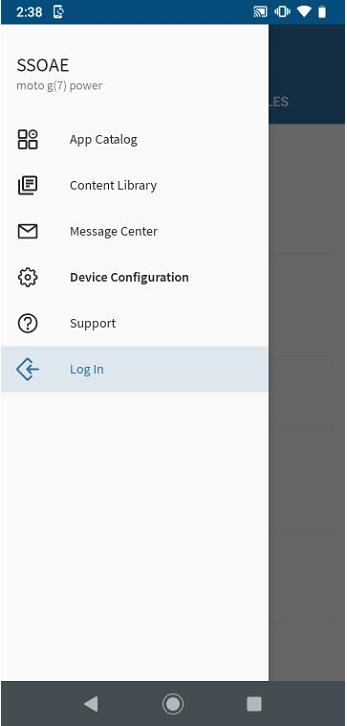
  2. Select Log In from the main menu.
    Single Sign-on log in screen on device

Results

A successful login message confirms that the user signed in with their Microsoft Entra ID account and that SSO is active.

What to do next

Open any deployed MSAL application, such as Microsoft Teams. The user is automatically signed in using their Microsoft Entra ID credentials.
Important: Download apps using an app policy, not Microsoft Package Manager.