
Lockdown | Using the Configuration
About this task
Tip: Consider using a Feature Control
profile configuration with Lockdown to further control device functionality or
adding a custom app built by SOTI Snap.
This section includes the following topics:
- Lockdown Menu Templates
- Customizing Lockdown Menu Templates
- Displaying Notifications for Lockdown Menu Items
Important: Specific configuration options may
vary across platforms when configuring a Lockdown profile. For details on all
available options for your platform, review the appropriate topic from the
following:
To configure a Lockdown profile configuration:Procedure
- Create a new profile. On the Profiles view, select New Profile and choose the platform of the devices you want to apply Lockdown to.
-
On the Configurations tab, select (Add New Configuration) on the upper right
to add an Authentication profile configuration with a
Device Administrator Password configured.
The Device Administrator Password can override and dismiss the lockdown mode on the device as needed. You can also configure a User Password Policy. If you do not specify a user password policy, device users can access the lockdown menu immediately after turning on the device.Note: Configure authentication from within the Lockdown profile configuration for Windows Desktop Classic and Windows Modern devices.
-
Select (Add New Configuration) again, and
this time, select Lockdown from the Restrictions
column.
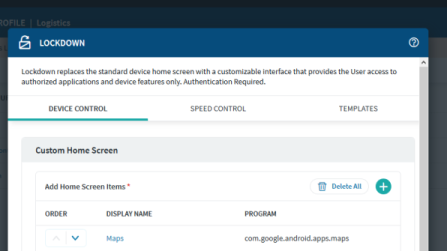
Important: Most devices types support two types of lockdown: Device Control and Speed Control. Device Control applies static lockdown settings, while Speed Control applies lockdown dynamically when the device exceeds the speed specified in the profile configuration. You can choose to configure only Device Control or use both. However, when Speed Control is active, it overrides any settings specified in Device Control.
-
While on either the Device Control or Speed
Control tab, select
New under Custom Home Screen to add
a new home screen item.
Important: Available home screen items are the authorized apps when a device is in Lockdown mode. Device Control home screen items and Speed Control home screen items are distinct. If you wish to have the same home screen items when using both Device Control and Speed Control, you must configure both screens.Note: Available options differ across platforms.
-
Enter a Display Name and a home screen item identifier for the home screen item.
The
home screen item identifierdiffers between platforms but is typically the name of the package, a path to the program, or a URL. - Select OK to save the home screen item to the lockdown configuration.
- Optional: Repeat with more home screen items that you want to appear on the device screen.
- With Speed Control, use Advanced Speed Control Settings to set the time interval and speed range during which lockdown engages. You can also set scripts to execute when the device enters or exits Speed Control.
-
Choose a template from the Template dropdown list.
Templates are HTML files that dictate how the device's home screen items display when in lockdown mode. You can use a template provided by SOTI MobiControl or create your own.
Learn how to create your template at Customizing Lockdown Menu Templates.
- Configure any other applicable Lockdown settings.
- Once you're satisfied with your Device Control or Speed Control settings, select Save to save the Lockdown profile configuration to the profile.