
Uploading Files and Folders
About this task
Note: You can upload folders
only to devices with the Agent version 14.5.1 or above.
Note: Files are uploaded in their original form, while folders are
downloaded as ZIP files.
Procedure
To upload files or folders:
-
Access the File Manager (see Displaying the File Manager).
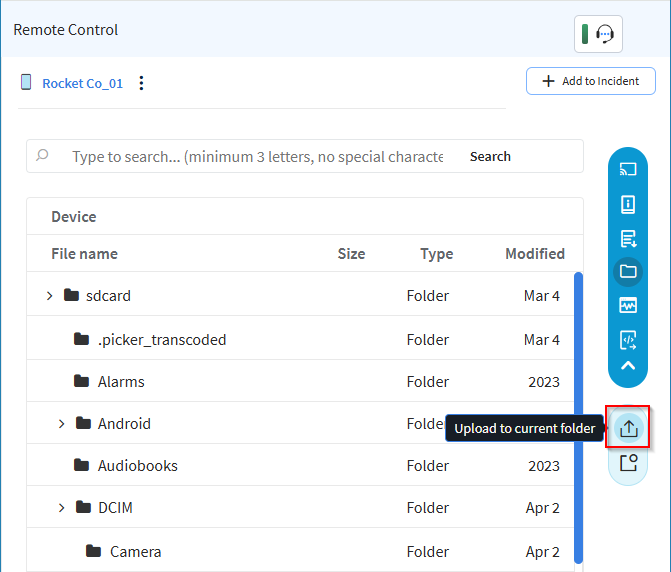
- Locate and select the destination folder. For procedure, see Viewing Files and Folders.
-
On the File Manager toolbar, select the
Upload icon (red box) to open the
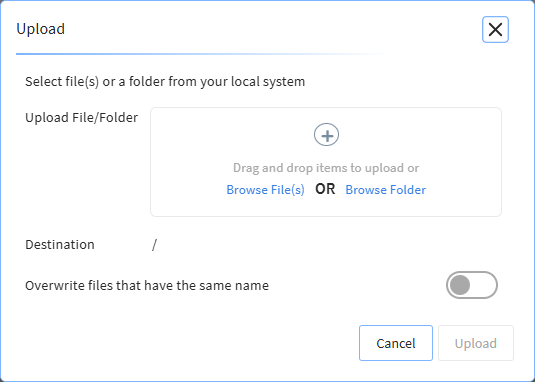
Upload dialog box.
-
Do one of the following:
- Drag files and/or folders into the Upload File/Folder field.
-
Select the Browse File(s) or Browse Folder link in the Upload File/Folder field, then select file(s) or a folder to upload.
Note: The Browse File(s) option enables selection of files only (no folders). Multiple files can be selected with Ctrl-click or Shift-click. The Browse Folder option enables selection of a single folder only.