
Displaying the File Manager
About this task
Here’s what it enables you to do:
-
Browse the device’s file system remotely in a familiar folder-tree layout.
-
Upload, download, rename, or delete files on the device.
-
Transfer logs or configuration files to and from the device for diagnostics.
-
Perform file operations during a remote support session, improving issue resolution speed.
Procedure
To access the File Manager
-
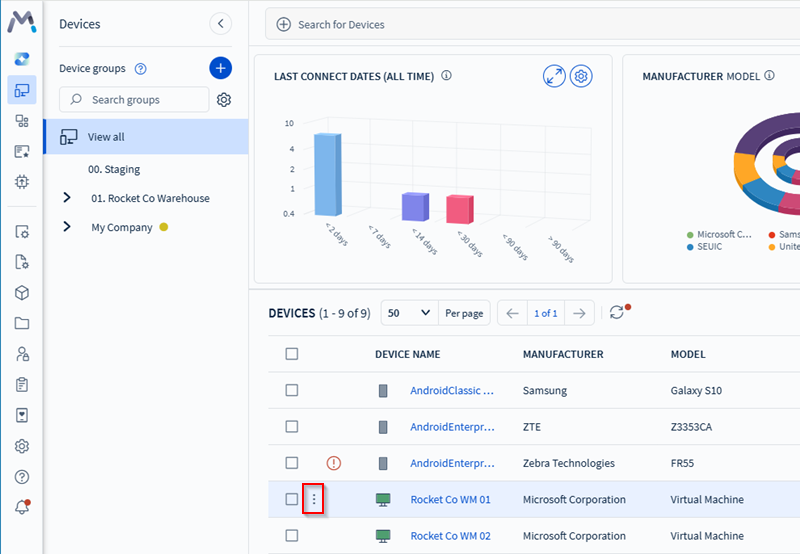
In the SOTI MobiControl console, hover on the device that has
the files you want to view and select the more () icon that
appears.
-
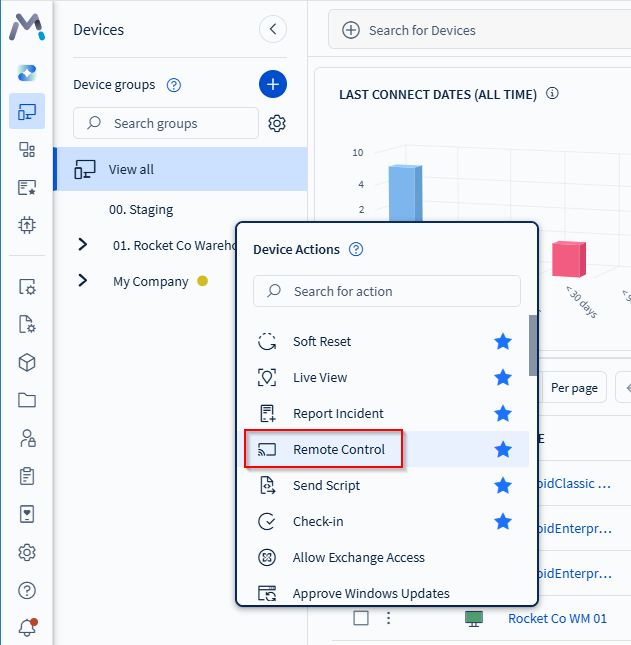
Select the Remote Control button in the popup
menu.
-
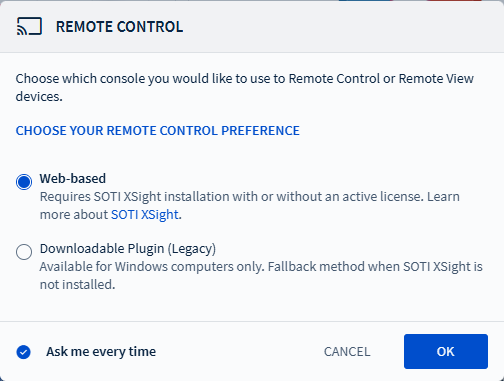
In the Remote Control popup panel, select whether to access SOTI XSight File Managerusing a browser or the downloadable legacy
plugin.
-
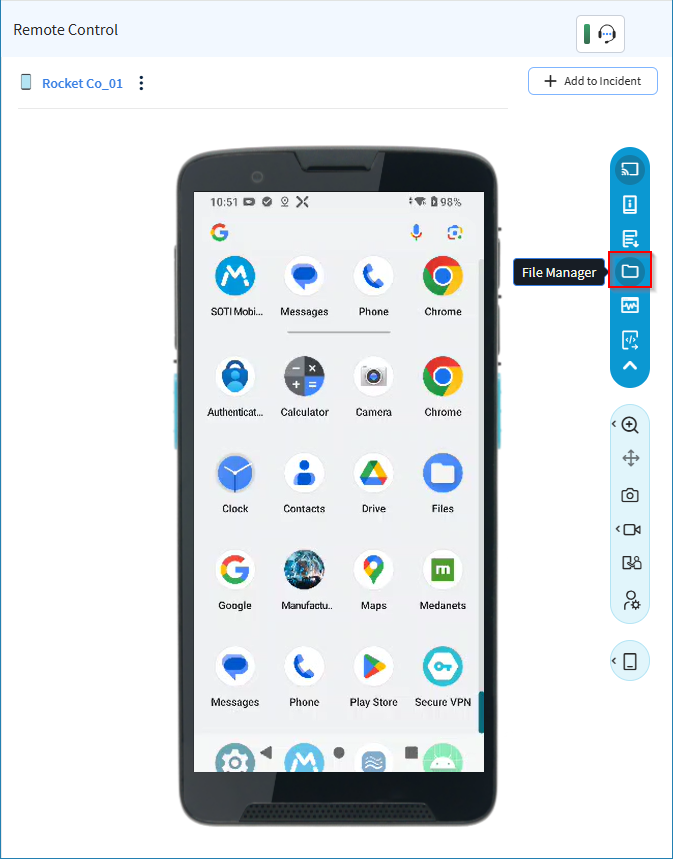
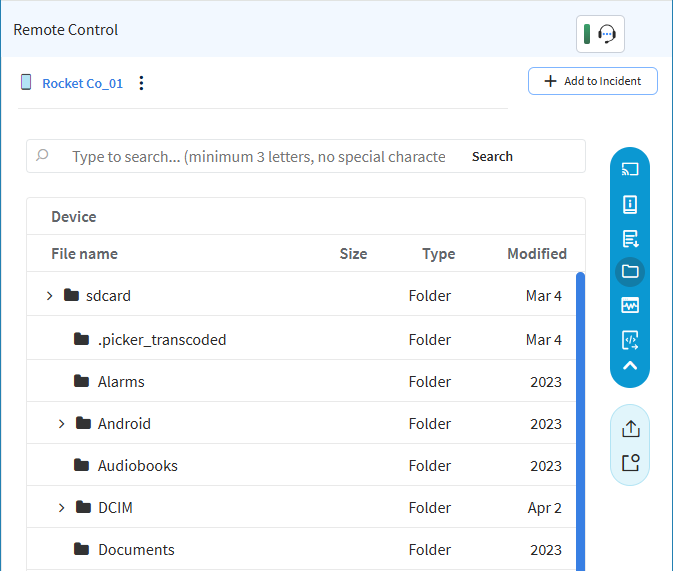
In the Remote Control screen, select File Manager.
-
You can now access the device's file system. Browse through the folders and
double-click any file to download it.. To upload files, see Uploading Files and Folders.
- Alternatively, in the SOTI XSight console:
- Find and open the incident associated with the device whose files you want to view or manage.
- In the Association panel, select the Remote Control icon.
- In the Remote Control page that opens, select the File Manager button.
Results
The device file system displays in the File Manager screen.