Adding iOS Devices |
To Add iOS Devices you need to create an Add Devices Rule and then provide your users with instructions to enroll their devices.
Add devices rules allow MobiControl to name devices, place devices in the appropriate device group, and to generate a customized Enrollment ID that, when enrolled by the user, allows MobiControl to manage the devices.
To create an add devices rule, select the Apple iOS Tab within MobiControl Web Console, then select the Rules Tab. Right-Click the Add Devices Rules folder and select Create Add Devices Rules.

Apple iOS Tab
The steps below describe how the Create Add Devices Rule Wizard can be used to create an add devices rule:
- Start the Wizard
Select the Rules Tab, from the Apple iOS Tab, then Right-Click the Add Devices Rules folder and select Create Add Devices Rules. The first page of the Create Add Devices Rule Wizard will be displayed.
Enter a descriptive name for the add devices rule you are creating and click Next.
- Choose an Enrollment Option
Decide how your devices are placed into device groups.
Option Name Description Manual Choose a specific Device Group in which to place the devices enrolled using this rule. Based on LDAP Group Membership Map LDAP Groups to Device Groups. Devices used by members of specified LDAP group will be placed in a corresponding device group.
You can also use an Identity Provider that is backed by LDAP to enroll your devices. Note: The Apple Device Enrollment Program (DEP) does not support SAML, therefore you cannot use DEP with an IdP connection.
On the next screen you must specify your chosen LDAP group and the corresponding Device Group. Multiple LDAP groups may be added.
- Configure the Enrollment Option
Option Name Description If you chose Manual as your Enrollment Option Expand the device group tree and select a device group. Devices enrolled with this add devices rule will be placed into the selected device group upon enrollment. If you chose Based on LDAP Group Membership as your Enrollment Option Use the radio buttons to select either an LDAP or IdP connection to enroll your devices. You can add new LDAP and IdP connections to MobiControl by clicking the dropdown list and selecting Manage Directory Services/Manage IdP Connections. Once you have chosen a connection, enter a directory or IdP entity and map it to a device group. You can add multiple entities and map them to different (or the same) device groups. - Configure Authentication Options
Choose an user authentication method for enrolling devices.
Select Utilize directory services to authenticate users during device enrollment to use an LDAP directory service or an Identity Provider (with LDAP groups) for user authentication. Use the radio buttons to choose a connection type and then select a connection from the dropdown. If you have not already configured a connection, click Manage Directory Services or Manage IdP Connections in the dropdown. See LDAP Connections Manager or IdP Connections for more information.
Select Password required to verify device enrollment to set a single password for enrollment across all devices that enroll using this Add Devices rule.
Select No password required to verify device enrollment to allow devices to enroll without verification.
Note: Enabling Use static enrollment challenge (For use with Apple Configurator) allows you to download the enrollment or the MobiControl trust profiles so that iOS devices can be enrolled through a Mac computer using Apple Configurator 2.Note: If you chose Based on LDAP Group Membership as your Enrollment Method, your user authentication is already configured and you will only see the option for your certificate authentication authority.
- Configure the DEP Profile
Select the DEP enrollment profile options you want this add devices rule to use.
Option Description Require Enrollment During Setup Assistant Automatically enrolls the device in MobiControl. For LDAP-based enrollment, the device user will be asked to enter their credentials when running the Setup Assistant. Supervise Device Enables device supervision over the air upon device activation. Prevent Un-enrollment Prevents the device user from removing the MDM profile from the device. Allow Host Pairing Enables the device to pair with a computer. Setup New or Restore from Backup Displays of the Setup New or Restore from Backup pane in the Setup Assistant. Apple ID Displays the Apple ID pane in the Setup Assistant. Terms & Conditions Displays the Terms & Conditions pane in the Setup Assistant. Diagnostics Displays the Diagnostics pane in the Setup Assistant. Location Services Displays the Location Services pane in the Setup Assistant. Passcode Displays the Passcode pane in the Setup Assistant. Siri Displays the Siri pane in the Setup Assistant. Apple Pay Displays the Apple Pay pane in the Setup Assistant. Touch ID Displays the Touch ID pane in the Setup Assistant. Android Migration Displays the Android Migration pane in the Setup Assistant. Zoom Displays the Zoom pane in the Setup Assistant. If you have not yet established a trusted link between the MobiControl deployment server and the virtual MDM server to which the iOS devices have been assigned, click the Configure DEP button. You must establish this link before you can manage the devices in MobiControl.
- Terms and Conditions
The terms and conditions page allows us to send terms and conditions to devices. Users must accept these terms before they are able to enroll their device to MobiControl. If they do not accept the terms and conditions, the device will not connect. If Terms and Conditions is required, click "Enable Terms and Conditions".
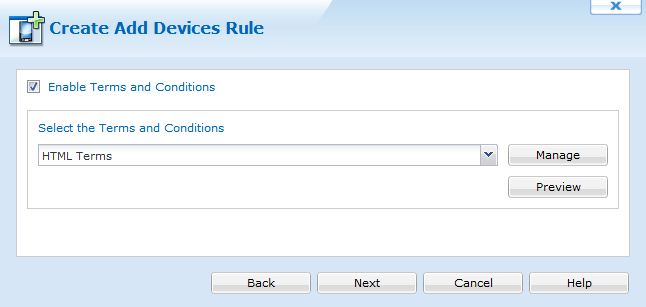
Terms and conditions
To add new Terms and Conditions to the Add Devices rule, click
 . Once clicked, we can see the Terms and Condition Manager. Please see the Terms and Conditions page for more information.
 - Create custom device name
User can set custom device name using one or more available macros. The custom device name will appear on Device Configuration tab (on device).
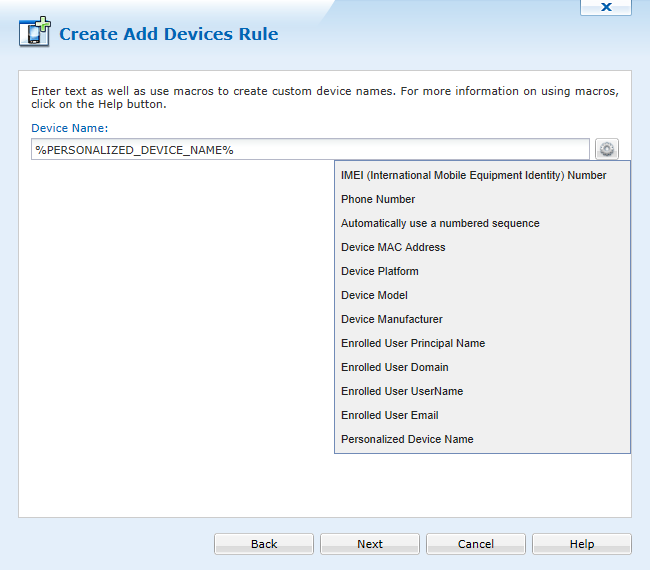
Create Custom device name
- Create custom device wallpaper
The administrator can apply a custom wallpaper to both the home screen and the lock screen to all of the devices under the Add Devices Rule. Select the iPad or iPhone tab and click the current picture to open the File Upload dialog box. Choose your image. Images must be in PNG or JPEG format.
- Review Summarized Information
The Rule Summary Information page summarizes the settings configured on the previous pages of the wizard.
If you are satisfied with the configured settings, click on the Finish button to create the device rule, otherwise use the Back button to go to previous screens and make adjustments.
- Advanced Settings
The Advanced button provides you with additional settings for your enrollment. You can:
Set a rule activation and deactivation schedule
Use Rule Filters to specify which devices are configured by this rule. By default, MobiControl will use this rule to configure only those devices that are running a Device Agent created specifically for this device rule. By using advanced settings filters, you can broaden or restrict which devices get configured by this rule when they connect to MobiControl.
Delay the activation of the rule by unchecking Enable Rule.
Preserve the device's location in a Device Group upon a re-enrollment.
Generate a code for the iOS device agent using the Publish to Enrollment Service. When an iOS Device Agent is installed from the App Store there is no way for the device agent to know which Deployment Server it needs to connect to. Using the Enrollment ID created when you "Push to Enrollment Service" allows the generic agent from the App Store to find the correct Deployment Server information.
Provide an alternative user authentication method for devices that use IdP by allowing user authentication to Fallback to LDAP if browser is unavailable.
Once you have made your changes, click Next.
 Note:
Note: If no iOS Device Agent has been downloaded from the App Store, make sure to uncheck "Publish to Enrollment Service" and use the Enrollment URL.
- Receive a Device Enrollment ID
To enroll an iOS device, you must visit the enrollment URL MobiControl presents. From here, the enrollment process can begin. Please see the Enrolling iOS devices using a MobiControl Certificate page for more information After your device installed the enrollment profiles, then you can enter the enrollment ID into the MobiControl agent.
After selecting the Terms and Conditions, click Next to continue the creation of the rule.
If multiple add devices rules exist for the same device group, the device user will be prompted to select the appropriate Add devices rule.