Add Device Rule Filters |
Rule Filters
The Rule Filters are accessible from the Create Add Devices Rule Wizard by clicking the Advanced Button (Advanced Tab when editing a Rule.) This page allows you to specify which devices are
to be configured by a specific Add
Devices Ruleadd devices rule. By default when you
create an Add Devices
Rule, MobiControl will use the rule to
configure only those devices that are running a Device Agent Device Agent created specifically for that Add Devices
Rule. By using Advanced Settings filters,
you can broaden or further restrict which devices get configured by
a specific rule when they connect to MobiControl.There are various types of filter available in Rule Filters sections that can be access by clicking  button.
Types of Filters
- Rule Tag Filter
The Rule Tag filter will cause the rule to configure only devices with a certain device rule tag. When a MobiControl Device Agent is generated, a unique identifier (rule tag) is inserted into the agent. When the Device Agent connects to a MobiControl Deployment Server, it presents the server with the rule tag. When this filter is used, the Deployment Server will only configure a device if there is a match between the rule tag presented by the agent and an add devices rule in the database. In this way, an add devices rule will be used to configure only those devices that are using an agent specifically created for that rule.
This is the default filter; it is automatically added when an add devices rule is created. If this filter is removed, then this rule can be used to configure devices that are using Device Agents created by third parties (i.e. When a MobiControl Device Agent is already installed on the device when it comes from the manufacturer) or Device Agents created for other device configuration rules.
- IP Address Filter
The IP address filter causes the add devices rule to configure only those devices whose IP addresses are in the range specified. This rule is useful as an extra security blanket for limiting connections to only devices that have an IP within the authorized range of IP addresses. The rule may also serve as a means of segregating different sets of devices.
 Example:
If an IP address filter from 192.168.1.10 to 192.168.1.99 has been set, then only devices with an IP address in this range would be configured by this add devices rule. If a device with an IP address of 192.168.1.100 connects to MobiControl, it would not satisfy the IP address filter test for this rule and so, it would not be configured by this rule.
The IP address filter is used for limiting connections to approved IP ranges. Please see the Windows Mobile Device Relocation page for dynamic relocation of devices from one device group to another and reconfiguring devices based on the IP address of the mobile devices (or other criteria).
- Device Property Filter
Using device property filter, an administrator can configure device enrollment based on device properties like OS version etc. There are various operations available to configure device property filter such as '=,<>,<,<=,>,>=,Begins With, Not Begins With' etc.
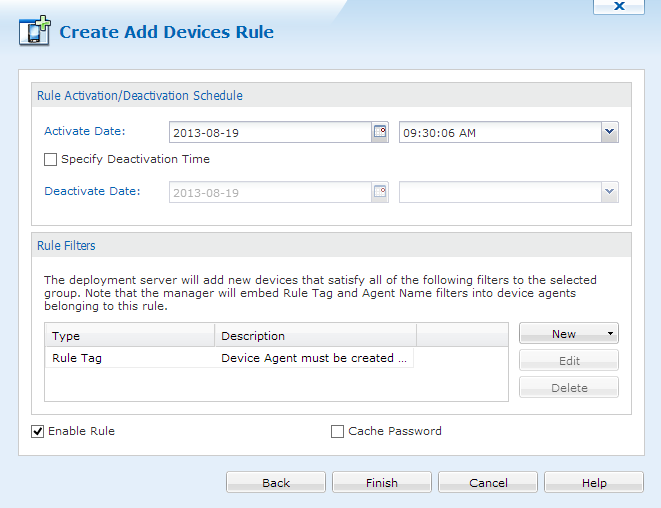
Add Devices Rule Advanced Settings dialog box
Adding IP Filter
To add a filter, click the button and select the appropriate filter type from
the pop-up menu.
The dialog box displayed depends on the type of filter selected. If the Add IP Address Filter was selected from the menu, the IP Address Filter dialog box will be displayed. If an Add Devices Rule is created, the filter is automatically added. This option will not be available if this filter has already been added.
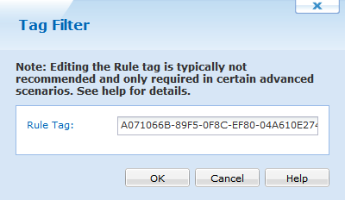
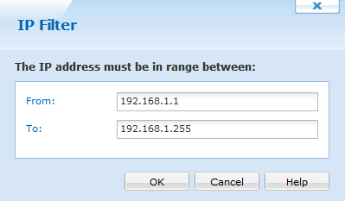
Rule Tag Filter and IP Address Filter dialog box dialog box
To complete the operation, fill in the information asked for in the dialog box and click the OK button.
Adding Device Property Filter
To add Device Property filter, click the button and select the appropriate filter type from
the pop-up menu.
The dialog box displayed depends on the type of filter selected. If the Add Device Property Filter was selected from the menu, a dialog box will be displayed with options to select Device Property, Operation and Value. There are various operations user can configure for device property filter, for instance '=. <>, <,<=,>,>=,Begins With, Not Begins With'.
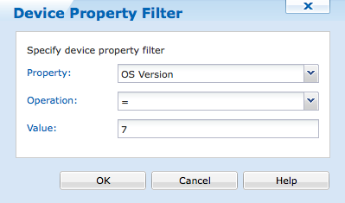
Rule Tag Filter and Device Property Filter dialog box
To complete the operation, fill in the information asked for in the dialog box and click the OK button.
Firmware Filter
To add Device Property filter, click the button and select the appropriate filter type from
the pop-up menu.
The dialog box displayed depends on the type of filter selected. Here user can specify range of firmware version.
To complete the operation, fill in the information asked for in the dialog box and click the OK button.
Editing or Deleting a Filter
To edit or delete a filter, select the filter from the filter list and click the Edit or Delete button.