Identity Provider Connections
Using a SAML 2.0 Identity Provider (IdP) allows administrators to consolidate identity information outside of individual applications. Certificates are used to establish a trust between MobiControl and the IdP so that MobiControl can use signed security assertions from the IdP to allow users access to MobiControl resources. Once this is configured, instead of authentication at the MobiControl log in page, users will be redirected to their IdP where they can authenticate, or, if they have already done so, be redirected back to MobiControl for a single sign-on experience.
Note: MobiControl requires that the response to the assertion be signed in addition to the assertion itself. Furthermore, MobiControl cannot accept an encrypted assertion.
MobiControl supports IdPs using SAML 2.0 for authentication. Authorization can come directly from the IdP if configured, or from a secondary lookup via LDAP. LDAP authorization is required for device enrollment on Android and iOS.
Integrating MobiControl with your IdP
If you plan to use LDAP groups for authorization, set up that LDAP connection first.
- Download your IdP's metadata file to your desktop.
- Open the MobiControl Web Console.
- On the All Platforms tab, select the Servers tab.
- Under Global Settings, click the wrench icon beside IdP Connections.
- Click New and fill in the fields.
See IdP Settings and Group Settings for more information.
- Click Download the MobiControl metadata file to your desktop to save our metadata file to your machine. Follow your IdP's instructions for adding a new client to complete the connection.
- Click OK to save your settings and close the Identity Provider Manager window.
- Under Global Settings, click the wrench icon beside Console Security Settings.
- Switch to the SAML SSO tab.
- Click the checkbox for Enable SSO and select an IdP from the Identity Provider dropdown.
- [Optional] You can also use your IdP connection for authenticating other MobiControl endpoints such as the Self Service Portal or the iOS Profile Catalog. Go to Setting up Endpoint Authentication.
- Click OK to save your settings and close the Console Security Setting window.
Note
On cloud deployments, IdP connections may experience issues due to an incorrect FQDN. To avoid this issue, you can use a macro scheme that allows you to override the Management Service Address for all MS instances of MobiControl.
- In the MobiControl Administration Utility, enable the Override Management Service Address option and enter the macro scheme.
IdP Settings
MobiControl currently only supports the SP-Initiated SSO: Redirect/POST flow for the Web Browser SSO profile. Refer to SAML 2.0 specification (5.1.2) for more details.
| Field Name | Description |
|---|---|
| Name | Enter a name for this IdP connection in MobiControl. |
| IdP Metadata File | Click Import to upload your IdP's metadata file to MobiControl. This file is contains information necessary to create a link between your IdP and MobiControl.
You can fill in the rest of the settings manually if you do not have an IdP metadata file. |
| IdP Entity ID | Enter the globally unique identifier for the SAML IdP. The IdP Entity ID should be obtained from your IdP administrator. |
| IdP URL | Enter the IdP SSO login URL. MobiControl users this URL to initiate the SSO login sequence. The IdP URL should be obtained from your IdP administrator.
Note: MobiControl only supports HTTP-POST binding. |
| Logout URL | [Optional] Enter a URL address that users are redirected towards when they log out of the MobiControl Web Console and Self Service Portal. If a Logout URL is not provided, users are redirected to a default logoff page.
Note: MobiControl does not support single logout (SLO). |
| Certificate | Click Browse to upload the root certificate used by your IdP. Your certificate must be in either DER-encoded binary X509 or Base64-encoded X.509 format.
MobiControl supports a single certificate per IdP. Note: When creating the entry for MobiControl inside your IdP, enable "Include the certificate in the signature <KeyInfo> element" if the option is available. Example of the option in the IdP Ping Identity: 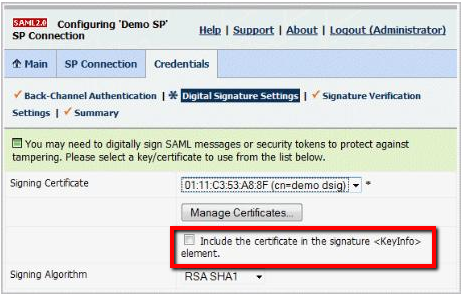 |
Group Settings
Use the radio buttons to select a group from either your Directory (LDAP) groups or IdP groups.
IdP connections must be backed by LDAP groups for device enrollment on the iOS, Android and Android Plus platforms.
| Radio Button Selected | Description |
|---|---|
| Directory | Choose a directory from the dropdown. If you do not have any directories configured, go to LDAP Connections for more information on setting one up. |
| IdP | Enter a List Attribute and, optionally, a List Delimiter.
A List Attribute is an assertion attribute in the incoming SAML authentication response that contains groups. A List Delimiter splits up attribute values into multiple values. If a delimiter is not set, it is assumed that the attribute value contains multiple XML nodes, each one a different group name. Note: On the IdP, set the Attribute Name to Email Address. |
Note
The Manage Directory Services permission in the Security tab allows or denies users the ability to configure IdP and LDAP connections.
Editing an IdP Connection
- On the All Platforms tab, select the Servers tab.
- Under Global Settings, click the wrench icon beside IdP Connections.
- Select the tab you want to edit.
- Update the settings and click OK to save the new settings and close the window.
Deleting an IdP Connection
- On the All Platforms tab, select the Servers tab.
- Under Global Settings, click the wrench icon beside IdP Connections.
- Make sure the connection you want to delete is the active tab.
- Click Delete and then OK to close the window.
If you are completely disconnecting MobiControl from your SSO system and not simply switching IdP connections, remember to also uncheck Enable SSO under the SAML SSO tab of the Console Security global setting dialog window.