
|
MobiControl Frequently Asked Questions |
General
G1. What are the system requirements for MobiControl?
G2. Can MobiControl be used on a Windows 7 or Windows 8 computer?
G4. How do I minimize the battery drain on my device?
G6. How do I setup my devices to connect through an external network?
G7. How can I find end-of-life information for the software used by MobiControl?
Installation, Upgrade, and Uninstallation
IU1. Why is MobiControl running in trial mode when I am an existing registered user?
IU2. How do I safely upgrade MobiControl?
IU3. What is the officially supported upgrade path?
IU4. How do I move my Deployment Server from one machine or server to another?
Connectivity
C1. What settings should I use for slow connections?
C2. Do dynamic IP addresses present a problem for MobiControl?
Device Agent
A2. How can I make sure that the clocks on my mobile devices have the proper time?
Remote Control
R4. Why do I get a Rapi initialization timeout error when I try to remote control my mobile device?
Security
S1. How do I put pictures into my lockdown menu?
S2. How can I restrict what a user of the MobiControl Web console can do?
Package Creation and Deployment
PD1. How do I deploy registry settings?
PD2. Do I need a second Deployment Server?
PD5. Does MobiControl support a fault tolerance Deployment Server?
Scripts
Database
D1. What are recommendations for doing backups?
Miscellaneous
M3. How do I use "custom" information to name my mobile devices (e.g. the device owner's name)?
M4. How do I run a MobiControl script on my mobile device every time on startup?
M6. How can I send custom message to the MobiControl Deployment Server?
General
G1. What are the system requirements for MobiControl?
Please click here to see the system requirements needed for MobiControl.
G2. Can MobiControl be used on a Windows 7 or Windows 8 computer?
Yes, you can use MobiControl on a Windows 7 or Windows 8 computer. If you are connecting your device via USB to your computer, you need to download and install the Microsoft Windows Mobile Device Center on your computer first. Please visit Microsoft's website at http://www.microsoft.com/windowsmobile/devicecenter.mspx to download Microsoft Windows Mobile Device Center.
G3. How do I tell what version of MobiControl I am using and where do I view my licensing information?
In MobiControl Web Console, click Help button from top right corner, and then click About MobiControl to view the version and build information. To see licensing information click on Help button, and click License Information this window is the licensing information, displaying the number of servers and devices licensed and how many devices are in currently used within your license.
G4. How do I minimize the battery drain on my device?
MobiControl has several settings that allow you to optimize the Device Agent behavior to minimize battery drain.
- Device Connection Sensitivity
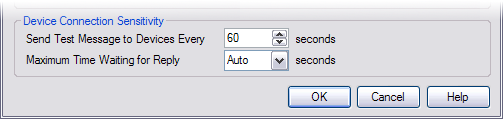
Open MobiControlAdministration Utility, click Deployment Server link from left navigation, go to Device Connection Sensitivity, You can set the Send Test Message to Devices parameter to a higher interval to reduce the communication between the device and the server. This will increase the time it takes for the server to recognize a device as online or offline.
- Device Retry Interval
(Right-click on the device, select Advanced Settings, then select Connection Settings. Set the connection retry interval to a higher number. The lower number, the more aggressively Device Agent tries to connect to the Deployment Server. For example, if it is set to 300 seconds, when the device is offline, it will try to connect to the Deployment Server every five minutes.
- Device Update Schedule and File Sync Schedule
You can increase the time interval after which the device checks the server for updates, packages, or file synchronization (when it is online and connected to the server). For the device update schedule, right-click on the device or group, select Advanced Settings and then Update Schedule. Typically, in a test environment, the update schedule is set to a shorter interval to quickly see the results of test packages, etc. In a production environment, the devices may not need to download updates for hours/days. Similarly, the file synchronization schedule can be changed by editing the file sync rule under the Rules view (tab).
- Connection Mode
(Right-click on the device and select Advanced Settings and then Connection Settings.) By default, the MobiControlDevice Agent runs in the "Persistent" mode in which the Device Agent tries to maintain its connection to the Deployment Server whenever a data network is available. You may maximize battery life by changing the connection mode to "Scheduled" or "Manual" (depending on your environment), so the Device Agent only connects to the server within a limited time window (to download updates, synchronize files, for support, etc.). Adjusting the connection mode would achieve the highest battery consumption efficiency.
G5. How do I rename a device?
The device name is considered the user-friendly name for the device. It is not the unique identifier for the device in the MobiControl system (that is the role of the device ID). It is possible to have more than one device with the same name, although that is not recommended because it will lead to confusion. From the device list, right-click on the mobile device icon of which device you want to rename. A menu of device options will appear. Select Rename Device and enter your desired name for the mobile device. Note that you can also change the device name from the MobiControl applet in the General tab in the configuration options that runs on the actual device.
You can also have the mobile device have its name based on a custom data value. For more information, please see Q3. How do I use "custom" information to name my mobile devices (e.g. the device owner's name)? in the "Tips and Tricks" topic on page 1.
G6. How do I setup my devices to connect through an external network?
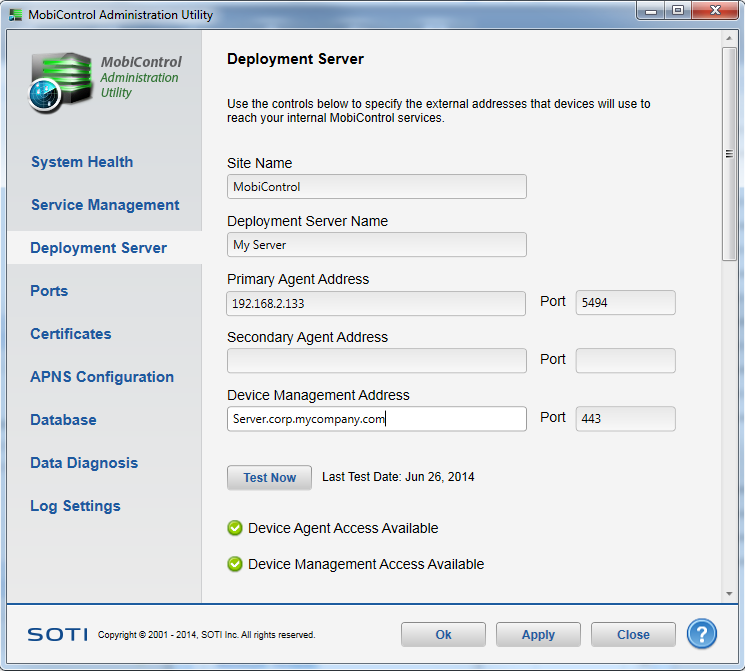
When your devices are connected on an external network (GPRS/CDMA) they require a Public IP in order to communicate with your Deployment Server. In most situations companies have a corporate firewall on their Public IP address. You must configure your corporate firewall to allow devices to connect to the Deployment Server. Set up your firewall to port forward from Port 5494 publicly to Port 5494 internally. Port 5494 is used for Windows and Android device communication and is fully customizable by opening the MobiControlAdministration Utility, and click on Deployment Server tab, and select server properties.In the server properties window, you will be able to set a custom port for device communication as well as the public IP addresses the devices must use.
For example, if your Deployment Server has an Internal IP of 192.168.1.184 and your Public IP is 210.25.10.219 all incoming traffic on 210.25.10.219:5494 must be forwarded to 192.168.1.184:5494.
Open the MobiControlAdministration Utility, go to the Deployment Server Tab, Right Click on your Deployment Server and select Server Properties. In the Server Properties dialogue box place a check mark in the "Override Default IP" box, and the "Alternate IP Address" box. Enter the Public IP Address or Hostname in the Alternate IP Address box. When finished entering the new information, click on OK. The devices will receive this information upon a device update schedule or as they come online. This change instructs the device to attempt connecting to the deployment server using the Alternate IP Address/Hostname if it fails to connect at the IP Address originally provided. These settings get stored in the device agent and will take effect from now on. Each device MUST connect to the deployment server for these settings to get updated on the device.
G7. How can I find end-of-life information for the software used by MobiControl?
Please see the "End of Life Notices" page.
Installation, Upgrade, and Uninstallation
IU1. Why is MobiControl running in trial mode when I am an existing registered user?
For existing MobiControl users, it is necessary that you exchange your current registration code with a new registration code for MobiControl v6.00 and above.
If you haven't obtained your new MobiControl registration code, please contact us to exchange your registration code. (You will need to provide the company name and person to whom the product is licensed.)
IU2. How do I safely upgrade MobiControl?
Please see the Upgrading MobiControl page.
IU3. What is the officially supported upgrade path?
Please see the MobiControl Upgrade Path page.
IU4. How do I move my Deployment Server from one machine or server to another?
To do this you will need the assistance of SOTI Professional Services, which you can email at professionalservices@soti.net.
Connectivity
C1. What settings should I use for slow connections?
You can set the device connection sensitivity Send Test Message to Devices Every value to 60 seconds in the Deployment Server tray applet. This setting is used to control how often the Deployment Server is to check connections to devices to see if they are working properly. The Deployment Server does this by sending a test message to the device. When the device receives the test message, it sends the message back to the server. If the server does not receive the test message back within a certain time, it will terminate the connection to the device.
Another setting that will help slow connections is one that reduces the colors sent in images, which consequently reduces the amount of data that needs to be sent. You can change the remote control connection settings to view the device display in 16-color grayscale or 4-color grayscale instead of the default full-color display. Please see R1. What settings should I use to remotely manage and establish remote control sessions to devices over cellular (e.g. GPRS) or dial-up connections? below for more details.
C2. Do dynamic IP addresses present a problem for MobiControl?
A dynamic IP address automatically assigned to a host by a DHCP server is not a problem for MobiControl.
Device Agent
A1. I installed the Device Agent on my device but it is not showing up in the device tree. How can I make it appear?
Once the MobiControlDevice Agent has been installed on your mobile device, click the MobiControlDevice Agent icon on your mobile device. In the pop-up menu, select Configure. When the Device Agent menu comes up, on the General tab, you will see the Status field. If it says disconnected, click the Connect button to establish a connection with the MobiControlDeployment Server.
If the status shows "Connected," check MobiControl Web Console to see if your mobile device is showing up or not. Once the connection is made, it can take a few minutes for the mobile device to show up in MobiControl Web Console.
If the status shows "Disconnected" and nothing happens after clicking the Connect button, then the mobile device is not being able to connect with the Deployment Server. Click the Servers tab to verify that the server information is correct. If it is correct, select that entry and click Test. The test should complete successfully. If it does, go back to the General tab and click Connect. If the Deployment Server test fails, verify the Deployment Server information and make sure that the Deployment Server is running. If the Deployment Server information is not correct, please correct it.
A2. How can I make sure that the clocks on my mobile devices have the proper time?
MobiControl supports two forms of time synchronization: Sync Time with MobiControl Deployment Server and Sync with SNTP/NTP Time Server.
Sync Time with MobiControl Deployment Server: When you enable this option, the MobiControlDevice Agent will synchronize the device clock with the Deployment Server clock each time it connects to a Deployment Server. To use this option, you must enable the device time synchronization settings for a device (or group of devices). In the device tree, Right click on device or group, then select Advanced Settings from the menu, and then select Time Synchronization.
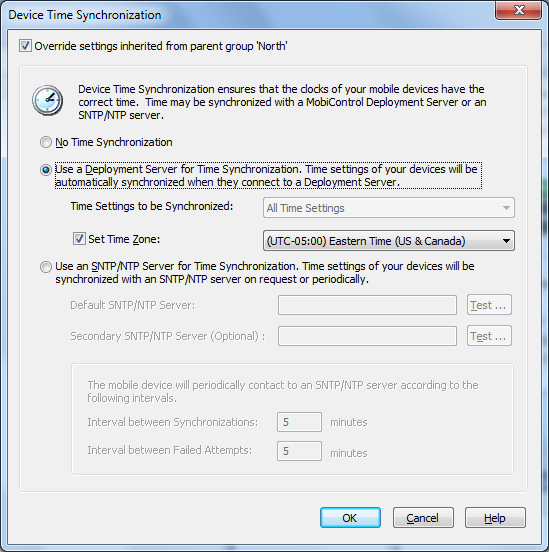
Device Time Synchronization Settings
Sync with SNTP/NTP Time Server: This option uses the SNTP/NTP time synchronization protocol to synchronize the clock on your mobile devices with a public or private SNTP/NTP time server. You can configure this option using the MobiControl Web console. The most common problem with this form of time synchronization occurs when there is a personal or corporate firewall between your mobile device(s) and the time server. To correct this problem, please make sure that connections from your mobile device(s) through UDP port 123 are not being blocked by a firewall.
A3. Why is the MobiControl Device Agent changing the server host name/IP address information that I am configuring on the device?
The Device Agent is not changing the host name/IP address information on its own. It is the MobiControlDeployment Server that is sending what it believes is the correct address information to the device and asking the Device Agent to update its address information.
When a device connects to a server, the server sends the device what it believes to be the addresses of MobiControlDeployment Servers. The MobiControlDevice Agent then stores the server address information it receives and overwrites the previously configured address information. In order for changes to the host name/IP information to stay, you need to configure this with MobiControlAdministration Utility:
- In MobiControlAdministration Utility, go to the Deployment Server tab.
- Right-click the icon of the Deployment Server whose address information you want to change, and select the Server Properties menu item.
- On the Server Properties dialog box, set the host name/IP address information as needed in the Primary or Secondary External IP Address fields.
- Click OK to save the changes. MobiControlDeployment Servers will now send the updated information to devices when they connect.
A4. Can I use MobiControl to manage my Windows-based computers, laptops, tablet PCs? If so, how can I create the agent?
You can use MobiControl to manage your laptops, tablet PCs, and even your workstations. You can have the Device Agent installed on these devices and manage them as you would manage your other mobile devices with MobiControl Web Console.
You can create the Device Agent using the Device Agent Manager as you would for any other mobile device. When you are creating the Device Agent, select Microsoft Windows 2000/XP/ Embedded (computers/laptops/thin clients)as the device manufacturer.
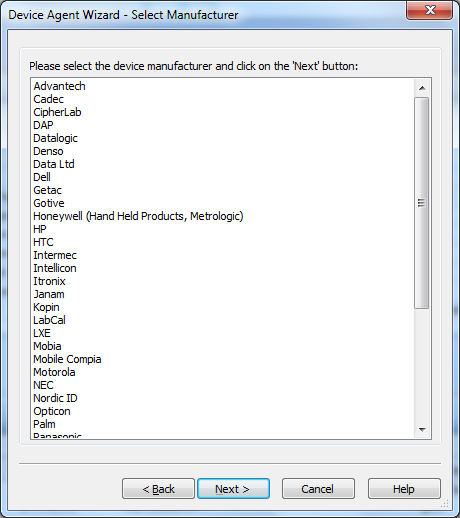
Microsoft Windows-based Device Agent
Once this is selected, you will notice that you have now skipped some steps in the Device Agent Manager. The next screen will ask you for various software settings.
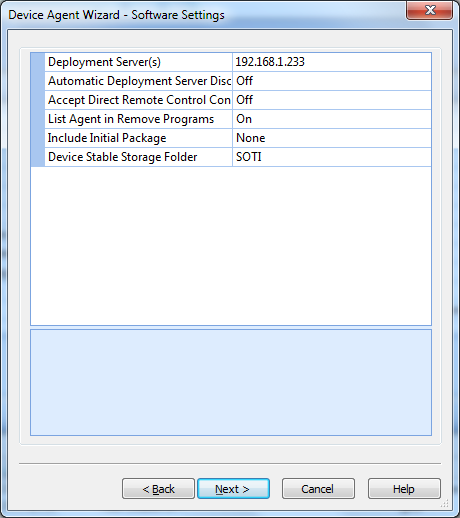
Microsoft Windows-based Device Agent
Follow the remaining steps and once the Device Agent has been created, you are now ready to have it pushed out to your computer, laptop, or tablet PC.
Important:
The MobiControl Device Agent for Microsoft Windows PC's cannot be installed on the same machine as the MobiControl Deployment Server.
The Device Agent and Deployment Server processes (McAgent and McDeplSvr) both listen on port 5494 for activity. This will cause a constant conflict as each process attempts to use the port.
Remote Control
R1. What settings should I use to remotely manage and establish remote control sessions to devices over cellular (e.g. GPRS) or dial-up connections?
Cellular and dial-up connections are typically low bandwidth (slow) connections. The information in this section applies to low bandwidth connections but also to other forms of connections such as Wi-Fi.
Two of the main factors that affect battery consumption on mobile devices are the device screen and the device radio. Most devices include a control panel applet to adjust screen power consumption. We recommend that you adjust the screen settings to minimize power consumption based on your usage patterns. To limit the amount of power consumed by Wi-Fi and/or cellular radios, you need to minimize the amount of data sent and received by radio(s). The information in this section describes how to minimize the amount of data sent and received by MobiControlDevice Agents.
Carrier charges can also be an issue. If you are using a cellular connection (e.g. GPRS/EDGE), your carrier may be billing you based on the amount of data that you send or receive through their network. The information provided below describes various MobiControl settings that can be tuned to minimize the data transmitted on cellular networks.
Device to Server Connectivity Settings
- Device Connection Sensitivity
MobiControlDeployment Servers send test messages (32 bytes) to devices periodically and then wait for the device to send the message back. If a Deployment Server does not receive a test message back within a specified time, it concludes that the connection is not functioning properly, and closes the connection to the device. For slow connections or when you are being charged based on your amount of data you send through the network (e.g. some cellular plans) we recommend that you set the Deployment ServerSend Test Message to Devices Every option to 300 seconds in the Deployment ServerProperties dialog box.
- Device Connection Mode
MobiControl provides three connection mode settings that allow you to control the time period during which MobiControlDevice Agents are connected to servers. In order to conserve battery power or to reduce cellular data charges, you can reduce the time period that devices are connected to server(s). The three connection modes provided are Persistent, Scheduled, and Manual. By default, the MobiControlDevice Agents use the Persistent connection mode and try to maintain a connection to a Deployment Server whenever network connectivity exists. The Scheduled connection mode allows a connection to a server to be maintained only within a specified time window (e.g. 09:00 to 17:00). Scheduled mode can also be used to take advantage of a cheaper or higher bandwidth network that is only available during specific hours. The Manual connection mode does not maintain a connection to the server. In this case the device user needs to explicitly initiate a connection from the mobile device when required. This mode can be used in situations where connectivity is only required to support users. In this case, when an end user needs support and wants the help desk to remote control the device, the connection can be initiated from the device at that time.
- Device Update Schedule
The update schedule determines how often server(s) check devices to ensure that they have the required software packages and configuration settings installed. The update schedule is also used to refresh the information shown in the Info panel in the MobiControl Manager Devices view (tab) (e.g. battery or memory indicators, custom data). By setting the schedule to be less frequent network traffic and device battery consumption can be reduced. Typically the update schedule should be set for once a day at an off peak hour, or once every two or three days.
- File Sync Schedule
A file sync schedule is used when a file sync rule has been configured for synchronizing data files between devices and the server. A file sync schedule determines how often data files are to be synchronized with mobile devices. The file sync schedule can be used to control when large files are transferred. File sync schedule can be configured to take advantage of high-bandwidth Wi-Fi connections and avoiding GPRS data usage during peak hours. It is important to note that even when all files are synchronized, the activity involved in checking to see if files need to be synchronized generates some data traffic. Typically, a file sync schedule should be set to synchronize once a day at an off peak hour, or once every two or three days.
For remotely controlling devices over slow networks, MobiControl provides options to reduce the amount of data that is sent over these networks. A second characteristic of these sorts of connections is that the IP address of the device is often private, meaning that MobiControl remote control desktop software will not be able to initiate a TCP/IP connection to the device. To deal with the private device IP address issue MobiControl has a TCP/IP(SERVER) setting which allows MobiControl to use a connection initiated by the mobile device for remote control purposes.
The following table summarizes the various options available for establishing remote control sessions to mobile devices over slow connections and also devices that have private IP addresses:
| Field Name | Recommended Setting | Description |
|---|---|---|
| Type | TCP/IP (SERVER) | GPRS or dial-up connections often have private addresses for mobile devices connected over these networks. When the addresses for devices are private you need to set the Connection Type field to "TCP/IP(SERVER)" in the remote control profile you are using. |
| Broken Connection Sensitivity | Low | This field reflects the responsiveness of the connection. Setting the field to "Low" indicates to the software that the connection is generally slow and to expect lags in waiting for responses. Since GPRS and dial-up connections are generally slow, setting the value of this field to "Low" is usually appropriate. The software will in this case wait extra long periods of time waiting for responses. |
| Connect Timeout | 45 | Since GPRS and dial-up connections are generally slow, setting the value of this field to 45 seconds allows extra time for a connection attempt to complete. |
| Color Reduction | 2 bit (4-shade grayscale) | Reducing the colors sent in images further reduces the size of the data that needs to be sent on slow networks. You can change the remote control connection settings to view the device display in 16-color grayscale or 4-color grayscale instead of the default full-color display. Although the amount of data transferred will be reduced, CPU usage on the device will increase. |
You can edit one of the existing remote control profiles and make the changes listed above or create a new profile. The MobiControl installation software creates a remote control profile called TCP/IP (SERVER) by default. It can be edited.
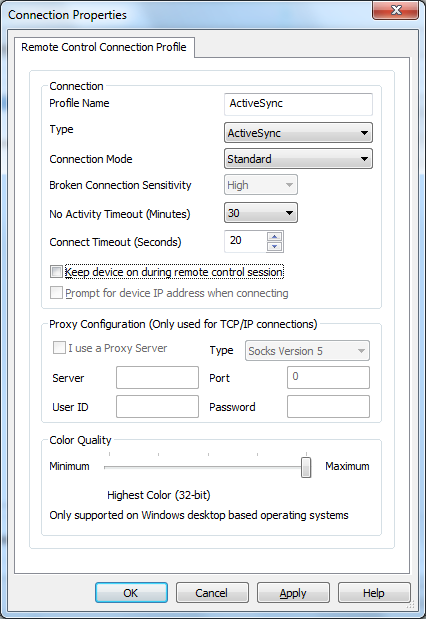
Once the changes have been made, right-click on the device or device group (if you want to use the profile for a group of devices) in MobiControl Manager and make sure that the remote control profile you just edited is configured for use.
 Note:
Note:
When attempting remote control sessions to devices from outside a firewall (i.e. device located on the inside) or to devices on cellular networks that assign devices with private IP addresses, the MobiControl TCP/IP (SERVER) connection type must be used. The TCP/IP (SERVER) connection type allows devices with private IP addresses to be remote controlled by using connections initiated by mobile devices for remote control purposes.
R2. How can I use MobiControl to manage and/or remote control devices whose IP address is not reachable or not public (i.e. external or private addresses) as is often the case for GPRS connections?
The MobiControl desktop software does not need to initiate connections to devices, instead the MobiControl device software connects to servers. If the MobiControlDevice Agent software is installed on a mobile device, it will attempt to connect to a Deployment Server and maintain that connection. In this way the desktop software does not need to connect to the device, it just uses the connection that the device software maintains to the server. Since the desktop software does not need to initiate connections to devices, dynamic device addresses are also not a problem.
MobiControl also allows external IP addresses and ports to be assigned to Deployment Servers. In this way devices can connect to external addresses that then get mapped to internal addresses and ports by firewall or proxy software. When initiating remote control sessions to devices with private addresses you need to use the TCP/IP (SERVER) connection profile. TCP/IP (SERVER) remote control sessions use device-initiated connections to provide remote control, in this way remote control sessions go through an intermediate MobiControlDeployment Server. In situations where devices do not have private addresses, using regular TCP/IP remote control profiles allows direct connections to devices with no intermediate servers. If a regular TCP/IP remote control profile is used, the connection is initiated from the desktop software.
R3. I need to remote control a device that is in the sleep or standby mode and is currently offline. How can I wake up the device and force it to connect to MobiControl?
If your mobile device is not showing up as online in MobiControl Manager and you want to establish a connection, you can do so with MobiControl's Send SMS (to initiate connection to MobiControl) feature. (Please see the "Sending Messages / Scripts" topic on page 1.) It may be that your mobile device is in a suspended state (sleeping), or the data connection is not active. With the Send SMS (to initiate connection to MobiControl) feature, you can wake up the mobile device, activate the data connection, and have the mobile device connect to MobiControl.
R4. Why do I get a Rapi initialization timeout error when I try to remote control my mobile device?
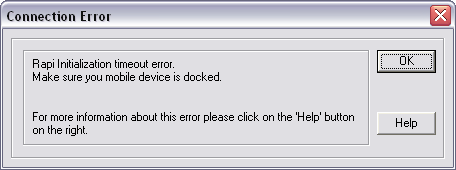
Rapi Connection Error
When you receive the connection error "Rapi initialization timeout error" while trying to connect to your mobile device, it means MobiControl cannot communicate with Microsoft ActiveSync or WMDC and your mobile device. To resolve this error make sure you have your mobile device properly connected to your computer and to ActiveSync or WMDC.
Security
S1. How do I put pictures into my lockdown menu?
Lockdown menus are based on HTML template files. When you install MobiControl several sample template files are installed into the system. To create a lockdown menu screen with your own custom look and feel, open up one of the existing template files, and save it to a different file name. You can then edit the saved HTML template file and give it your own style. If you want to display images in the menu, then you need to make sure that the image files are located in stable storage on your mobile device. MobiControl does not automatically copy images referenced in template files to mobile devices. You can copy the images to your mobile devices either manually via a File Explorer tool, or you can get the images to your devices by using deployment rules or file sync rules. The destination location for images needs to be in stable storage. The image files can be referenced by their absolute path on the mobile devices that they reside on. Once you have finished creating your HTML template file, add the new template to MobiControl and then use it to configure lockdown rules. Please see the "Device Lockdown" topic on page 1 and the "Customizing Lockdown Program Menu Templates" topic on page 1 for more information about creating and customizing template files.
S2. How can I restrict what a user of the MobiControl Web console can do?
MobiControl includes a security system that integrates with your existing Windows Domain security system (Microsoft Active Directory). You can configure permissions for your domain users, and MobiControl will allow or disallow access to specific functionality based on the permissions configured for the currently logged in user. Please see the Web Console Device Group Permissions page for more information.
Package Creation and Deployment
PD1. How do I deploy registry settings?
To deploy software, data or settings to your mobile devices, you need to
create a package and then create a MobiControldeployment rule to send the
package to your devices. To create a package, to use the
MobiControl Package Studio tool, accessible from the
Tools menu in MobiControl Manager. (Please see the MobiControl Package Studio page.) To initially generate the registry file
that you want to deploy, open a MobiControl Remote Control session to a
device that has the proper registry settings, then, using the remote
control Registry tool, export the registry settings to a .reg file. Once
the .reg file has been created, create a package using Package Studio,
browse to your registry file and add it to your package, and then build
the package using the Package Studio Build menu open. Package Studio
recognizes certain file types such as registry files and sets these files
to auto-execute by default when they are installed onto mobile devices.
Once the package is built, in MobiControl Manager create a deployment rule to deploy the package to your mobile devices.
PD2. Do I need a second Deployment Server?
There are three reasons why you may want to add an additional MobiControlDeployment Server:
- Scalability
When you are running multiple Deployment Servers, MobiControl will distribute the load among functioning servers. This means that if your existing server(s) are getting too loaded down, you can add additional servers to distribute the load amongst the servers. When connecting to servers, devices will distribute themselves amongst servers in order to balance the load across the servers.
- Fault Tolerance
When you are running multiple Deployment Servers, if a particular server fails, or a server is down for maintenance, MobiControl will automatically move devices that were connected to the disabled server onto other functioning servers. When the server is available again, the system will start balancing the load to move load off other servers onto the available server. This feature means that all devices can be fully manageable even while one or more servers are not operating.
- Bandwidth Management
In situations where an organization has remote sites, each of which has several mobile devices, placing Deployment Servers at each site can mean less bandwidth consumption between the head office and the remote sites and an overall increase in performance of the system. If there is only one centrally-located Deployment Server, each package delivery must be sent from the central server over the slow connection to each remote mobile device.
Imagine a company with ten remote sites, each with one hundred devices, and the connections between the central office and the sites being very slow or having limited bandwidth availability. To deliver a package, there would be 1000 deliveries from the central location to the remote devices over the slow connection. This would be very slow and would consume available bandwidth between the sites and the central location. However, if there is a server at each site, the package will be sent once to each site (i.e. 10 deliveries over the slow connection instead of 1000). Then, the Deployment Server at each site will cache the package and transmit it to each of its local devices over the fast local network.
Our general recommendation is that you do not need to run more than one Deployment Server if you are managing less than 1500 devices, but you need to consider the information provided above, as well as any other network, infrastructure or other requirements your organization may have.
PD3. I am running my application on all my devices. From time to time I have to update some settings in my applications .ini file. I don't want to send the entire .ini file each time, is there a better way?
When you deploy packages with MobiControl, you can insert scripts into
your packages. The MobiControl scripting language contains commands that
allow you edit .ini files. So instead of sending an entire .ini file, you
can just put in script commands to edit an existing .ini file and
add or remove entries as needed.
 Example:
The following command will edit
the mov.ini file and set the Color value to "Red" in the "Video"
section of the file:writeprofstring \Movie\mov.ini
Video Color Red
Please see the Script Command Set page
for more information about MobiControl script commands.
PD4. I need to create a script that I will use in the package I deploy to my devices. Is there a way to test the script before I deploy it to my devices?
To test your scripts before putting them into a package, open a remote control session to your mobile device, and then click on the DOS Screen tab on the right edge of the remote control session window. If you copy your script to the mobile device file system you can run it by typing in the name of the script file at the prompt. When the script is executed you will see each line of the script execute in the DOS window. You can also test out individual script commands by typing them at the prompt.
PD5. Does MobiControl support a fault tolerance Deployment Server?
For added fault tolerance, MobiControl provides the capability to add multiple Deployment Servers to ensure high availability and minimize downtime. With multiple Deployment Servers, you can set different Deployment Server priorities for your devices. If the priority 1 server is down, the devices would automatically connect to the priority 2 server. The multiple Deployment Servers can run in an Active/Active or Active/Standby mode, configurable from within MobiControl. You can even specify multiple external IP addresses for the devices to connect to. If the devices are not able to connect to the first IP, they would try to connect to another IP where a backup Deployment Server can service the requests. An additional server license is required for Deployment Server fault tolerance.
Scripts
SC1. Are there any APIs (Application Programming Interfaces) available so that I can call and execute a MobiControl scripts from a custom application?
Yes, you can call a MobiControl script from a
custom application; you need to use Commloader.exe with a switch to
execute scripts. Please see the "Tips and Tricks" for more information.
Database
D1. What are recommendations for doing backups?
We recommend that you do a backup as often as possible. If you are running MobiControl v2.06 or earlier, you need to back up your file store and your database. If you are using MobiControl v3 or later, you only need to back up your database. To back up your file store, use the Microsoft File Explorer to copy the contents of the file store to a backup folder. To back up your database, if you are using the lightweight Microsoft SQL Server Desktop Engine (MSDE), you may need to purchase a third-party tool. If you are running the full Microsoft SQL Server, you can back up your database using the back up tool provided with Microsoft SQL Server Enterprise Manager. Most database back up tools provide an automated backup system so that your database will be automatically backed up at regular intervals.
Miscellaneous
M1. Can I execute scripts on the mobile device to accomplish various tasks? If so, what kind of tasks can I accomplish?
There are various options available to you that allow for execution of tasks on
your mobile device. The following tasks can be accomplished using commloader.exe with any of the following switches.
| Switch | Purpose |
|---|---|
-app
|
Run CommLoader.exe as an application instead of a service. (This is only
applicable to an agent running on a Windows desktop platform such as Windows
XP.) |
-n <device name>
|
Rename a device |
-m <script file>
|
Run a script file |
-mm <script command>
|
Run an inline script command |
-g
|
Reset advanced settings |
-s
|
Manual time synchronization |
-connect
|
Connect to the Deployment Server |
-connect -connmgr
|
Establish data connection (usually GPRS) if no data connection is available, and then connects to the MobiControl server.
This is the same as clicking the Connect button within the MobiControl Agent Applet. |
-connmgr
|
Establish data connection only (usually GPRS). It will do nothing if any data connection (e.g. WiFi, GPRS, or ActiveSync) is available.
Depending on how the device is configured, it may not open a GPRS connection even if it has the capability to. |
-connect -connmgr -inet
|
Establish Internet data connection (usually GPRS) and connect to the MobiControl server. A connection is attempted regardless of any available data connections (ActiveSync, Wi-Fi,etc.) |
-connmgr -inet
|
Establish Internet data connection (usually GPRS). It attempts to open a connection regardless of any available data connections (ActiveSync, Wi-Fi, etc.) |
-connmgr -inet -hangup
|
Disconnects the GPRS
connection.
Does not apply to CDMA devices. |
-disconnect
|
Disconnect from the MobiControlDeployment Server |
-install
|
Install Windows agent (only applicable to an agent running on a Windows desktop platform) |
-uninstall
|
Uninstall Windows agent (only applicable to an agent running on a Windows desktop platform) |
-pfx <pfxfile> -pwd <password>
|
Import .pfx private key file. Some device may require a soft reset after importing. |
-exit
|
Exit the program |
-syncfile
|
Checks the Deployment Server to see if there are any files to sync. This switch performs the same operation as though a user were to right-click
on a device in the Manager and select 'Sync Files Now'.
Device must be online for this command to complete successfully. It will not attempt to establish a connection if one is not present. |
-syncpkg
|
Checks the
Deployment Server to see if new packages are available. If packages are
available they will be downloaded and installed.
Device must be online for this command to complete successfully. It will not attempt to establish a connection if one is not present. |
-installpkgs
|
Immediately proceeds with the installation of ANY packages that it has downloaded but not yet installed because they are scheduled to be installed at a later time.
The Package will not show successfully installed in the MobiControl Manager until the device has connected to Deployment Server. |
Examples:
- To force a mobile device to establish a MobiControl connection with the
MobiControlDeployment Server:
\windows\startup\commloader.exe -connect - To run a custom script (
*.cmdfile) on a mobile device:\windows\startup\commloader.exe -m 1:\MyScript.cmd - To run a custom script (
*.cmdfile) from a lockdown menu, browse for the.cmdfile in the Add New Menu Item dialog box when configuring the Lockdown Policy. Enter the file's location as the Program Path:"\windows\startup\commloader.exe, -m %22\MyScript.cmd%22"**
** The purpose of%22is to emulate double quotes in the Lockdown menu. This is required when the file name or path has spaces in it.
M2. How can I force my mobile device to wake up from standby mode and establish a connection with MobiControl?
In MobiControl v5.00, we added a function that allows you to send a message (SMS) to your mobile device which contains instructions that will wake the mobile device from its suspended state and force a connection with MobiControlDeployment Server. In MobiControlManager, right-click on a device and select Send message to a device and click Send message via SMS. Select Initiate Connection to MobiControl as the message type and check the box next to Activate data connection if not present if you want to activate the data connection. Please see the Sending Messages / Scripts page for more information on sending messages to mobile devices.
M3. How do I use "custom" information to name my mobile devices (e.g. the device owner's name)?
In MobiControl, a mobile device can have its name based on a custom data value. This naming convention can be enforced once the mobile device has connected to MobiControl or when creating the Device Agent.
Example:
At the time of the Device Agent creation, let the agent device name be %REG://HKEY_CURRENT_USER\ControlPanel\Owner?VN=Name%
Once the mobile device is online on MobiControl, a script needs to be written, inserted into a MobiControl package and then pushed down to the mobile device(s). The name of the mobile device will change automatically and you will see the new name in MobiControl Web Console.
Script Example:
Set
			Temp=REG://HKEY_CURRENT_USER\ControlPanel\Owner?VN=Name
            \Windows\Startup\Commloader.exe -n "%Temp%"
For more information about Commloader switches, please see MobiControl Frequently Asked Questions in this section.
M4. How do I run a MobiControl script on my mobile device every time on startup?
In order to run a script on your mobile device every time on startup, you need
to create a *.lnk shortcut on your mobile device and
place this shortcut in its \windows\startup\ folder.
This *.lnk shortcut will contain the instructions
for the script to execute upon startup of the mobile device.
A shortcut is a plain text file saved with a .lnk
extension and contains instructions to perform a task. This task could be
launching a process, an application or a file.
To create a *.lnk shortcut, follow these steps:
- Open Notepad.
- Enter the instructions or commands that you want executed when the shortcut is run. (Please see below for information on these commands.)
- Save this text file with a
*.lnkextension, e.g.MyShortcut.lnk. - Place this shortcut in the
\windows\startup\folder on the mobile device.
Example:
NN#\windows\startup\commloader.exe -m
			"\Temp\MyScript.CMD"<CR>
If you wish to have the shortcut point to Windows settings and features, this shortcut is one line of text.
| Command | Description |
|---|---|
nn#
|
The "nn" variable represents the total size, in
characters (including spaces) in the line of text following the # (pound) sign. |
Commloader.exe
|
This is the program to be executed. It will always be the same for feature settings. |
i
|
This is the index number of the feature setting you wish to run. Refer to the table below for the index numbers of the settings. |
0
|
This represents the optional tab number to select. |
<CR>
|
This represents a carriage return. Instead of a true carriage return, today we press the ENTER key. (In other words, don't include the literal in your file.) |
Sample Control Panel .lnk file:
nn#\windows\ctlpnl.exe cplmain.cpl,i,0<CR>
For a full list of the Control Panel options, please see MobiControl Frequently Asked Questions in this section.
Example:
If you are trying to enter the memory settings, you will
notice there are three tabs at the bottom. When entering ctlpnl.exe
cplmain.cpl,4
this will open the Memory main tab in the memory
settings, but if you enter ctlpnl.exe cplmain.cpl,4,1<CR>
this will open the next tab in the Memory settings, which is storage card. If
there are more tabs, use the next corresponding number. Tab numbering starts
with zero.
M5. How do I create shortcuts to Windows settings or features on my mobile device, with a lockdown menu?
To create a shortcut to a Windows setting, you can create a *.lnk as noted above, or you can create a shortcut within a lockdown
menu.
To create a shortcut in the MobiControl lockdown menu (Please see the Windows Mobile Device Lockdown page.) the format is windows\ctlpnl.exe, cplmain.cpl i 0.
| Index Number | Opens | Example |
|---|---|---|
| 1 |
Password settings |
ctlpnl.exe,
						cplmain.cpl 1
|
| 2 |
Owner Information settings |
ctlpnl.exe,
						cplmain.cpl 2
|
| 3 * |
Power menu from settings\system |
ctlpnl.exe,
						cplmain.cpl 3
|
| 4 |
Memory menu from the units settings |
ctlpnl.exe,
						cplmain.cpl 4
|
| 5 | About menu from the units settings\system | ctlpnl.exe,
cplmain.cpl 5
|
| 6 * | Backlight settings (for only certain devices) | ctlpnl.exe,
cplmain.cpl 6
|
| 7 |
Screen Calibration settings |
ctlpnl.exe,
						cplmain.cpl 7
|
| 8 |
Input settings |
ctlpnl.exe,
						cplmain.cpl 8
|
| 9 |
Sounds and Notifications settings |
ctlpnl.exe,
						cplmain.cpl 9
|
| 10 |
Remove Programs menu from the units \settings\system |
ctlpnl.exe,
						cplmain.cpl 10
|
| 11 |
Menus settings |
ctlpnl.exe,
						cplmain.cpl 11
|
| 12 |
Buttons settings |
ctlpnl.exe,
						cplmain.cpl 12
|
| 13 |
Today settings |
ctlpnl.exe,
						cplmain.cpl 13
|
| 14 * |
PC Connections settings (works only for certain devices) |
ctlpnl.exe,
						cplmain.cpl 14
|
| 15 |
Beam settings |
ctlpnl.exe,
						cplmain.cpl 15
|
| 16 |
Clock and Alarms settings |
ctlpnl.exe,
						cplmain.cpl 16
|
| 17 |
Configure Network Adapters settings |
ctlpnl.exe,
						cplmain.cpl 17
|
| 18 |
Regional Settings settings |
ctlpnl.exe,
						cplmain.cpl 18
|
| 19 |
Connections settings |
ctlpnl.exe,
						cplmain.cpl 19
|
| 20 |
Phone settings (for only certain devices) |
ctlpnl.exe,
						cplmain.cpl 20
|
| 22 |
Manage Certificates settings |
ctlpnl.exe,
						cplmain.cpl 22
|
| 23 |
Settings and Bluetooth tabs settings Tabs are numbered: 0, 1, 2, 3,… |
ctlpnl.exe,
						cplmain.cpl 23
|
Notes:
- Do not forget the comma. It is necessary to separate the command from its
parameters. The examples described here are to be used in scripts only. If you
wish to use these examples in the lockdown menu, or a
.lnkfile please refer to the syntax mentioned above. - If the particular program you wish to set up with a shortcut has several tabs
for its settings, adding "
1" or "2" after the defined number would enter the next tab. - The options mentioned above are general options and may not work on some devices.
- The options marked * are not supported on Pocket PC 2003 O.S.
M6. How can I send custom message to the MobiControl Deployment Server?
In MobiControl, you can have custom messages send back to the MobiControlDeployment Serverfrom the mobile device. This message will show up in the Log panel of the mobile device in the Devices view (tab) in MobiControl Manager.
| Command | Description |
|---|---|
log <type> <message>
|
|
Command Execution
The only way to run this
log command is to insert it into a script (*.cmd)
file. Inside the script, you can specify the log
command to send messages to the MobiControlDeployment Server during certain activity or at certain actions.
Example:
During an software push from MobiControl to your mobile
device, you can use this command to send notification to the MobiControl at
certain intervals during the software push. log -i "Starting
software push"