
|
Sending Messages and Scripts |
Select this option to send a message or script to one or more mobile devices. Messages or scripts can be sent using MobiControl or SMS (Short Message Service) to any online device or device connected via ActiveSync device. This feature can be used to keep users informed or updated remotely.
In MobiControl Web Console, right-click on a device, select Send and click Message or Script to start sending messages to the mobile devices. You can also choose to soft rest or turn off or suspend the device.
If your mobile device can receive SMS messages, you have the option to send one and have the SMS show up as a text message. You can also initiate a connection to MobiControl or run a script on the mobile device.
IMPORTANT:
For Android devices, only messages can be sent through SMS. Sending SMS scripts to devices is only supported by Windows Mobile and Windows Desktop Classic.
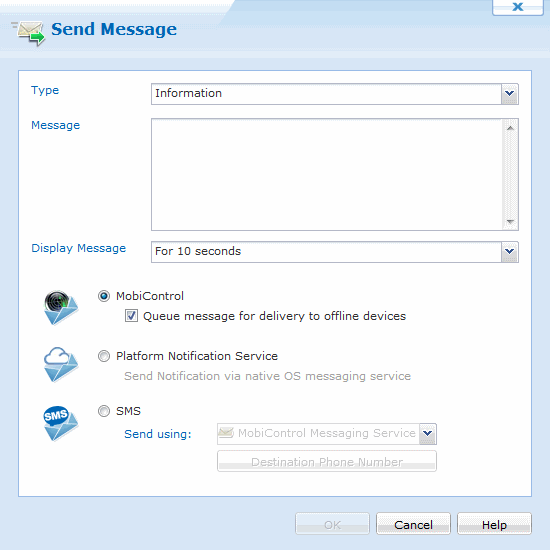
Send Message dialog box displaying the different
message types and durations
The table below describes each individual field of the Send Message dialog box:
| Field Name | Description |
|---|---|
| Message Type | From the drop-down box, select the type of message you wish to send (information, exclamation, question, or error). |
| Message | A brief note to the recipient |
| Display the message on the device(s) | Select a time intervals for which the message can be displayed on the device. |
| MobiControl | Sends the messages via MobiControl. There is no character limit with this option. |
| Queue message for delivery to offline devices | Sends the message to devices that are offline and will receive the message when they come online. The message will be stamped with the date and time it was sent. |
| SMS (Short Message Service) | Send the message via SMS text message. You may use a device that is connected via ActiveSync, or you may select a device that is online. |
| Send Using | Send a message from a device connected via ActiveSync or select an online device. |
| Destination Phone Number(s) | This is where the message will be delivered. This area is populated
with the phone number(s) of the device you selected. Multiple phone numbers need
to be separated by a semi-colon ";". |
Sending Scripts to the Device
If you want to run a custom script on a mobile device, you can do so with MobiControl. In the Script box, you can enter the script commands and instructions that you want to run on the device. When the instructions are received by the mobile device, the script commands will be executed on the mobile device. These instructions can be sent using SMS or through MobiControl. Sending scripts via SMS is only available to Windows Mobile/CE and Windows Desktop Classic devices.
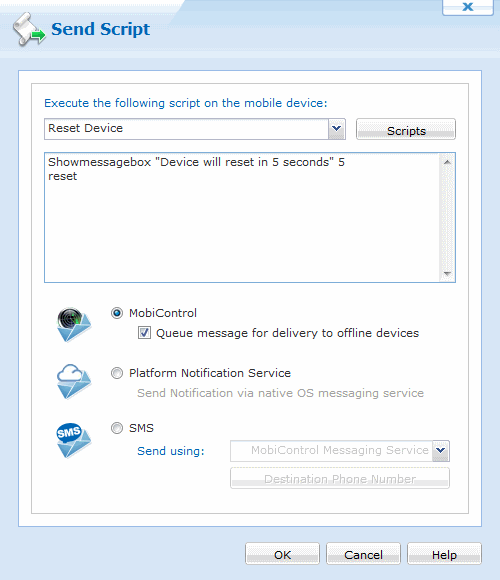
Send Script dialog box
A Script or Message can be sent to the mobile device by specifying the
Destination Phone Number(s). When this option is selected the Phone List dialog
box will be displayed that shows the Device Name, Device Location and Phone
Number(s).
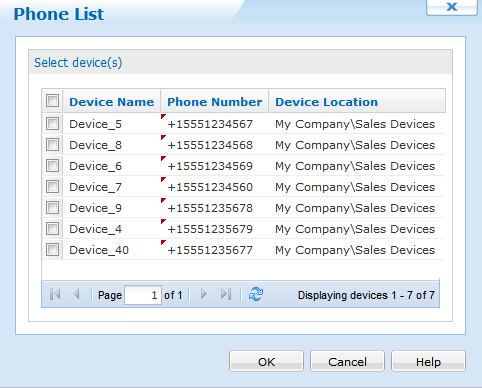
Phone List dialog box
The table below describes each individual field of the Send Script dialog box:
| Field Name | Description |
|---|---|
| Scripts | Select a pre-built script from the drop-down menu. Clicking the Scripts button opens the Manage Scripts dialog box where you can manage scripts. Please see the Script Manager page for more information. |
| Queue message for delivery to offline devices | Sends the message to devices that are offline and will receive the message when they come online. The message will be stamped with the date and time it was sent. |
| SMS (Short Message Service) | Send the message via SMS text message. You may use a device that
is connected via ActiveSync, or you may select a device that is online.
Sending scripts via SMS is only available to Windows Mobile/CE and Windows Desktop Classic devices. |
| Send Using | Send a message from a device connected via ActiveSync or select an online device. |
| Destination Phone Number(s) | This is where the message will be delivered. This area is populated
with the phone number(s) of the device you selected. Multiple phone numbers need
to be separated by a semi-colon ";." |
 Tip:
Tip:
When sending the script via SMS, hold down the CTRL key on your keyboard when clicking OK to view the raw text message that will be sent. You can copy this raw message into any other application or web form that facilitates SMS message delivery, for example, the website of a cellular carrier.
Script Manager
You can use the Manage Scripts dialog box to centrally manage all of the scripts that you are using within MobiControl. The Script Manager comes pre-built with four of the most commonly used scripts. Each one is fully customizable. The Activate Connection script connects the device to MobiControl and activates the data connection if it isn't present. The Log Event script is used to log an event with your Deployment Server. The Show Message script is used to display a message on the device, and the Wipe Device script is used to wipe the device. The scripts here are stored within the MobiControl database, and can be accessed with any MobiControl Web Console. One way to open the Manage Scripts dialog box is to right-click on a device or group, select Send, and click Script.
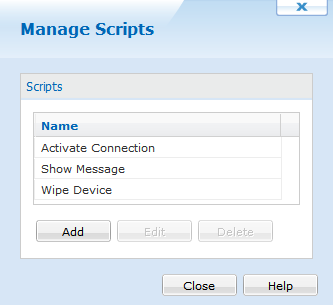
Manage Scripts dialog box
The following table describes the features of the Manage Scripts dialog box:
| Field Name | Description |
|---|---|
| New | Creates a new script |
| Edit | Edits the selected script |
| Delete | Deletes the selected script |
| Import | Allows you to import a .cmd file containing MobiControl script commands.
Please see the Script Command Set for the Remote DOS Box page
for a full list of script commands. |
Clicking the New button will bring up the Script Editor dialog box. In this window you can enter any script command that you would like to run on the device. Please see the Script Command Set for the Remote DOS Box page for a full list of script commands.
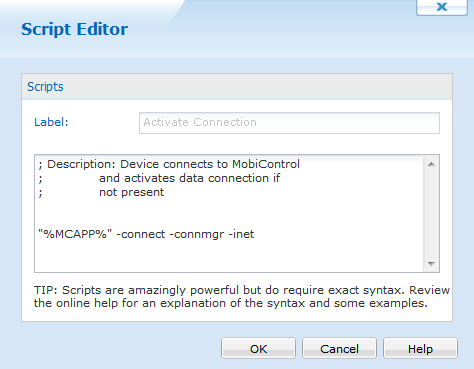
Script Editor dialog box