
|
Upgrading MobiControl |
Important: Please Read Before Upgrading
Please see http://soti.net/mobicontrol/revision-history/ for important notes regarding the latest version of MobiControl.
As a best practice, SOTI recommends that all production MobiControl deployments first undergo a round of User Acceptance Testing in a separate environment.
For more information about the upgrade path for MobiControl, see MobiControl Upgrade Path.
For more information about MobiControl v12 migration see MobiControl v12 Migration to Profile.
For more information about the new package deployment method in MobiControl v13, see Package Rules to Profile Migration Guide.
The following steps outline the procedures for upgrading an existing MobiControl installation. Please read all of these instructions before proceeding.
Once MobiControl has been upgraded, the devices will appear in the Web Console with a warning sign. This is an indication that Agent Upgrade must be enabled in order for the automatic upgrade of the Device Agent to proceed.
For example, if after enabling a few test devices for which problems are found with the agent, the upgrade can be "rolled back" and the majority of devices will avoid the failed upgrade.
- Back up the MobiControl database.
This step is optional since the MobiControl Setup Wizard will automatically back up your database. However, as an extra precautionary measure, you may back it up independently.
If you are running the full Microsoft SQL Server, you can backup your database using the Backup tool provided with Microsoft SQL Server Enterprise Manager. Optionally, you may use a third-party backup utility.
- Close MobiControl Web Console and shut down all MobiControl Deployment Servers.
 Note:
Note: It is recommended to test the upgrade procedure in a staging environment using a copy of the production database.
- Run the updated Setup program.
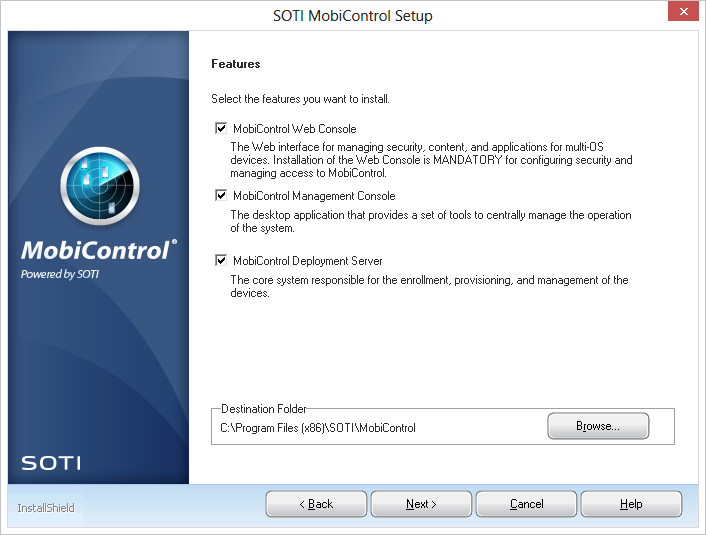
Select the features that you wish to be updated. Having the MobiControl Web Console selected will install all device tabs.
Note:
Previous versions of MobiControl allowed you to specifically define which tabs get installed. If you wish to only have specific tabs shown, please contact us.
If a feature was installed previously, and becomes unselected, the installer will remove that feature.
Click next.
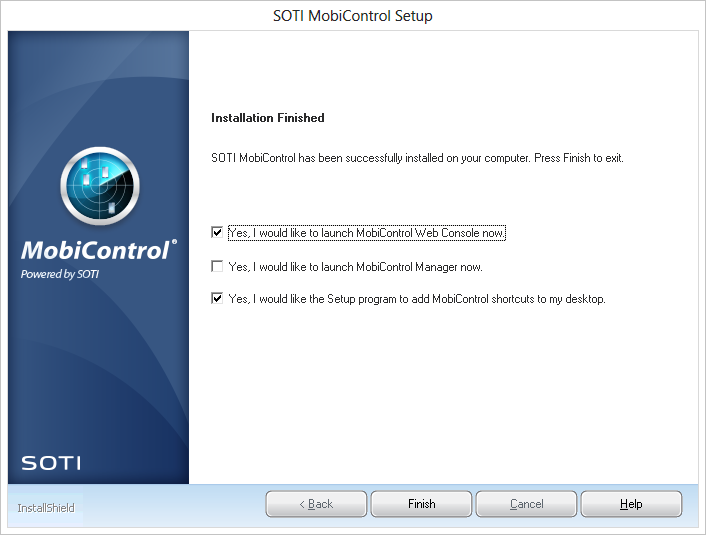
- Complete the Installation.
- Enable upgrade for one device.
Right-click on a device, select Agent Upgrade, and click Enable. If the device is already online, select Upgrade Now. If the device is not yet online, there is no need to select Upgrade Now, as the new agent will be automatically delivered upon connection to the Deployment Server when upgrade is enabled.
- Verify the build number.
- Verify communication with the selected device.
Try remote controlling it. Verify the MobiControl configuration by checking for installed packages, file sync rules, lockdown, etc. If you are unable to connect to the device or experience any issues, please contact us.
- Gradually enable upgrade for all devices.
Enable one group at a time in the device tree, and verify the devices in each group have been updated successfully.
The device menu option Agent Upgrade will automatically disappear once all devices have been upgraded. In the event problems are detected during upgrade, select Agent Upgrade and click Disable to prevent the upgrade from taking place on devices for which upgrade has been enabled, but has not yet taken place. If the upgrade does not complete successfully after one attempt (three attempts in Windows Mobile 5 and above) the upgrade agent will disable itself and you will have to enable it again to continue the upgrade process.
If you experience any difficulties or unexpected behavior, contact us.
The next dialog will show a summary of the upgrade. The installer will automatically detect the database settings. Click Next once everything is confirmed.
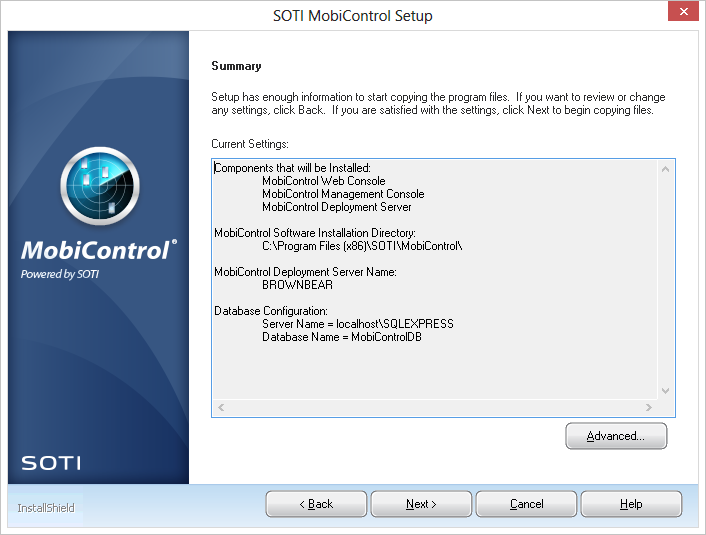
The MobiControl installer will automatically backup and upgrade the database and MobiControl at this point.
Repeat step 4 on each computer that has MobiControl Web Console, Package Studio or a Deployment Server installed.
Important:
At this point, all the devices in the device tree will appear with a warning sign. This is an indication
that agent upgrade must be enabled in order for the automatic upgrade of the Device Agent devices to proceed. Automatic upgrade is
not enabled by default so that agent upgrade can be performed gradually. This allows you to upgrade a
controlled set of devices and verify the new agent performs well before upgrading the agents of all your devices.
For
example, if after enabling for a few test devices, problems are detected with the new agent, the upgrade can be
rolled back, and the majority of the devices will avoid the failed upgrade.
Note:
As part of the upgrade process, the device will disconnect from the MobiControl server and go into the offline state. The upgrade will proceed on the device while it is disconnected, and then upon completion it will automatically reconnect and return to the online state. When the device goes offline, the warning sign will reappear on the device icon in the device tree. This is normal, and done intentionally to prevent the device from repeating its attempt to upgrade if the upgrade process fails on the device. When the upgrade is successful, the warning sign will automatically disappear when the device returns online.
When the device returns online, verify the build number by selecting the device and looking at the Info panel. If there is any conflict with the version you have installed (compare to the version information in the Web Console's About window), and the version currently on the device, or if there are any error messages in the log panel, please contact us.
Note
If you are upgrading from a version of MobiControl prior to 13.2 and you use SOTI Hub, we highly recommend also installing the SOTI apps server extension for SOTI Hub which provides additional functionality such as improved search and download resumption. See SOTI Hub for details.