
SOTI Connect Installation/ Upgrade Issues
This section provides troubleshooting instructions for issues that may occur during the installation or upgrade of SOTI Connect.
Services Fail to Start During Installation
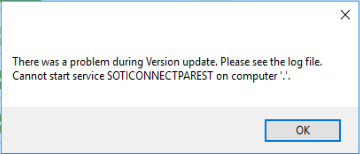
- Stop any running antivirus programs.
- Re-run the SOTI Connect installer.
Installation Fails During Database Data Deletion Step
2023-07-25 17:48:59,992 [ERROR] [ 8] Installer - Database migration failed and the installation/update cannot be continued.
Please contact support for further assistance.
2023-07-25 17:48:59,992 [ERROR] Installer - Installation failed System.Exception: Database migration failed and the installation/update cannot be continued.
Please contact support for further assistance.
Resolution
- Navigate to the Server Properties panel of the VM hosting the SQL, then select Database Settings.
- Record the location of the Data and Logs.
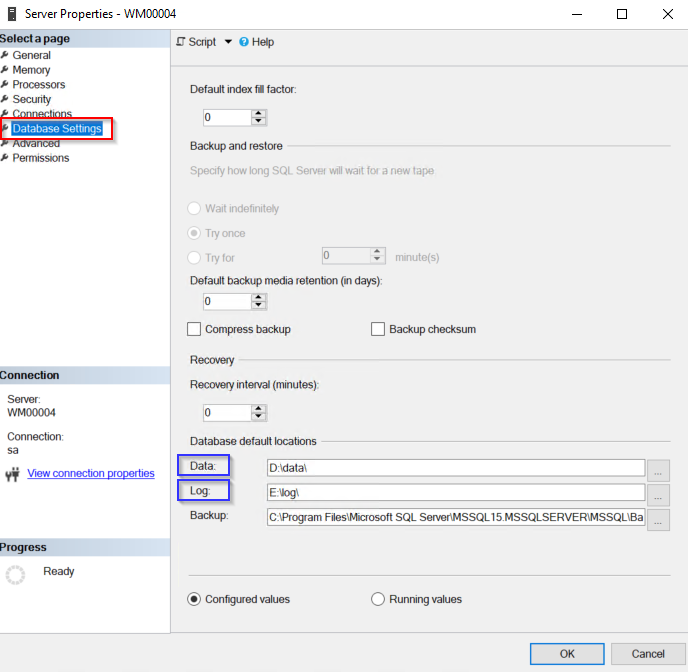
- Navigate to the Data and Log directories and delete all files
inside.Note: Delete only the files, not the directories themselves.
Database Migration Failure: 2024.0 to 2024.1.0.7405
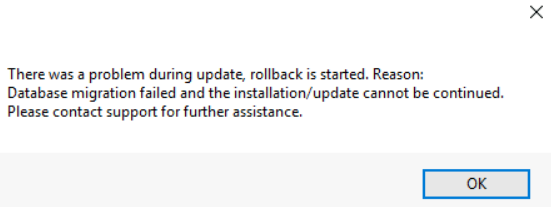
- Affected versions: SOTI Connect 2024.0 and later
Resolution
use SotiConnectManagementServer

IF OBJECT_ID('tempdb..#removeJsonMetadata') IS NOT NULL
	DROP PROCEDURE #removeJsonMetadata
GO

CREATE PROCEDURE #removeJsonMetadata
@JsonText nvarchar(max),
@Result nvarchar(max) OUTPUT
as
	declare @idBegin int = 0;
	declare @idEnd int = 0;
	select @idBegin = CHARINDEX('"$id":"', @JsonText, @idBegin)
	WHILE @idBegin > 0
	BEGIN
		select @idEnd = @idBegin +  LEN('"$id":"')
		select @idEnd = CHARINDEX('"', @JsonText, @idEnd)
		select @idEnd = case when SUBSTRING(@JsonText, @idEnd + 1, 1) = ',' then @idEnd + 2 else @idEnd + 1 end
		select @JsonText = REPLACE(@JsonText, SUBSTRING(@JsonText, @idBegin, @idEnd - @idBegin), '');
		select @idBegin = CHARINDEX('"$id":"', @JsonText, @idBegin)
	END
	select @Result = @JsonText
RETURN
GO


declare @JsonText nvarchar(max)

DECLARE employee_cursor CURSOR FOR
  SELECT RuleJson
  FROM   [SotiConnectManagementServer].[dbo].[Rules]

OPEN employee_cursor;
FETCH NEXT FROM employee_cursor INTO @JsonText
WHILE @@FETCH_STATUS = 0
  BEGIN
	  exec #removeJsonMetadata @JsonText, @JsonText output
      UPDATE [SotiConnectManagementServer].[dbo].[Rules]
      SET    RuleJson = @JsonText
      WHERE  CURRENT OF employee_cursor;

      FETCH NEXT FROM employee_cursor INTO @JsonText
  END;
CLOSE employee_cursor;
DEALLOCATE employee_cursor;
DTD Repair Failure During SOTI Connect Upgrade
Device Type Definition (DTD) Repair is utilized when SOTI Connect changes the semantic ID of a property for a device. During any update, the installer automatically runs DTD Repair with a timeout of 5 minutes. If the repair process is not completed within this time-frame, an explicit warning message displays in the installer UI indicating that DTD Repair has failed.
Resolution
- Run the SOTI Connect installer as an administrator.
- Press CTRL + Double-click on the installer window to reveal the
Repair DTD option.
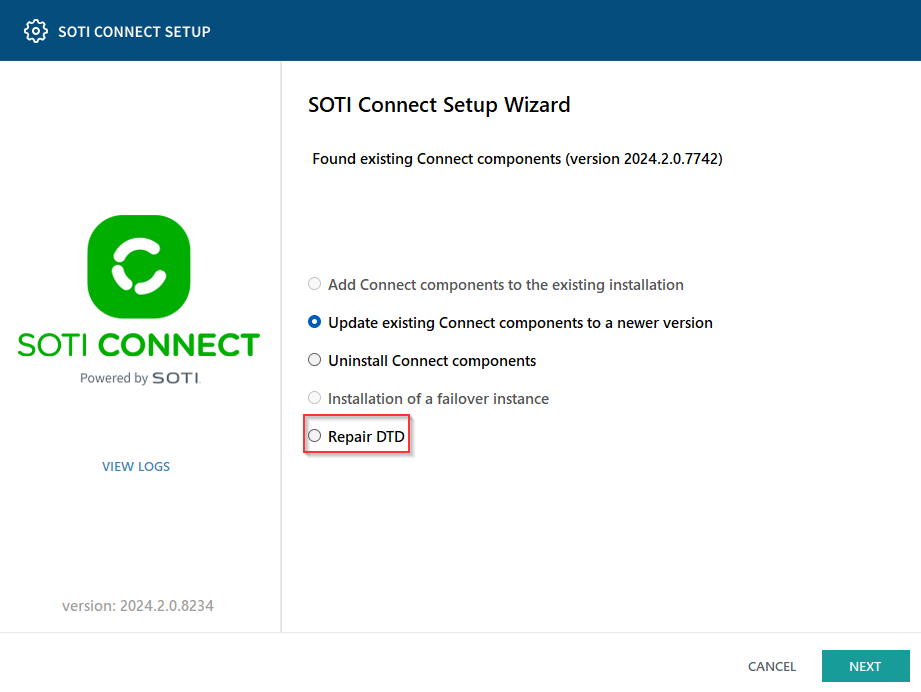
- Choose Repair DTD and follow the installer instructions.
Cannot Run SOTI Connect Installer: App Activation Error
Activation of app failed with error:
This app can't be activated by the Built-in Administrator. See the Microsoft-Windows-TWinUI/Operational log for additional information.Issue Resolution
- Make sure your screen resolution is at least 1024x768.
- Ensure User Account Control (UAC) is enabled. See Windows forum for more information.
Failover Management Service (MS) Does Not Start After Deploying a Root Certificate

Cause
The failover instance is unable to use the updated root certificate.
- Launch the SOTI Connect installer as an administrator.
- Navigate to the SOTI Connect Root Certificate view.
- Select Import Root Certificate From File.
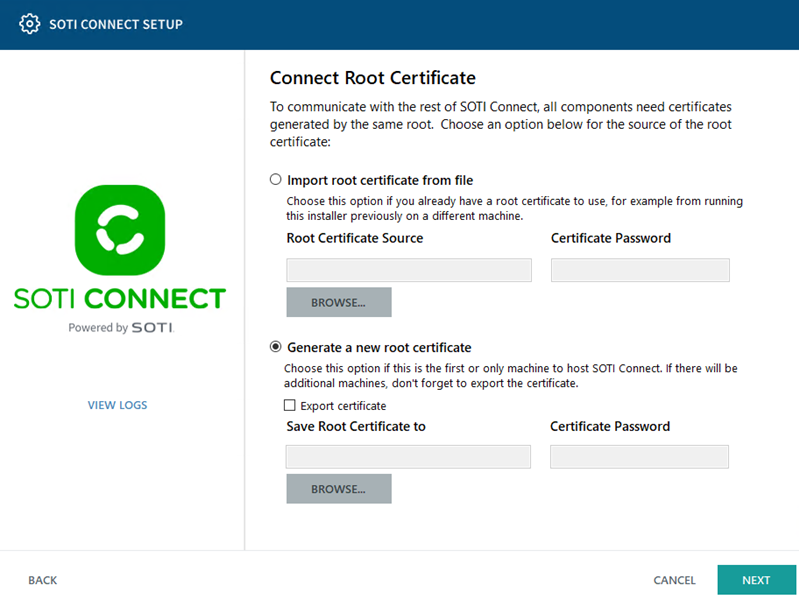
- Select Browse, locate the root certificate file, and enter the Certificate Password.
- Select Next, then follow the remaining steps in the installer to complete the update.
The updated root certificate is applied, and the Failover Management Service (MS) starts successfully.
Fresh Installation Fails Due to MS Not Starting Automatically
Installer - Could not start service SOTI Connect - Management Server
Cause
The Management Server does not start automatically, preventing installation from completing.
Prevention
Reboot the VM before re-running the installer.
SOTI Connect URL is not Accessible After Update
After upgrading the SOTI Connect instance, the console URL might be inaccessible. Affected versions: SOTI Connect 2024.2 and later.
Cause
The Management Service does not open port 443 after the update.
Resolution
Restart the Management Service (MS). See Restarting Management Service for more details.