
|
Alert Rules |
Alert Rules allow Administrators to be notified when events of interest arise on the system. This notification system allows Administrators to quickly and effortlessly communicate an event message to large groups of people via email, and notifies users via the MobiControl Manager Alert tab. For every type of scenario, whether it is a Rule Change or a Device Error, the system will rapidly deliver your message to a designated audience.
 Note:
Note:
The Deployment Server must be online in order for Alerts to be generated and sent out.
The MobiControl Web Console allows you to create Alerts based on the Devices Operating System (OS). Some Alerts are specific to the OS Tab that has been selected . For detailed information on the Alerts Available please see below.
| Type | Description |
|---|---|
| Device Event | Trigger alerts based on an assortment of device specific conditions. |
| Device Status and Custom Data | Trigger alerts based on Custom Data vales that you have configured. |

All Device OS's Tab
The steps below describe how the Create Alert Rule Wizard can be used to create an Alert using the MobiControl Web Console:
-
Start the wizard.
Select the All OS's Tab, then select the Rules tab, then Right click on the Alert Rule folder, and select Create Alert Rule. The first page of the Create Alert Rule Wizard will be displayed.
Enter a descriptive name for the Alert Rule you are creating and click Next.
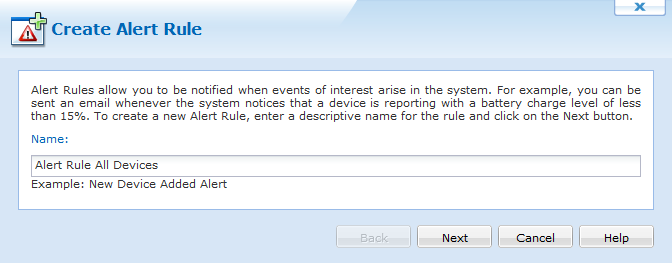
First page of the Alert Rule Wizard
-
Select the Alert Rule Type.
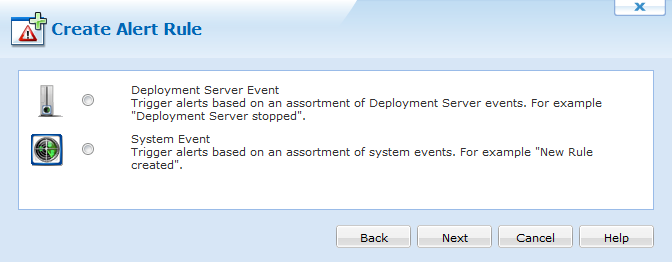
Select the Alert Rule Type and click Next. After Clicking Next you will be asked to specify the Alert Options for the selected Alert Type. Select the type of alert below for more information on the Alert Options available.Type Description Deployment Server Event Trigger alerts based on an assortment of Deployment Server events. System Event Trigger alerts based on an assortment of system events. -
Notification Profile Settings
Once the Alert Rule is selected, you must select your Notification Profile.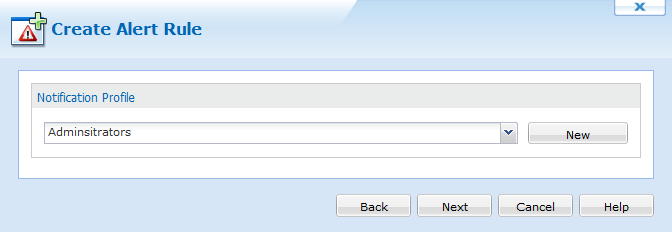
Select an existing notification profile, or click New to create a new Notification Profile. For assistance with notification profiles click here. Once you have selected your notification profile click Next. -
Review the summarized information.
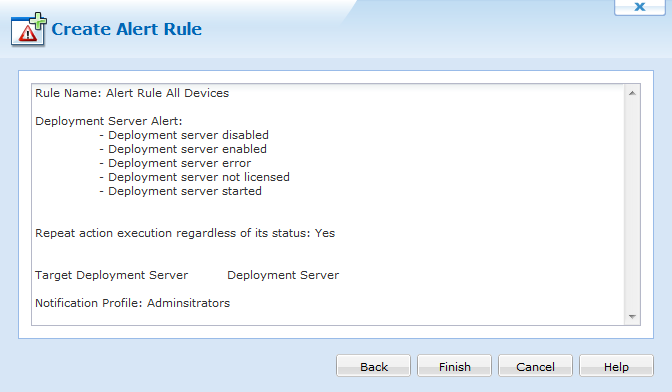
Click Finish to complete the wizard.