Android+ Device Agent Installation Methods |
Android Device Agent Installation Methods
The MobiControl Device Agent is the MobiControl software that is installed onto mobile devices. The Device Agent communicates with MobiControl Deployment Server(s) and carries out the instructions it receives from servers. Device Agents also provide reporting and real-time information to Deployment Servers.
Android Device Agent Installation from Samsung Apps (Samsung devices only)
- Download the MobiControl Device Agent.
- Once the Device Agent has been installed, enter the Enrollment ID provided when you create an add devices rule
Please see the Adding Android+ Devices page for More information on creating an add devices rule.
Android Device Agent Installation from Google Play
- Install the MobiControl Device Agent from Google Play by searching for MobiControl.
- Once the Device Agent has been installed, enter the Enrollment ID provided when you create an add devices rule.
Please see the Adding Android+ Devices page for More information on creating an add devices rule.
Android Device Agent Installation from Internal/External SD Card
- Create an Add Devices Rule. Please see the Adding Android+ Devices page for more information on creating an Add Devices rule.
- Download the .APK by right clicking on the Add Device Rule that was created and select Download Device Agent.
- Download the .APK file and the MCSetup.ini and place them both in the root of the SD Card or in the Downloads folder.
- Ensure that your device can install applications that did not come from Google Play. To do this, go to your device settings, select security and check off Unknown Sources.
- From the device, using a file browser, navigate to the SD Card and select the APK to install it.
When using the MCSetup.ini the user will not be required to enter an enrollment ID as this information is stored within the .ini file.
Device Agent Configuration Applet
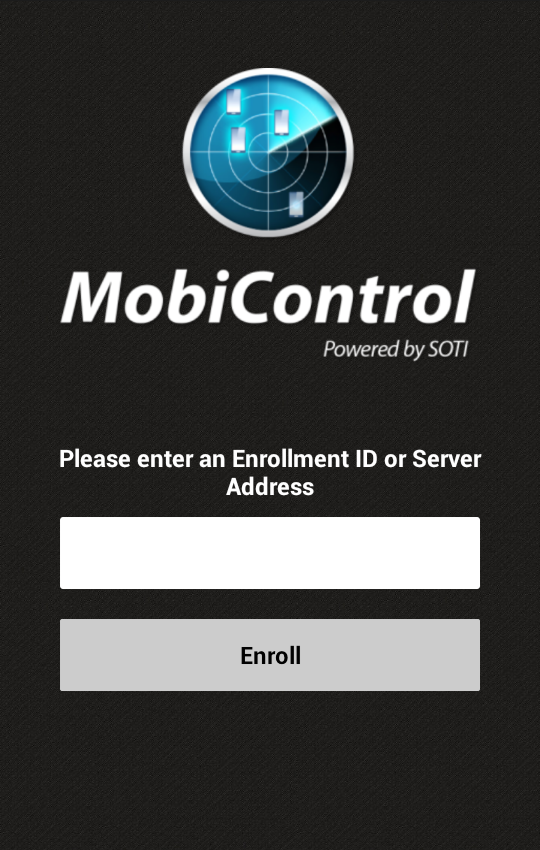
Once installed on the Android Device the Device Agent enables the user to connect or disconnect from the Deployment Server Server, as well as view the Application Catalog. Please see the Android+ Device Agent page for more information on the Android+ Device Agent.
Android Device Agent Uninstallation
The MobiControl Device Agent is installed on the device as a "Device Administrator", first step in uninstalling the Device Agent is to remove the agent as the "Device Administrator".
To remove the Device Agent as the "Device Administrator" and to uninstall the app, please follow these steps:
- Go to your device settings and select Security.
- Once in the Security settings, select Device administrators.
- Uncheck MobiControl, this deactivates MobiControl as being a device administrator.
- Once MobiControl has been deactivated , the app can be uninstalled like every Android app.
- Go back to Settings and select Applications, select MobiControl and uninstall the application.