Android Device Lockdown |
Device lockdown replaces the standard device home screen with a customizable home screen. Users have access only to authorized applications and websites, and are prevented from accessing all other applications and device controls.
Note:
Device lockdown is not supported on Sony devices running Android L and above.
Please see the Android Speed Lockdown page for more information about the Speed lockdown.
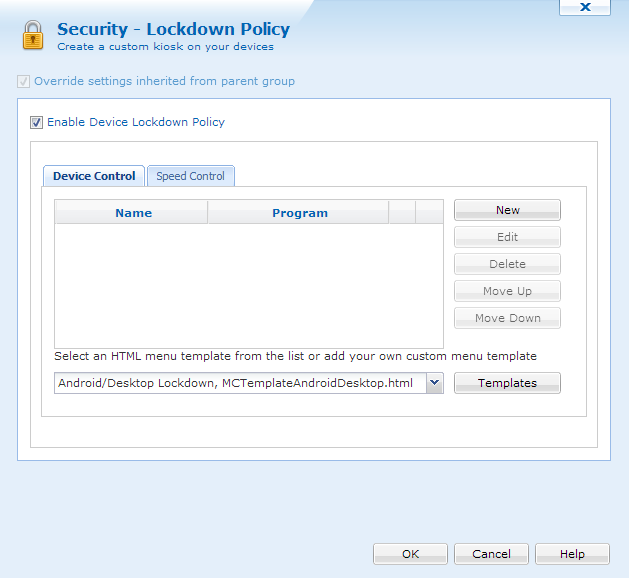
Lockdown Policy dialog box
By locking down devices, organizations can minimize the risk of unauthorized persons accessing information on their mobile devices. Administrators can control exactly which programs users are allowed to run, and which websites they are allowed to visit. This decreases the amount of down-time caused by users changing settings that may adversely affect the operation of the device or application software, and also decreases support costs. MobiControl allows running the mobile devices in a kiosk mode with a read-only access to provide critical information to the end users, without giving them access to change the settings.
The lockdown menu can only be dismissed by an administrator. Specification of a user password is optional. If not configured the device user can access the lockdown menu directly after turning on the device. If a user password is defined, then the password must be entered in order to access the lockdown menu.
To configure lockdown settings for a device or group of devices, select the target device or group in the device tree view in the main console window and select Security from the Configure Device(s) submenu.
| Field Name | Description |
|---|---|
| Enable lockdown menu | Use this checkbox to enable or disable the device lockdown menu. |
| Device Program Menu | The device program menu is a list of programs and websites to which the user has access. There are pre-configured HTML menu templates that can be edited or applied to the menu, and an option to enable or disable the launching of a menu item with keyboard shortcuts. Please see the Device Program Menu section below for details. |
| HTML menu template | Select a menu template from the drop-down list. Please see the Templates section below or the Customizing Android Lockdown Menu Templates page for more information. |
 Tip:
Tip:
- If you link to a search engine the end user will gain full access to the Internet.
Device Program Menu
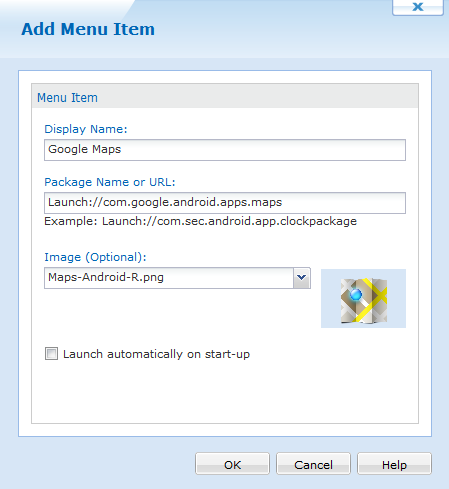
Use the New button to add menu items. Each entry consists of a user-friendly name and a complete file path to the executable,
.lnk shortcut file, .cmd script file, or website address (URL). To adjust the position of the menu items, use the
Move Up and Move Down buttons.
| Field Name | Description |
|---|---|
| Display Name | This is the displayed name of the menu item that will appear on the device. |
| Package Name or Script File or URL |
This is the path for the web address, or Package ID (Bundle Identifier) on the device. For instance, the Package ID (Bundle Identifier) for Google Maps is
|
| Image (optional) |
If you wish to replace an image that had been previously imported, upload the new graphic file, maintaining the same file name as the old one. You will be asked to confirm the overwrite of the old file. Click Yes, and the new image will be in effect. This is the name of the image file that you want to display in the lockdown menu with this menu entry. By selecting the image in this dialog box, it will be automatically delivered to the device along with the lockdown configuration. Select an image from the drop-down list, or click the image to select an image from your desktop computer. In order to display this image in the lockdown menu, it is necessary for the HTML template to have a special |
| Use Application Icon | Use the application icon in the lockdown. In order to display this image in the lockdown menu, it is necessary for the HTML template to have a special <MCEXEIconN>
tag. Please see the Customizing Android+ Lockdown Menu Templates page for instructions on how to make this image appear in the Lockdown menu. |
| Launch automatically on startup | When this option is checked, the selected program will be automatically executed on startup (i.e. after a soft reset, or restart of the lockdown process). |
 Note:
Note: 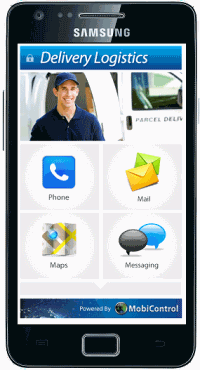
Device lockdown page
Templates
The lockdown program menu is displayed as an HTML web page to the user. The Template drop-down box allows you to select an HTML template from a list of built in templates and your own customized templates.
You can easily create a customized lockdown template by copying an existing template and directly modifying HTML code in the built-in Lockdown Menu Template Editor available in MobiControl. (Please see the Customizing Android Lockdown Menu Templates page.) You can also use your favorite HTML editor. When editing the HTML file, be sure to preserve the special MobiControl Menu tags. These special tags are automatically replaced with the appropriate Program Menu entries by MobiControl.
Once you have selected the desired template and clicked the OK button, MobiControl will merge the menu items that you have configured with the selected template and generate a custom HTML menu page.
For further assistance, please contact us.