
|
MobiControl Administration Utility |
What is the MobiControl Administration Utility?
The MobiControl Administration Utility provides the administrator access to multiple system configuration and status options. The administrator can:
- Check on the system health of the deployment
- Check on and test the status of services
- Check on and test the status of deployment server
- Adjust Web Console connection ports
- Configure Server Certificates and APNS Certificates
- Configure Database connection
- Configure the deployment server and management console logs
System Health
The System Health window allows the administrator to see the status of all the main MobiControl components . If the connection is good, it will appear Green. If not, it will appear Red.
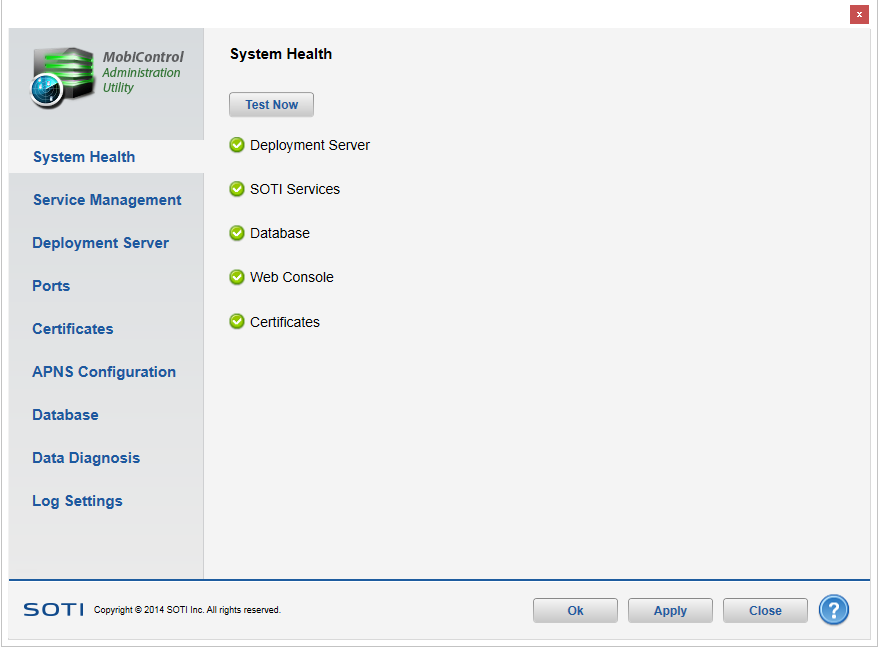
System Health
| Feature | Description |
|---|---|
| Deployment Server | Displays the status of the Deployment Server |
| SOTI Services | Displays the status of the SOTI Services |
| Database | Displays the status of the Database |
| Web Console | Displays the status of the Web Console |
| Certificates | Displays the status all related certificates that are currently in use by MobiControl services |
Service Management
The Service Management section allows the administrator to view the status and test connectivity of all Services. From this window, you can also perform Stop, Start, and Restart functions on the Deployment Server and Management Service services without needing to access services.msc.
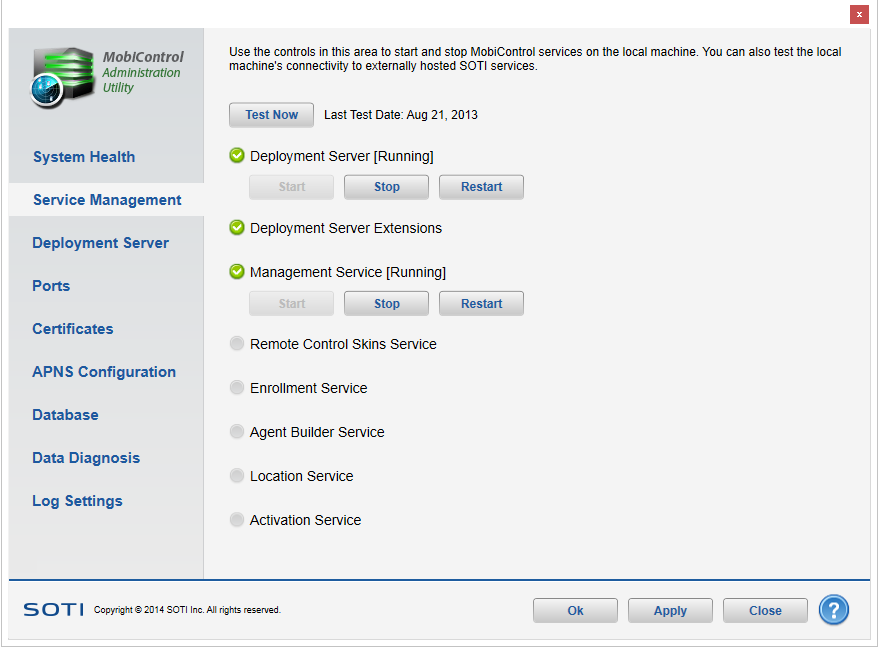
Service Manage
| Feature | Description |
|---|---|
| Deployment Server [Status] | Displays the current running status of the Deployment Server service. |
| Deployment Server Extensions | Displays the current status of the Deployment Server Extensions enabling Apple iOS and Google Android devices to communicate properly. |
| Management Service [Status] | Displays the current running status of the Management Service. |
| Remote Control Skin Service | Displays the current status of access ability to the Skin Catalog. |
| Enrolment Service | Displays the current status of the Deployment Servers connection to the SOTI Enrolment Service for Apple iOS and Google Android devices. |
| Agent Builder Service | Displays the current status of the connection to the Device Agent Manager stored on SOTI Servers for use in creating Windows Mobile device agents within the Web Console. |
| Location Service | Displays the current status of access ability to SOTI's Location Based Services. |
| Activation Service | Displays the current status of access ability to SOTI's Activation Server. |
Deployment Server
The Deployment server option provides the administrator access to the Deployment server connection settings. From this screen you can change the Deployment server configuration.
| Feature | Description |
|---|---|
| Site Name | Displays the deployment's Site Name and allows the administrator to change it. |
| Deployment Server Name | Displays the Deployment Server(s) name and allows the administrator to change it. |
| Primary Agent Address and Port |
Displays the primary IP or FQDN address for device connectivity along with it's assigned port. Note: We recommend you to specify a DNS resolvable hostname instead of a static IP address as the DNS resolvable hostname is less likely to change. Devices Connecting through a ProxyNote Supported on Windows Mobile/CE and Windows Desktop Classic devices only. Other device types will continue to connect directly to the MobiControl deployment server. If the Device requires proxy access to the Internet in order for the device agents to connect to the Deployment Server you can use the following settings in the Device Agent Connection Field: www Proxy: http://<Username>:<Password>@<Proxy Server>:<Proxy Port>/<Deployment Server Address>:<Deployment Server Port> Socks Firewall/Proxy: socks://<Username>:<Password>@<Proxy Server>:<Proxy Port>/<Deployment Server Address>:<Deployment Server Port> or socks://<Proxy Server>:<Proxy Port>/<Deployment Server Address>:<Deployment Server Port> |
| Secondary Agent Address and Port | Displays the secondary IP or FQDN address for device connectivity along with it's assigned port. |
| Device Management Address and Port | Displays the external FQDN address for Apple iOS and Google Android device connectivity along with it's assigned HTTPS port.
Note If you change the port number, ensure that you also change the port number in the The Deployment Server will listen for incoming HTTPS requests on field on the Ports screen to match. |
| Secondary Agent Address and Port | Displays the secondary IP or FQDN address for device connectivity along with it's assigned port. |
| Device Enrollment Address and Port | Displays the external FQDN address for web console access along with it's assigned HTTPS port. |
| Management Service Address and Port | Displays the Management Service address in FQDN as well as its associated port number. |
| Override Local Management Service Address | When enabled, the Management Service Address uses the FQDN and port specified underneath this checkbox when it builds requests.
Use this option in deployments with multiple Management Services, where most of the Management Services use a default load-balanced address while the single MS not behind the load balancer uses the Management Service Override with its own FQDN to ensure all requests point back to itself. Note: This option is only available in environments where the Management Service is installed on the same computer as MobiControl Administration Utility. |
| Device Agent Access Available | Indicates whether network traffic to the indicated primary and secondary IP or FQDN and port are functional. |
| Device Management Access Available | Indicates whether network traffic to the indicated external FQDN and HTTPS port are functional. |
Management Console Connection settings
This is the IP address or host name used by the management console to connect to the Deployment Server to receive real-time updates. The Deployment Server automatically reads the default IP address assigned to the host computer upon which it is running.
| Field | Description |
|---|---|
| Fully Qualified Domain Name/ IP Address and Port | Administrator can configure fully qualified Domain Name/ IP address and Port used by the Management Service to connect Deployment Server. |
| Alternate Fully Qualified Domain Name/ IP Address and Port | Displays Alternate Fully Qualified Domain Name/ IP Address, Port and allows the administrator to change it. |
Device Connection Sensitivity
| Field | Description |
|---|---|
| Send Test Message to Devices Every | Administrator can configure test message frequency used by Deployment Server to check device connectivity. |
| Maximum Time Waiting for reply | This setting is used to control how long the Deployment Server will wait for the reply from the device after sending it a test message or a request. |
Advanced Server Configuration
| Field | Description |
|---|---|
| Minimum Threads | Allows the user to set the minimum number of service threads. This value is 2 times the amount of processor cores available on the Deployment Server. |
|
Optimum Threads |
Allows the user to set the maximum number of service threads. This value is 16 times the amount of processor cores available on the Deployment Server. |
| Maximum Burst Threads | Allows the user to set the maximum number of service threads based on Server Configurations. This value is 256 times the amount of processor cores available on the Deployment Server. |
| Check for Rule Changes Every | This setting is used to control how often the Deployment Server is to check the database for changes to rules. |
| Check for Device Schedule Changes Every | This setting is used to control how often the Deployment Server is to check for device schedule changes. |
| Set MobiControl Identity Provider for All Targets | This setting is used to specify which server should act as the Identity Provider (IdP) for your setup. In MobiControl installations with multiple Management Servers, you must select a single Management Server to use as the IdP. |
Ports
The Ports screen allows the administrator to adjust the HTTP(S) ports for use with the Web Console, as well as specify the HTTPS port for the Apple iOS and Google Android devices to communicate over.
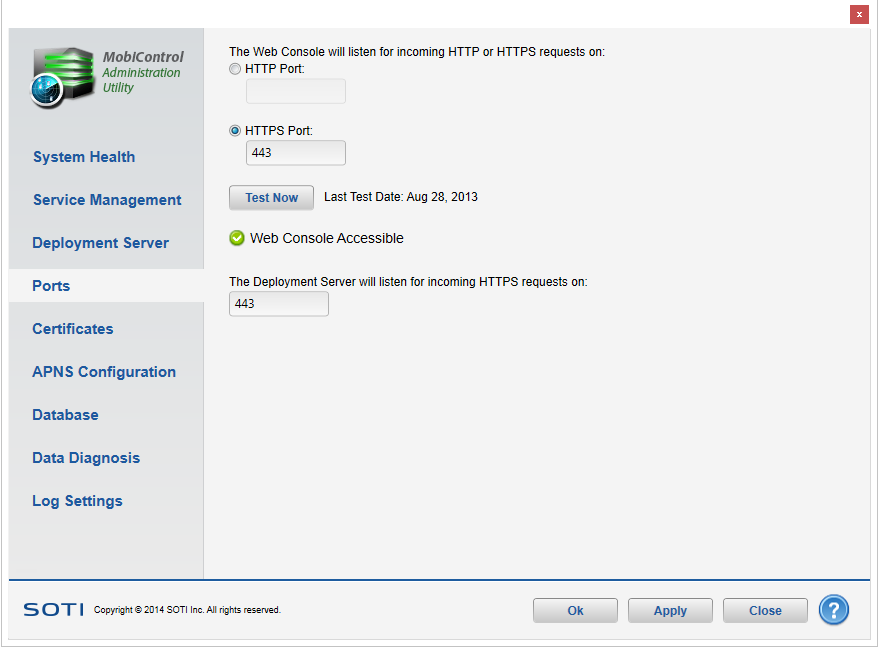
Ports
| Feature | Description |
|---|---|
| The Web Console will listen for incoming HTTPS requests on | Displays the current web protocol and port being used for the Web Console and administrator to change it. |
| The Deployment Server will listen for incoming HTTPS requests on: | Displays the current port being used for Apple iOS and Google Android device communicate and administrator to change it.
Note If you change the port number, ensure that you also change the port number in the Device Management Address field on the Deployment Server screen to match. |
| Web Console accessible | Displays the current status of the Web Console. |
Certificates
The Certificates screen provides the administrator the ability to view and update certificates that are needed for device management.
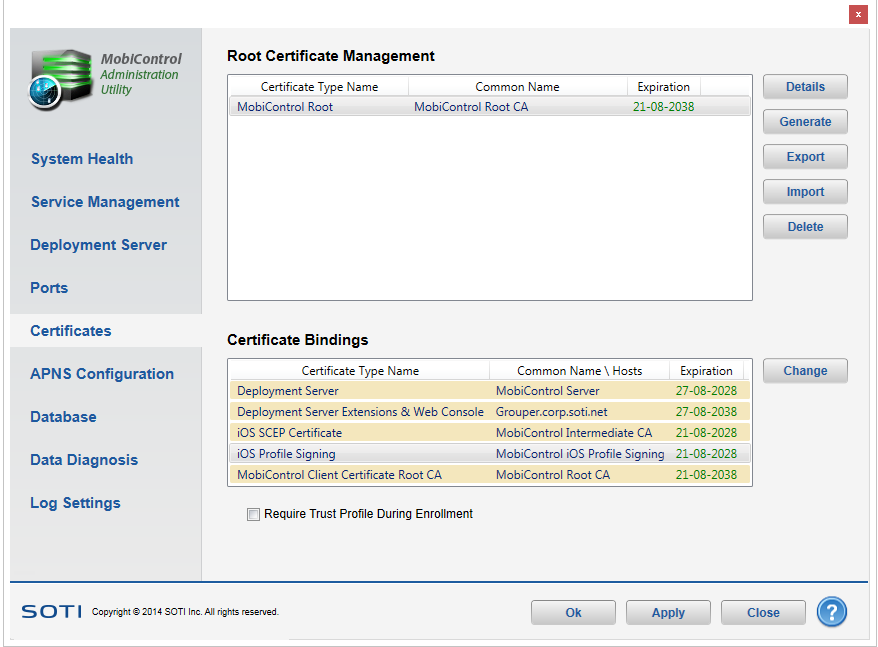
Certificates
Note
Certificates generated in the MobiControl Administration Utility are pushed down to devices according to the device's update schedule.
Root Certificate Management
This window displays the root certificates currently installed for MobiControl.
Clicking Details will show information about the currently selected certificate. You can Generate, Export, Import or Delete selected root certificate from Root Certificate Management screen.
For more information on how to renew the MobiControl root certificate Please see the Root Certificate Renewal page
Certificate Bindings
This section displays certificate information used by the following components:
- Deployment Server
- Deployment Server Extensions & Web Console (used to change certificate for HTTPS binding in browsers)
- iOS SCEP Certificate
- iOS Profile Signing (Changing to a third party certificate will simplify the iOS device enrollment)
- MobiControl Client Certificate Root CA
- MobiControl CloudLink
Note:
The hostname of the Deployment Server should be listed either in Subject or in Subject Alternative Names field of the server certificate, or the agents will refuse to connect to the Deployment Server.
Example:
For Instance, Deployment Server has the following addresses:
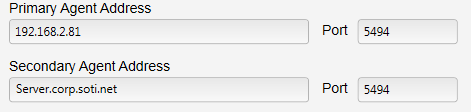
Deployment Server Agent addresses in Admin Utility
The Deployment Server is using a third party certificate issued to "Server.corp.soti.net"
In this case, the Agent will attempt and fail to connect to the Primary Agent address, causing the agent to switch to a secondary connection address. The Agent will successfully connect to the Secondary Agent address because the third party certificate bound to the server has the matching hostname to the certificate.
For more information on how to generate or change the MobiControl root certificate MobiControl Root Certificate ManagementPlease see the Root Certificate Management page
APNS Configuration
The APNS (Apple Push Notification Service) screen provides the administrator the ability to update and change the APNS certificate attached to the deployment. You can also view the connection status to Apple's servers.
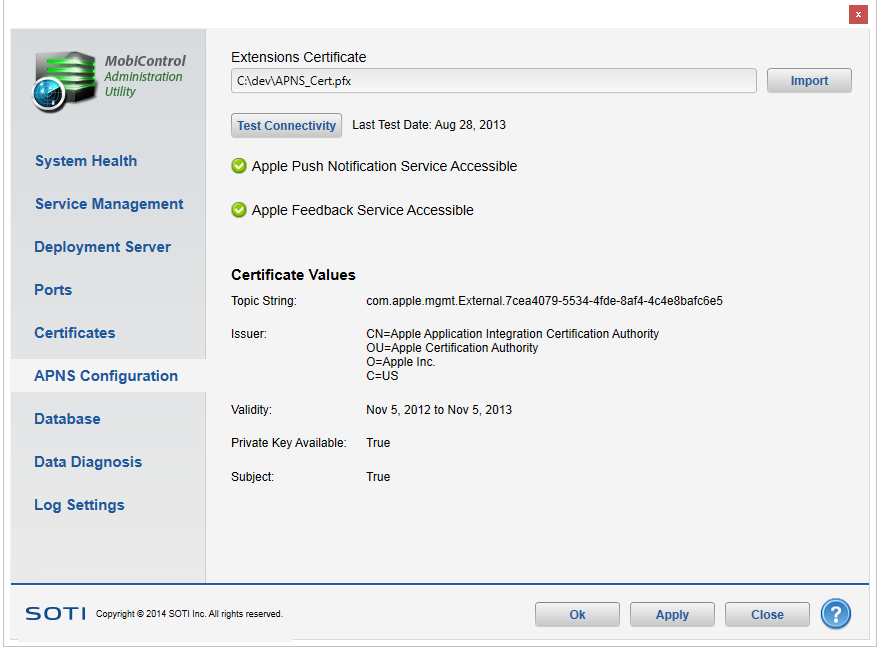
APNS Configuration
| Feature | Description |
|---|---|
| Certificate | Identifies the location of the APNS Certificate |
| Import Certificate | Allows the MobiControl Administrator to import a new APNS certificate. |
| Apple Push Notification Service accessible | Identifies if the deployment server can connect to Apple's APNS servers. |
| Apple Feedback Service accessible | Identifies if the deployment server can connect to Apple's Feedback Service servers. |
Database
The Database section gives the administrator access to the SQL database connection settings.
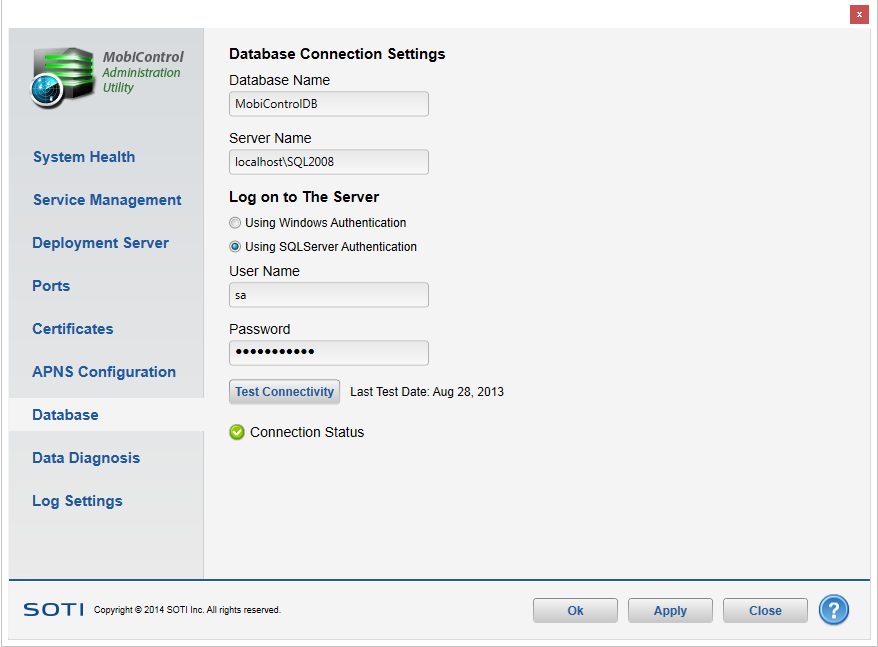
Database
| Feature | Description |
|---|---|
| Database Name | Displays the current database name and provides the ability to change it. |
| Server Name | Displays the current deployment server name and provides the ability to change it. |
| Windows Authentication | Specifies the authentication to the deployment server to use Windows NT Authentication. |
| SQL Server Authentication | Specifies the authentication to the deployment server to use a specific SQL user. |
| User Name | Specify the name of the SQL use to be used to authenticate to the database. |
| Password | Specify the password of the SQL use to be used to authenticate to the database. |
| Database Accessible | Indicates whether or not the SQL database is accessible to the deployment server |
Data Diagnosis
Running a diagnosis will help identify corrupted data (Devices, Device Groups, Rules, and Configurations) in the SQL database.
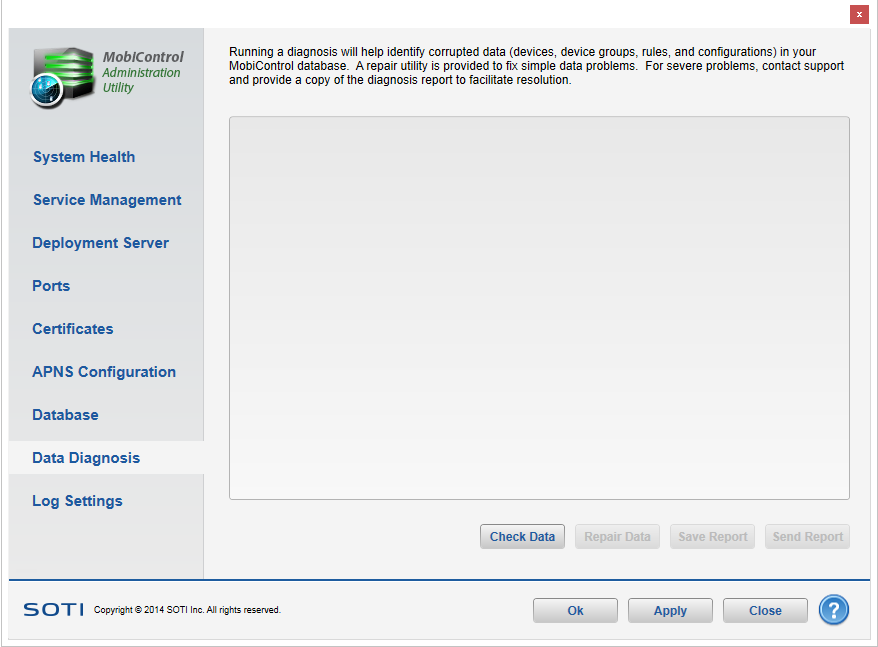
Database Diagnosis
A repair utility is provided to fix simple errors and data problems. For more severe problems, Contact Us for Support and provide a copy of the diagnosis report.
| Feature | Description |
|---|---|
| Check Data | Check your MobiControl Database for errors or corrupted data |
| Repair Data | Repair simple errors found in your MobiControl Database |
| Save Report | Save the report to a specific location |
| Send Report | Send the report to a Technical Support Representative |
Log Settings
The Log Settings screen allows the administrator to specify the logging detail level for each component.
The following list contains the different log details:
| Detail Type | Description |
|---|---|
| Off | No logs will be recorded. |
| Error | Only records errors in the log file. |
| Warning | Only records warnings in the log file. |
| Info | Only records information items in the log file. |
| Verbose | Records everything in the log file. This is also known as Debug Logging. |
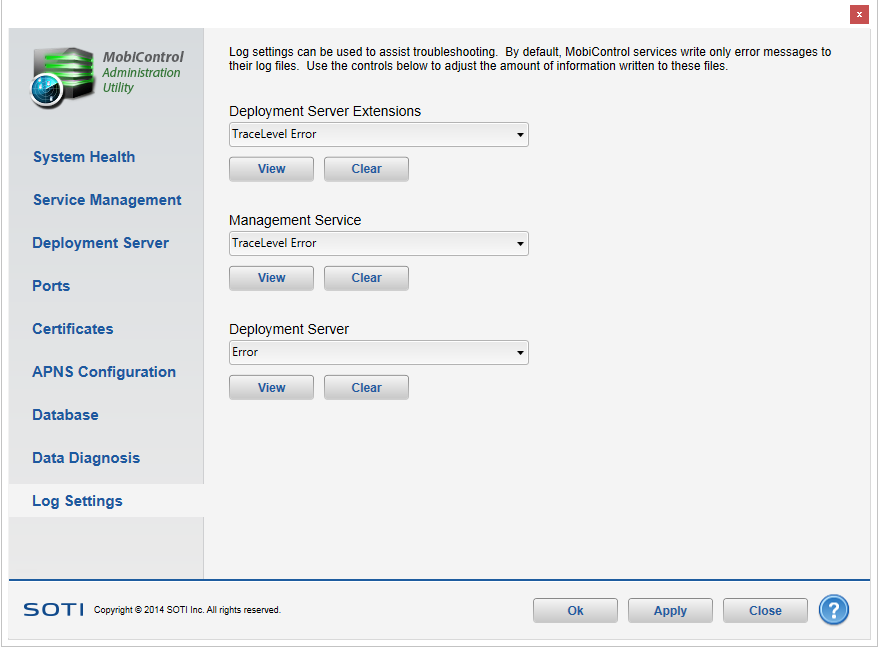
Log Settings
| Area | Item | Description | ||||||||||
|---|---|---|---|---|---|---|---|---|---|---|---|---|
| Deployment Server Extensions |
|
|||||||||||
| Management Service |
|
|||||||||||
| Deployment Server |
|
|||||||||||
| Feature | Description |
|---|---|
| View | Allows the MobiControl Administrator to view the log. |
| Clear | Allows the MobiControl Administrator to clear the log. |