
|
Installing MobiControl |
First-time Installation
MobiControl uses a database to store configuration information. When installing MobiControl, you can install the database on the same computer on which other MobiControl components are installed, or you can install the database on a separate computer.
MobiControl currently supports the following databases:
- Microsoft SQL Server 2005 (Express, Standard, Workgroup, Developer, Enterprise)
- Microsoft SQL Server 2008 (Express, Standard, Workgroup, Web, Developer, Enterprise)
Microsoft SQL Server 2000 Desktop Engine (MSDE 2000) and Microsoft SQL Server 2005 Express Edition can be downloaded for free with MobiControl.
The MobiControl installation program can configure the MobiControl database on an existing database server or it can install a free database server (included in the setup program) and then configure the database.
MobiControl includes the following three setup programs:
MobiControlxxxSetup.exeallows you to use an existing database serverMobiControlxxxDBSQL2005ExpressSetup.exeincludes the Microsoft SQL 2005 Express Edition database. It can install and configure the MobiControl database or it can configure the MobiControl database in an existing database server.
 Example:
"xxx" is the three-digit MobiControl version number. The
MobiControl version 3.00 setup program file that includes the SQL 2005 database would be
MobiControl300DBSQL2005Setup.exe.
 Note:
Note:
Microsoft .NET Framework 2.0 is required in order to install MobiControl. If it is not installed on your system, it can be downloaded from here.
To install MobiControl, select and run the appropriate setup program and follow the instructions. The following is a description of the main screens of the setup program.
- Accept the license agreement.
Please read the License Agreement carefully. To install MobiControl, you need to accept the license agreement. If you agree with the License Agreement, please click Yes, otherwise click No. If you click Yes, the Setup Wizard will proceed.
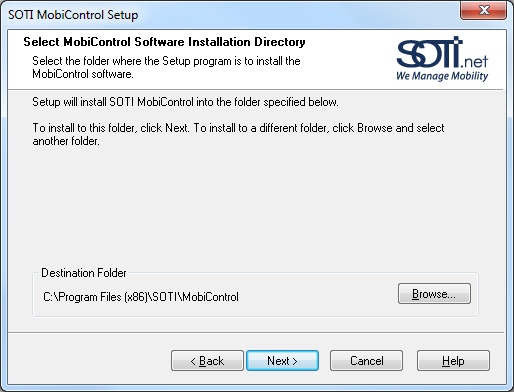
- Select the installation directory.
You may save MobiControl software in the default folder. If not, click Browse and select the folder you wish.
- Select Features.
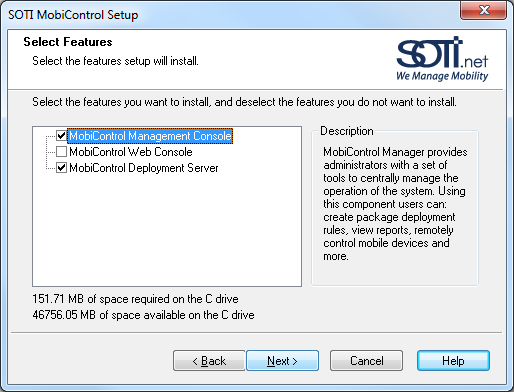
Select the features setup will install:
Select the MobiControl Management Console option to install the MobiControl Management console (MobiControl Manager) and Package Studio. This option is recommended when you are adding an additional Management console to an existing MobiControl installation, for instance, for a new help desk staff member.
Select the Web Console option to install the MobiControl Web Console on your Internet Information Service (IIS) enabled server.
Note: Installation of the MobiControl Web Console requires additional components to be enabled within your IIS Server. Please Click Here for a list of requirements.
Select the Deployment Server option to install the Deployment ServerDeployment Server. It is recommended to install the Manager console on any computer on which you are installing the Deployment ServerDeployment Server.
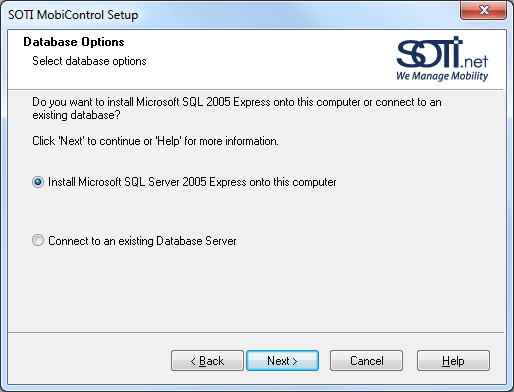
- Select database options.
You will only see this page if you are running the version of the setup program that includes a database. The screen allows you to either install the free Microsoft SQL Server included in the installer or use an existing database server. If you decide to install a new database server you will also see the following screen. If you do not install a new database server you will be asked to configure a database connection to an existing database server. The Setup program will then configure the MobiControl database on that database server.
- Create a password for the new database.
Enter a password for the database that MobiControl will create once it installs the Microsoft SQL Server. This is an important password; ensure that it is not forgotten!
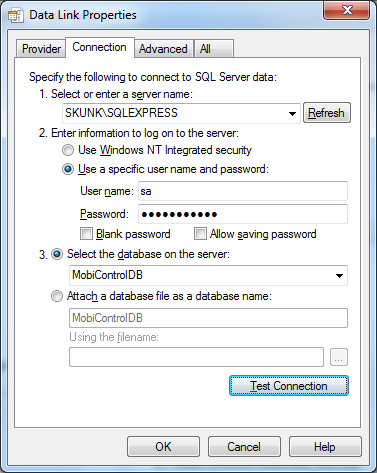
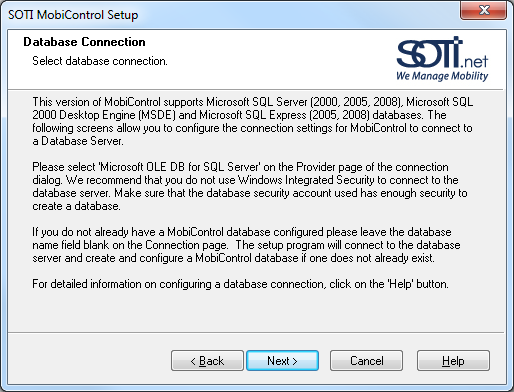
- Configure the database connection.
Please see the Database Configuration page for more help.
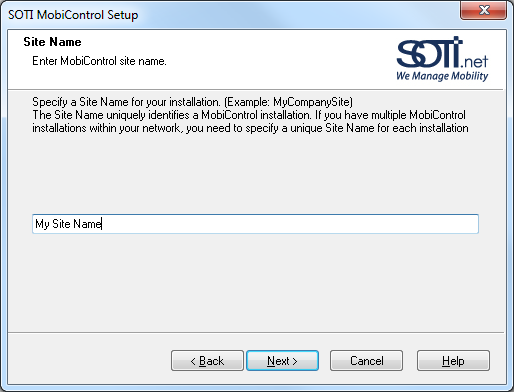
- Enter site name.
Enter the site name for your MobiControl installation. This name must be unique on the network.
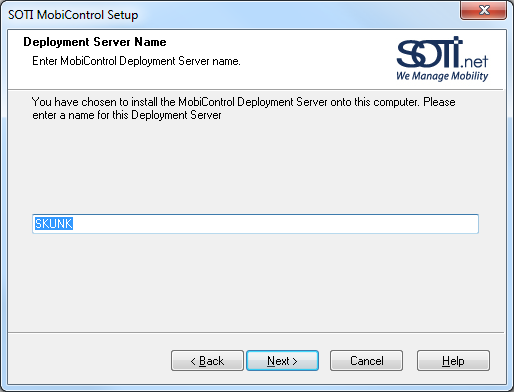
- Enter Deployment Server name.
Enter a name for the MobiControlDeployment Server. This name can be the name of the computer on which the server is running.
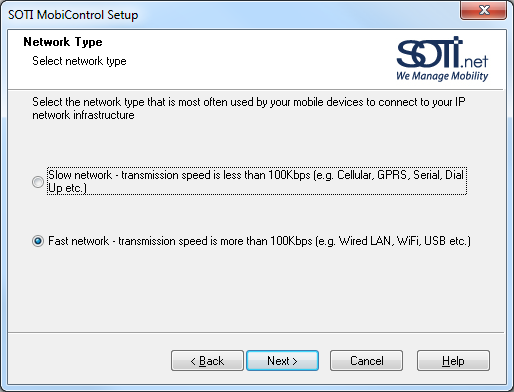
- Select network type.
Select the network type to which mobile devices are currently connected. This screen will not be presented while choosing to repair, upgrade, or modify mode or a network type setting that already exists.
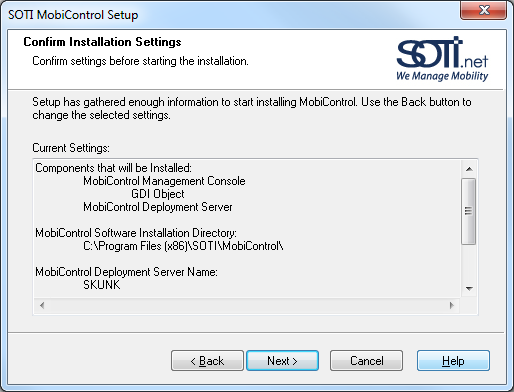
- Confirm installation settings.
This above screen displays a summary of the selected settings. If you want to change any settings, click Back, else click Next to confirm the settings and initiate the installation.
Example:
On the system administrator's laptop, you would choose to install the MobiControl Console, but not the Deployment Server. The Deployment Server alone could then be installed on a separate host computer in your network.
Note:
The MobiControl installation will check to see if a Deployment Server already exists before installing a new or an additional Deployment Server. If the maximum number of active Deployment Server licenses has been reached, you will be unable to install a new one and you will be prompted to install only the Manager console. To install an additional Deployment Server, disable an active one first. You may activate only as many Deployment Servers as the number of licenses you own.
Please see the MobiControl Tutorial page once installation is complete.
Re-installing MobiControl
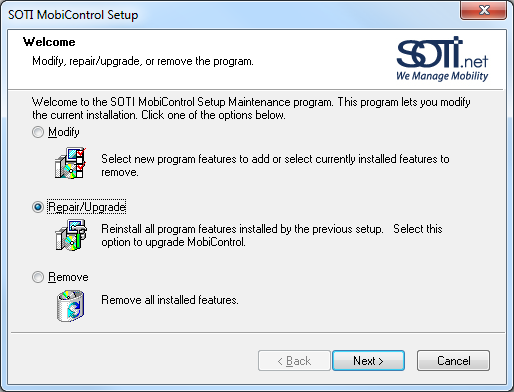
If MobiControl component is already installed, the setup program allows the following reinstall options:
- The Modify option allows you to install or uninstall selected components.
- The Repair/Upgrade option allows you to repair installed components of MobiControl and also to upgrade to newer version of MobiControl components.
- The Remove option allows you to uninstall all MobiControl components.
Run the Setup program and select one of the options and follow the setup instructions in the Setup Wizard. Then, please continue following the steps above.
 Tip:
Tip:
If the built-in resource files in the MobiControl database, such as the Device Agent.cab
installation files, need to be re-written to the database to correct a problem, run the installer executable from the
command line with the additional parameter "-UpdateDB."