
|
Rules View |
MobiControl uses rules to simplify the tasks of device management and configuration. There are five rule types: add devices rules, deployment rules, file sync rules, device relocation rules, and data collection rules. Each is described below.
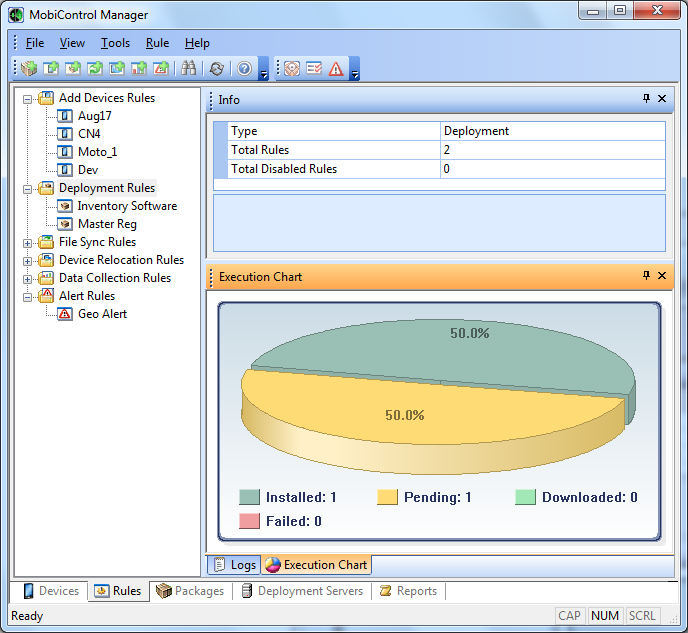
MobiControl Manager Rules view (tab)
 Add Devices Rules
- Create an add devices rule.
An add devices rule allows you to configure the settings that MobiControl uses to set up and communicate with your devices. These settings include: the device group to which devices are added, how often the device is to check for updates, and the parameters to be used for remote control sessions. Please see the Add Devices Rule page for detailed information about creating an add devices rule.
- Create a Device Agent.
The Device Agent is the MobiControl software that resides on mobile devices and communicates with MobiControl Deployment Servers. Device Agents execute instructions received from MobiControl Deployment Servers, report status information, and send real-time information to Deployment Servers. Device Agents also restore the device state after a hard reset, service remote control sessions, install or uninstall packages, and synchronize the device clock. Please see the Device Agent Manager page for detailed information about creating a Device Agent.
- Install the Device Agent onto the devices.
Once created, there are several options for installing the agent on to your devices. For example, installation can be accomplished via cradled ActiveSync, via a website download, via an SD card, or using an existing software distribution mechanism. Please see the Device Agent Manager page for detailed information about installing the Device Agent.
 Deployment Rules
- Create a package.
A package is a set of software and data files that have been packed into a single compressed file. MobiControl provides a tool called MobiControl Package Studio that allows you to quickly and easily create packages. For complex packages, Package Studio allows users to add scripts that get automatically executed at various points in the installation or un-installation of the package. Please see the Creating Packages page for detailed information about creating packages using MobiControl.
- Create a deployment rule.
To deploy a package using MobiControl, you need to create a deployment rule. When you create a deployment rule, you need to specify the package(s) to be deployed, the devices to which the package(s) will be deployed, and the installation time. Please see the Deployment Rule page for detailed information about creating a deployment rule.
- Check the rule execution status.
Once you have created a deployment rule, you may want to confirm that all devices have been provisioned with the specified packages. The execution status of the deployment rule is graphically represented in the execution chart in the Rules view (tab). MobiControl also provides a report called the 'Deployment Rule Execution Summary Report'. Please see the Generate Reports page for detailed information about MobiControl Reports.
 File Sync Rules
- Create a file sync rule.
A file sync rule allows you to schedule file(s) to be synchronized between a set of devices and the Deployment Server. When creating a file sync rule, you will need to specify the file(s) you want synced (both their original location and their destination), the interval in between the syncs and which direction the sync should go in (either device to server, or server to device) and which devices should be involved in the sync. Please see the File Sync Rule page for detailed information about creating a file sync rule.
- Check the rule execution status.
Once the file sync rule has been created, you may want to confirm that the scheduled syncs occurred. You can do this by looking at the rule execution status or by checking the rule execution report in the Reports view (tab). Please see the Generate Reports page for more detail about reports.
 Device Relocation Rules
- Create a device relocation rule.
A device relocation rule allows you to automatically move your mobile devices among different device groups in the MobiControl device tree, based on the IP address or other custom criteria. This is useful for managing mobile devices in a deployment where the device tree represents different physical locations (e.g. retail stores, warehouses, regional offices, etc). Please see the Device Relocation Rule page for detailed information about creating a device relocation rule.
- Check the device relocation rule execution status.
Once the device relocation rule has been created, you may want to confirm its execution. You can do this by looking at the rule execution status or by checking the rule execution report in the Reports view (tab). Please see the Generate Reports page for more detail about reports.
 Data Collection Rules
- Create a data collection rule.
A data collection rule allows you to set up rules to collect data from your mobile devices automatically. Please see the Creating Data Collection Rules page for detailed information about creating a data collection rule.
- Check the data collection rule execution status.
Once the data collection rule has been created, you may want to confirm its execution. You can do this by looking at the rule execution status or by checking the rule execution report in the Reports view (tab). Please see the Generate Reports page for more detail about reports.
 Alert Rules
- Create an Alert Rule
An Alert Rule allows Administrators and Users to be notified when events of interest arise on the system. Please see the Alert Rule page for detailed information about creating an Alert Rule.
- Check the Alert Rule execution status.
Once the Alert Rule has been created, you may want to run a report to see what alerts have been generated. You can do this by looking at the Alert Rule Summary report in the Reports view (tab). Please see the Generate Reports page for more detail about reports.