|
Creating Alert Rules |
Alert Rules allow Administrators to be notified when events of interest arise on the system. This notification system allows Administrators to quickly and effortlessly communicate an event message to large groups of people via email, and notifies users via the MobiControl Manager Alert popup window. For every type of scenario, whether it is a Rule Change or a Device Error, the system will rapidly deliver your message to a designated audience.
To create an Alert Rule, select the Rules view (tab) within MobiControl Manager, then click the Rule menu, select Create Rule, and click Alert Rule. The Create Alert Rule Wizard will be displayed.
 Note:
Note:
The Deployment Server must be online in order for Alerts to be generated and sent out.
The steps below describe how the Create Alert Rule Wizard can be used to create an add devices rule:
-
Start the wizard.
Select the Rules view (tab), then click the Rule menu, select Create Rule, and click Alert Rule. The first page of the Create Alert Rule Wizard will be displayed.
Enter a descriptive name for the Alert Rule you are creating and click Next.
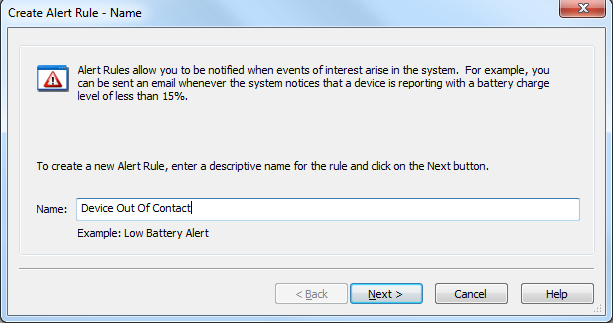
First page of the Alert Rule Wizard
-
Select the Alert Rule Type.
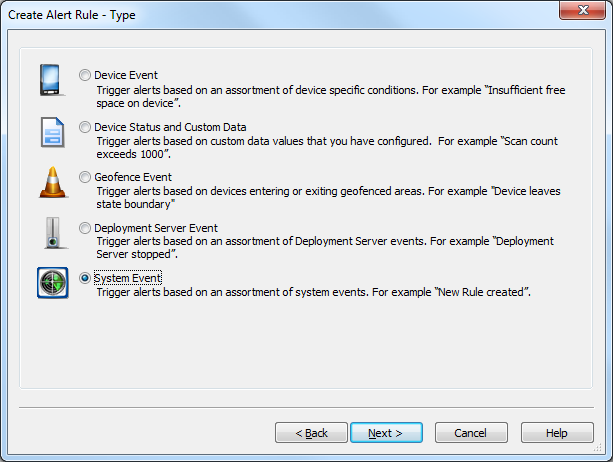
Select the Alert Rule Type and click Next.Type Description Device Event Trigger alerts based on an assortment of device specific conditions. Device Status and Custom Data Trigger alerts based on Custom Data vales that you have configured. Geofence Event Trigger alerts based on devices entering or exiting geofenced areas. Deployment Server Event Trigger alerts based on an assortment of Deployment Server events. System Event Trigger alerts based on an assortment of system events. -
Notification Profile Settings
Once the Alert Rule is selected, you must select your Notification Profile.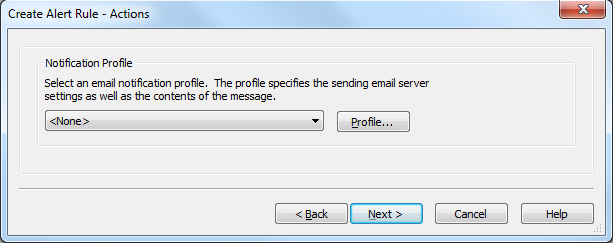
Select an existing notification profile, or click New to create a new Notification Profile. For assistance with notification profiles click here. Once you have selected your notification profile click Next. -
Review the summarized information.
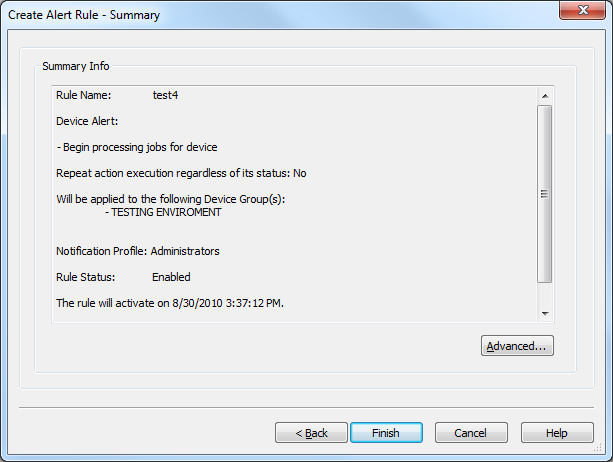
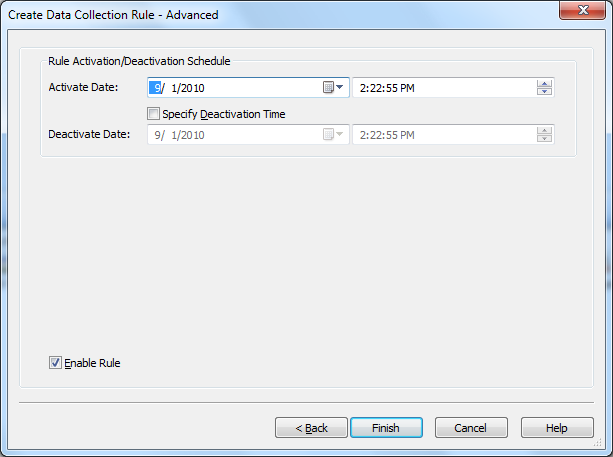
By clicking on the Advanced button, the data collection rule Advanced window will appear. By default the rule will be activated immediately upon completion of the wizard. If you wish to delay the activation, you can modify the activate date. A deactivate date can optionally be entered to specify a date from which the rule will be disabled. A data collection rule can also be explicitly disabled by clearing the checkbox next to Enable Rule.
Section Name Description Activate Date This option enables you to define a date and time when the rule will start collecting data from the selected devices Deactivate Date If the Specify Deactivation time box is checked, you can define the time at which you wish the data collection to stop. Enable Rule You can use this option to enable or disable the rule. This option is also available by right-clicking the rule.
The data collection rule can be deployed real-time or at a pre-set time. The data collection rule, although set to be activated at a scheduled time, can also be set to be deactivated. The deactivation setting is optional.Click Finish to complete the wizard.