
|
Configuration Profile Manager |
Configuration Profile Manager is an interface that allows the user to create, edit and delete Configuration Profiles. The Profile includes initial configuration like Wireless ZeroConfig, Summit Wireless settings, Cellular connection (APN) settings and MobiControl Device Agent settings for Windows Mobile and Windows CE powered devices that will be managed by SOTI MobiControl.
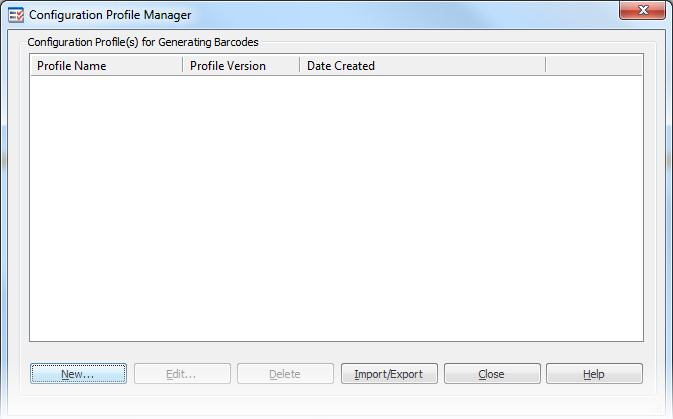
The Configuration Profile Manager displays a list of existing Profiles that have been created (the list will be empty if there is no Profile created as yet), and allows user to create, edit or delete Profiles. Users can also import and export Profiles
To create a new Configuration Profile, click on the New button.
To edit an existing Profile, click on the Edit button.
 Note:
Note:
When you edit an existing Profile, the existing version number will automatically be incremented by 1.
To delete an obsolete Profile, click on the Delete button.
To import a Profile from file, click on the Import/Export button and then select Import From file
To export Profile to a file, click on the Import/Export button and then select Export To file
- Creating a Configuration Profile.
The Configuration Profile Manager will allow you to create a Configuration Profile.
Click on New -> Create New to create a new Configuration Profile:
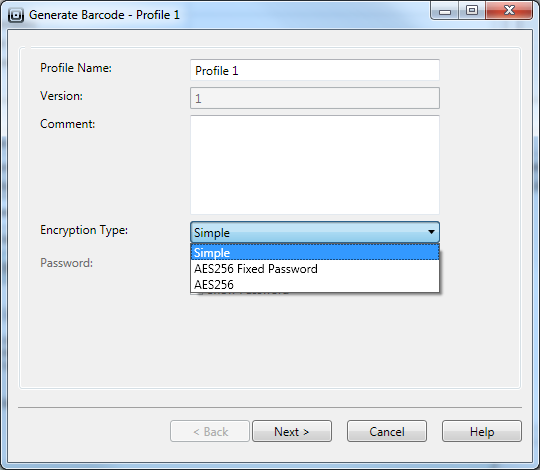
Field Name Description Profile Name Enter the name of the profile you want to create Version This field displays the current version number of the Configuration Profile. Comment Enter a description for this package. You can optionally leave this field blank. Encryption Type Simple: Simple encryption uses a SOTI algorithm to encrypt the data before generation the barcode. This option creates the smallest footprint for the barcode. It is the default option and recommended if enhanced security is not required.
AES256 Fixed Password:
Encrypts data with AES 256 algorithm. This option uses a fixed password and the barcode will be able to read by ANY device having the MobiScan Agent.
AES256:
Encrypts data with AES 256 algorithm. When using this option, you must enter password to generate the barcode. This password will then be required by the end user to configure the device.Password If AES256 Encryption is used, enter a password to generate the barcode. This password will then be required by the end user to configure the device. Click on Next to continue
- Configuration Profile - Wireless ZeroConfig
Adds a wireless profile for Microsoft Wireless ZeroConfig. This profile will be set as an active configuration.
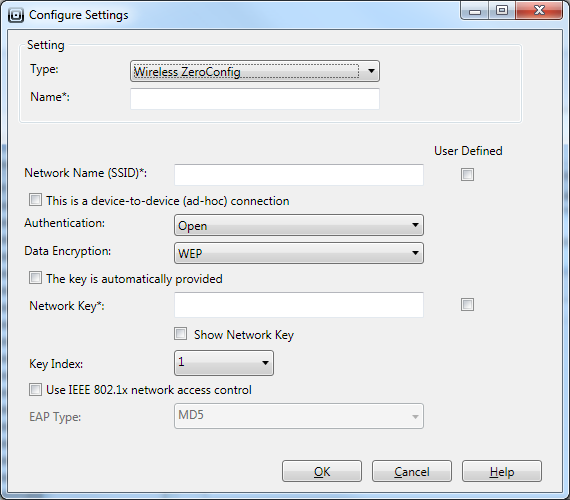
| Field Name | Description |
|---|---|
| Name | Enter the name for your Wireless ZeroConfig settings |
| Network Name (SSID) | Enter your Network name/Service Set Identifier (SSID) (Check the "User Defined" option to allow the user to enter or change this information) |
| This is a device-to-device (ad-hoc) connection | Check this option if you are configuring ad-hoc connection. |
| Authentication | Enter the Authentication type for your network. Options are Open, Shared, WPA, WPA-PSK, WPA2 and WPA2-PSK |
| Data Encryption | Enter the Data Encryption for your network. Options are Disabled, WEP, AES, TKIP |
| Network Key | Enter the Network Key for your network. (Check the"User Defined" option to allow the user to enter or change this information) |
| EAP Type | Specify your Extensible Authentication Protocol (EAP) method. You can choose from the following EAP types: MD5, PEAP and TLS. |
Note:
The following options are only applicable for WEP encryption:
- Check the option "The Key is automatically provided" if the network key for clients is automatically provided.
- Select the "Key Index" from the drop down menu, if applicable.
- Check the option "User IEEE 802.1x network access control" to use IEEE standard for port-based Network Access Control
- Configuration Profile - Summit Wireless Radio
Enables the Summit Radio on the device and adds a Summit Wireless profile. This profile is set as an active configuration.
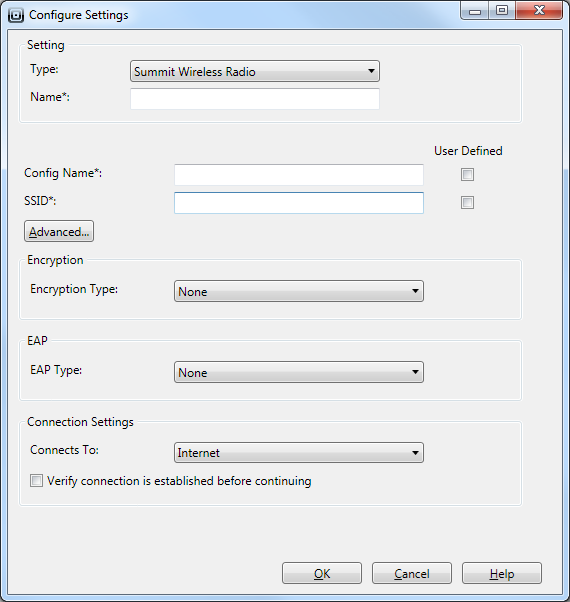
| Field Name | Description |
|---|---|
| Name | Enter a name for your Summit Wireless settings |
| Config Name | Enter a name for your Summit Wireless Profile (Check the "User Defined" option to allow the user to enter or change this information) |
| SSID | Enter your Service Set Identifier (SSID) to which radio will connect (Check the "User Defined" option to allow the user to enter or change this information) |
| Encryption Type | Select the encryption type |
| EAP Type | Select your Extensible Authentication Protocol (EAP) type associated with the profile.
You can choose from the following EAP types: LEAP, EAP-FAST, PEAP-MSCHAP, PEAP-GTC AND EAP-TLS. |
| Connects To | Select if this network connects to Internet or Work |
Note:
If the option Verify connection is established before continuing is checked, it will wait for the connection to be established (which can last for up to 45 seconds). This option is important if you are attempting to connect to the network immediately. If this option is not checked, it will continue without waiting for the connection to be established and set the configured settings as an active Summit Profile.
Advanced Settings:
This set of options allow the user to configure advanced settings for that Summit Wireless Profile.
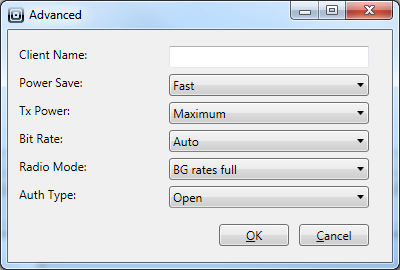
| Field Name | Description |
|---|---|
| Client Name | Enter a name for client device used for Summit radio |
| Power Save | Select the Power Save value.
CAM: Constantly awake mode, Maximum: Maximum power savings, Fast: Fast power save mode |
| Tx power | Select the Transmit Power. |
| Bit Rate | Select the Bit Rate used by radio when interacting with Access Point. |
| Radio Mode | Select the Radio Mode used when interacting with Access Point. |
| Auth Type | Select the authentication type used when associating with Access Point. |
- Configuration Profile - Cellular Connection (APN)
Creates a new Cellular/APN connection (for Internet or Work) on the device.
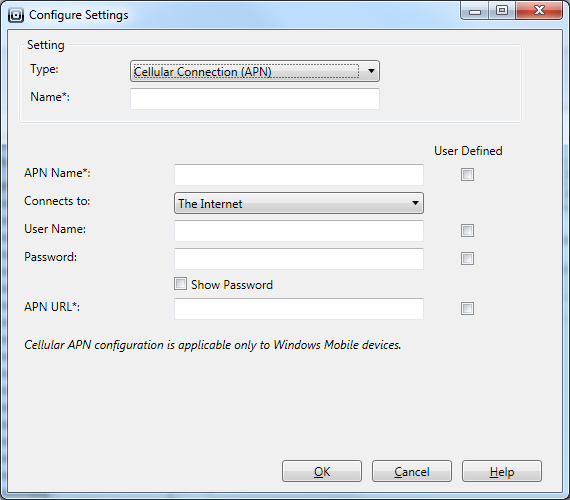
| Field Name | Description |
|---|---|
| Name | Enter the name for your Cellular connection (APN) |
| APN Name | Enter your Access Point Name (Check the "User Defined" option to allow the user to enter or change this information) |
| Connects to | Select if this network connects to Internet or Work |
| User Name | Enter the User Name (Check the "User Defined" option to allow the user to enter or change this information) |
| Password | Enter the Password (Check the "User Defined" option to allow the user to enter or change this information) |
| APN URL | Enter the Access Point URL/address (Check the "User Defined" option to allow the user to enter or change this information) |
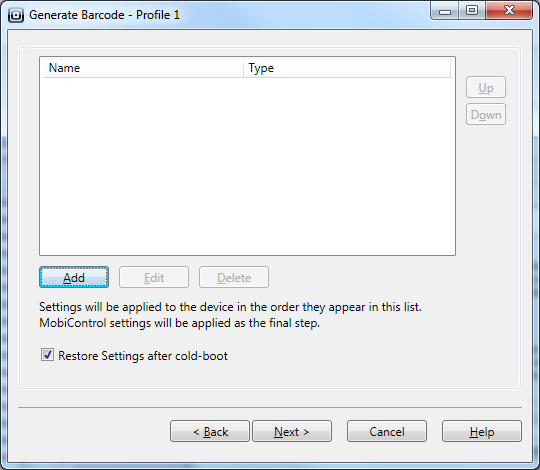
If the option "Restore Settings after cold-boot" is checked, will make the Settings cold-boot persistent.
Use the Up/Down arrows to select order of connection settings to be executed on the device. If more than one connection setting is configured the last profile executed on the device will automatically be set to active.
Click on Finish to generate the Configuration Profile with your configured settings.
In order to view the version history of a Profile, right click on that Profile and click on View History. It will show the following screen:
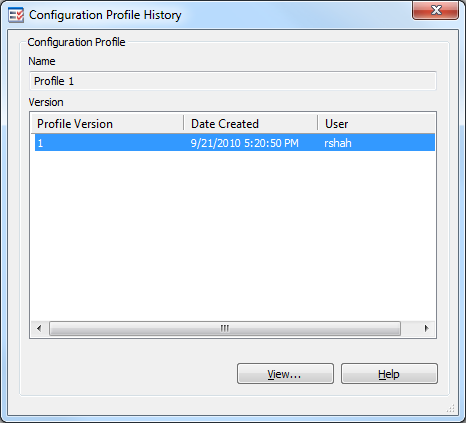
Please refer the Generating a Barcode section for information on generating a barcode using the Configuration profile.