
|
Generating a Barcode |
Barcode Generator is a method that can be used to provision the MobiControl Agent on devices by scanning barcodes.
The generated barcode will encode all the necessary information to allow the device to connect to the MobiControl Deployment Server.
The following series of steps describes how to Generate a Barcode:
- Start the wizard
In Device Agent Manager, select the appropriate Device Agent, then click Provision Device, click Generate Barcode:
- Select a Configuration Profile.
- Generate Barcode
- Barcode Settings
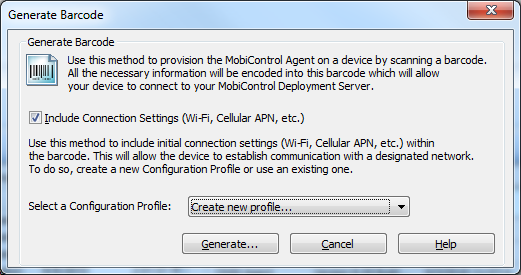
You can select a Profile available from the list or create a new Profile using Configuration Profile Manager.
Click on Generate
If a Configuration Profile is selected from the list, it will generate the Barcode with encoded settings according to that Profile.
If "Create new profile" is selected from the list, it will open the Configuration Profile Manager wizard to create a new Profile. The barcode will be generated at the end of this wizard.
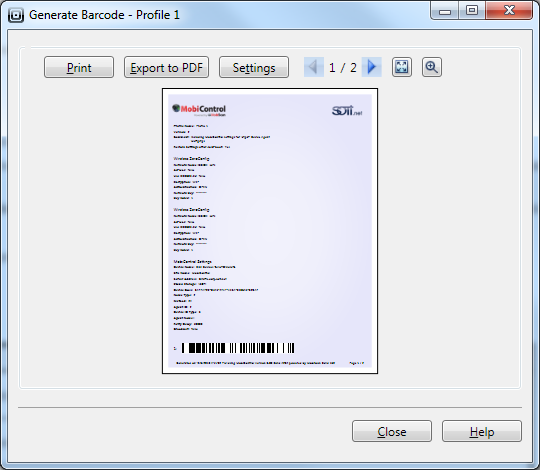
 Note:
Note:
If you have not checked the Include Connection Settings option, the Barcode will be generated only with the MobiControl Device settings information.
You can click on "Print" to print the barcode or click on "Export to PDF" to export it to a PDF file to print at a later date.
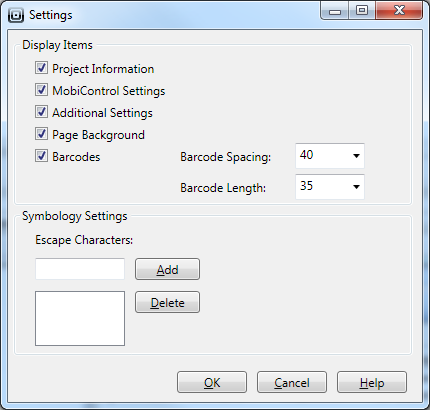
| Field Name | Description |
|---|---|
| Project Information | Check this option to display the Project information (name, version, comment, etc..) in the page. |
| MobiControl Settings | Check this option to display the MobiControl Device Agent settings information in the page. |
| Additional Settings | Check this option to display the configured Settings included via Configuration Profile in the page. |
| Page Background | Check this option to display a background with the page. |
| Barcodes |
Check this option to display the generated barcodes in the page. |
| Escape Characters | You can add Escape Characters, if required in your barcode. |