Enrolling iOS devices using a Third-Party Certificate |
After you have created an add devices rule for your iOS devices, you must install profiles on your devices to complete the enrollment process.
Note
If your server does not have a signed certificate, use the process detailed at Enrolling iOS devices using a MobiControl Certificate.
- Go to the iOS Enrollment Service Web Page
On the device, open the Safari browser and enter the Enrollment URL from the add devices rule in the address bar.
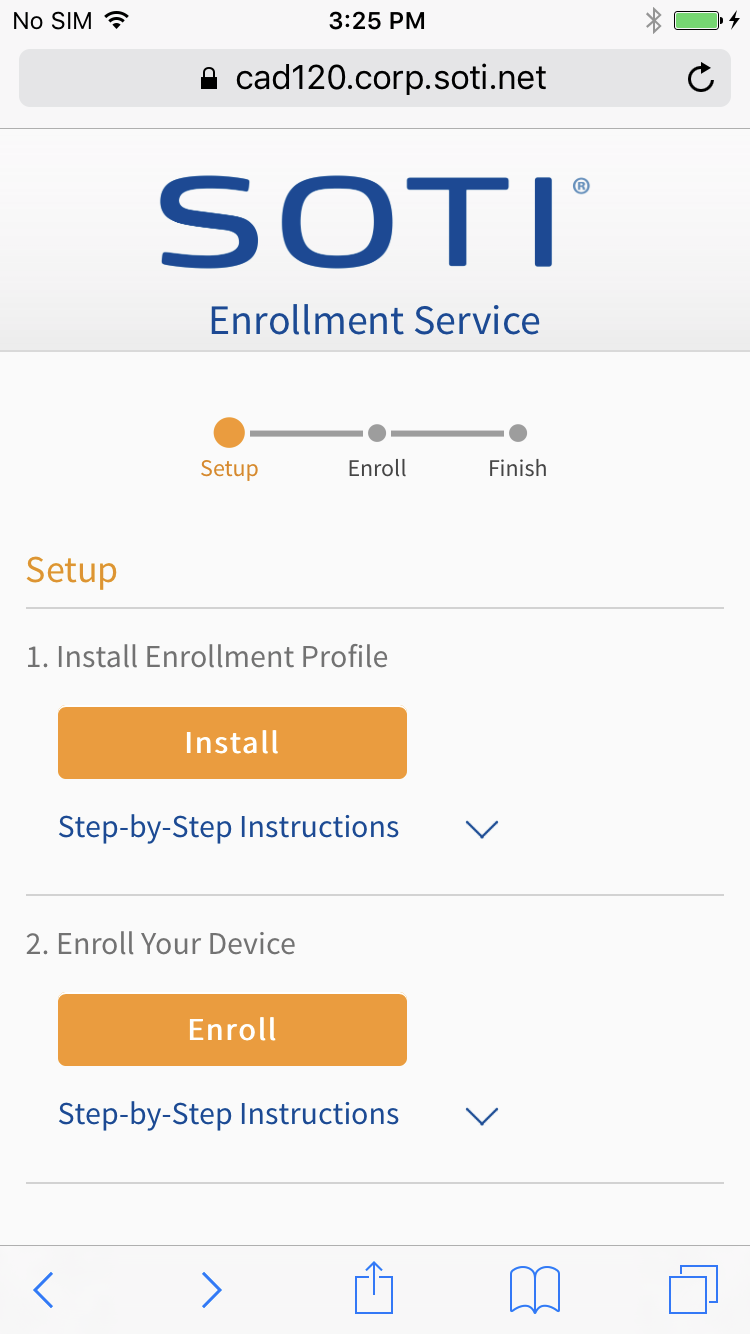
The Device Enrollment Profile
- Download the MobiControl Device Enrollment Profile
Tap Step 2 to download the MobiControl Device Enrollment Profile. On devices running iOS 10.3.3 or later, you will be notified that you are being redirected to Settings. Tap Allow to continue. Tap Install and then Install again to install the MobiControl device enrollment profile.
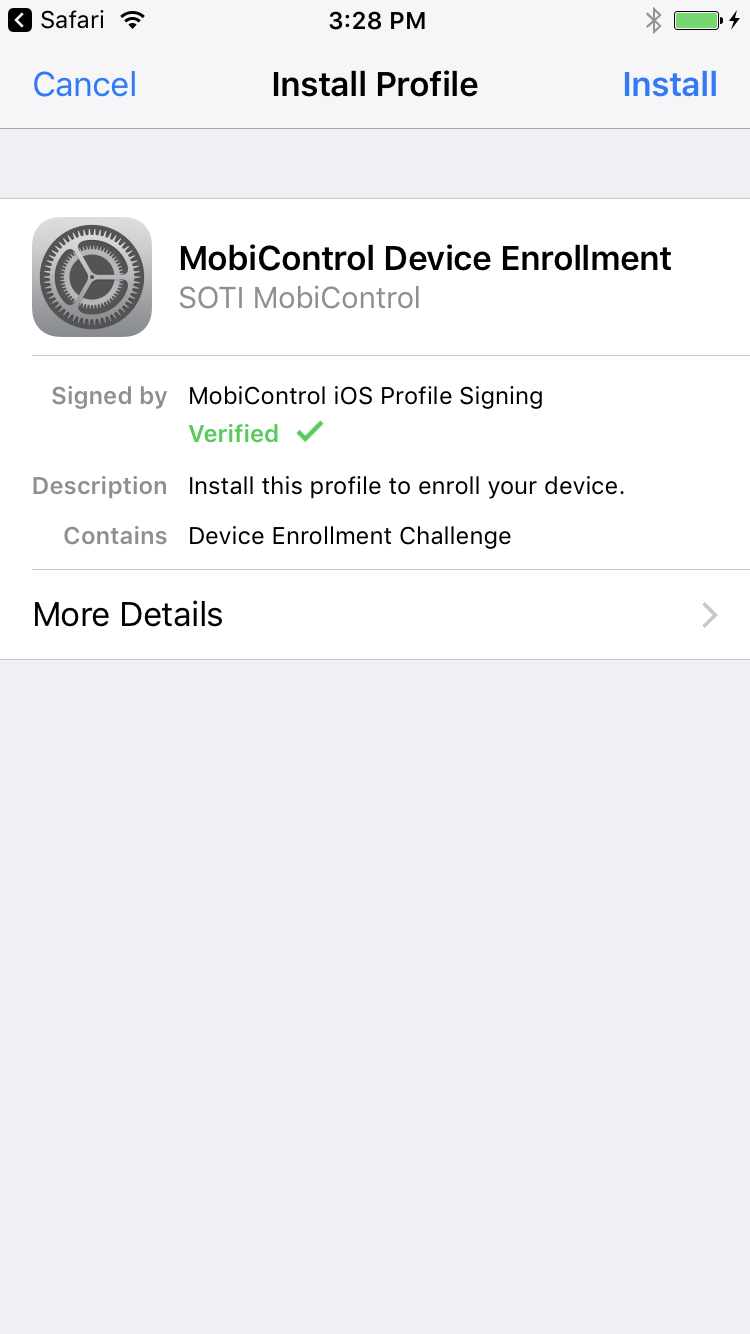
The Device Enrollment Profile
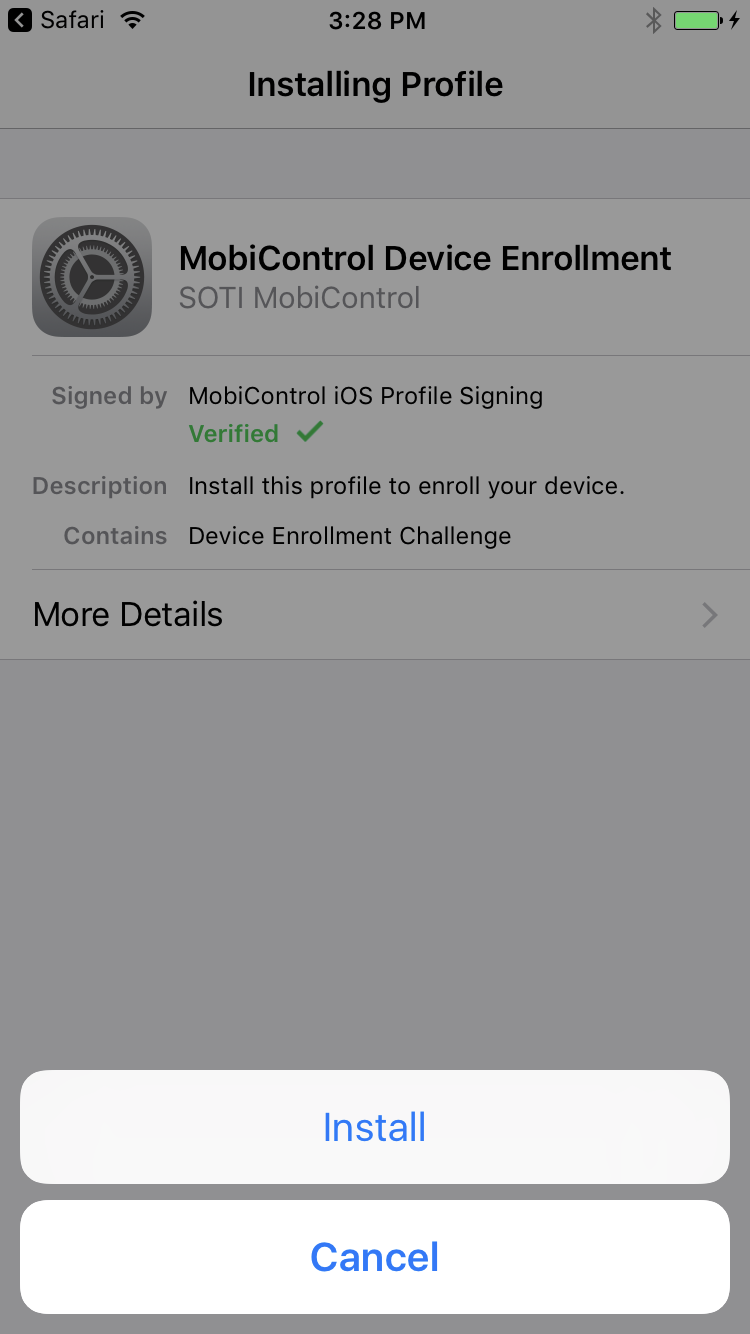
Confirm Installation
- Accept Warning
When you tap Install Now, your iOS device will display a warning message with a brief description of the purpose of the MobiControl Device Enrollment Profile. Tap Trust to continue.
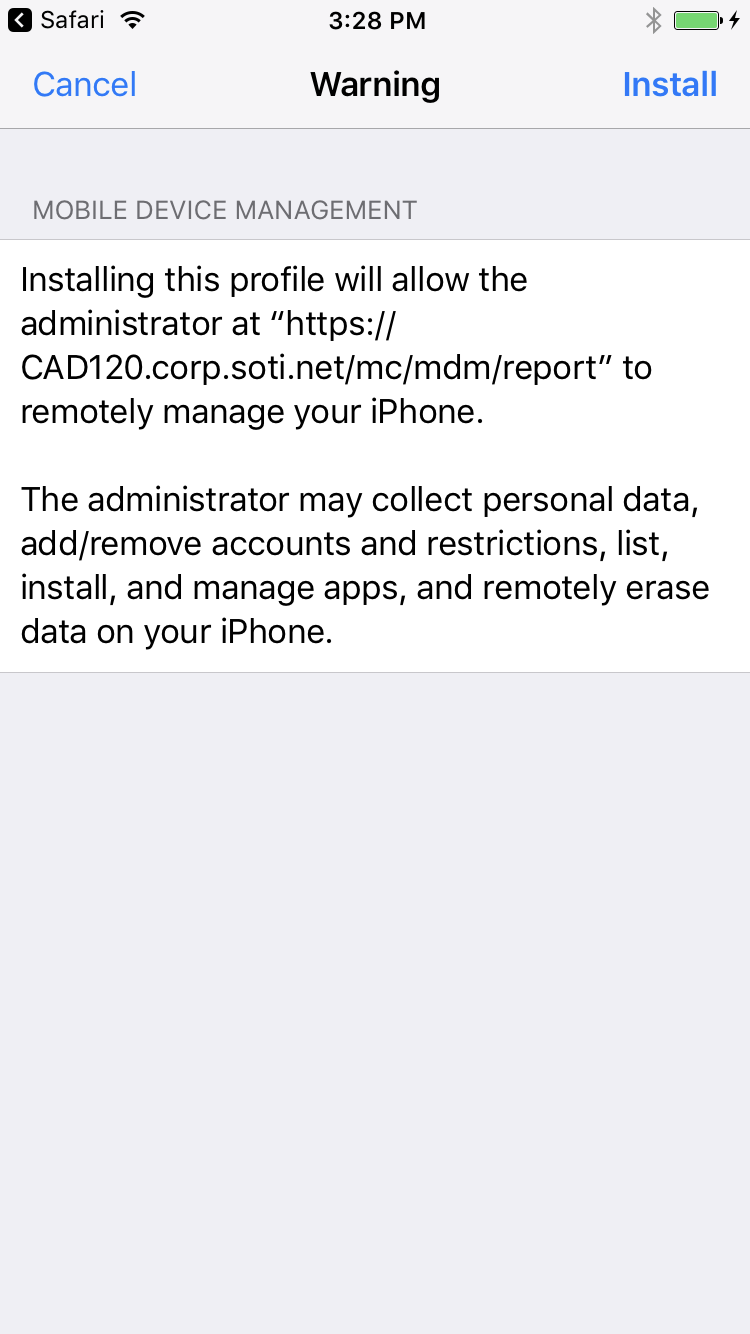
Warning Message
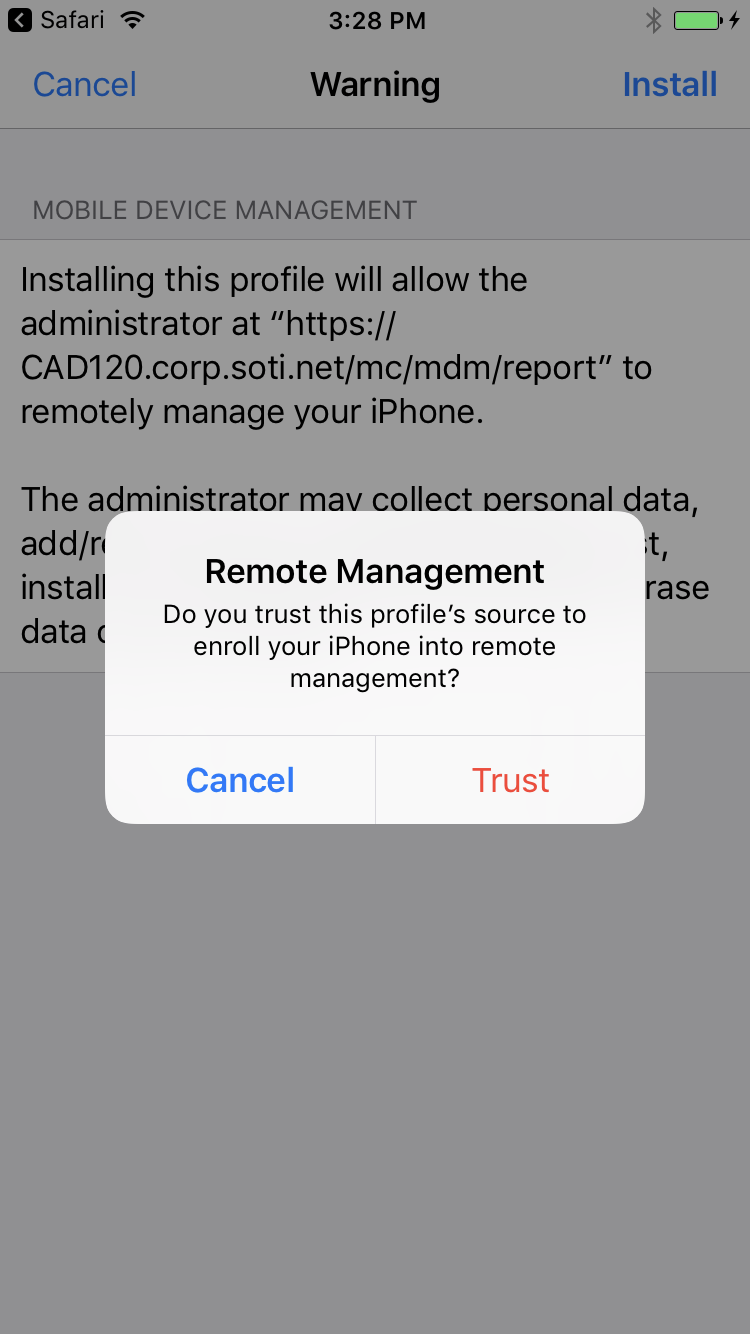
Accept Remote Managed
- Install Profile
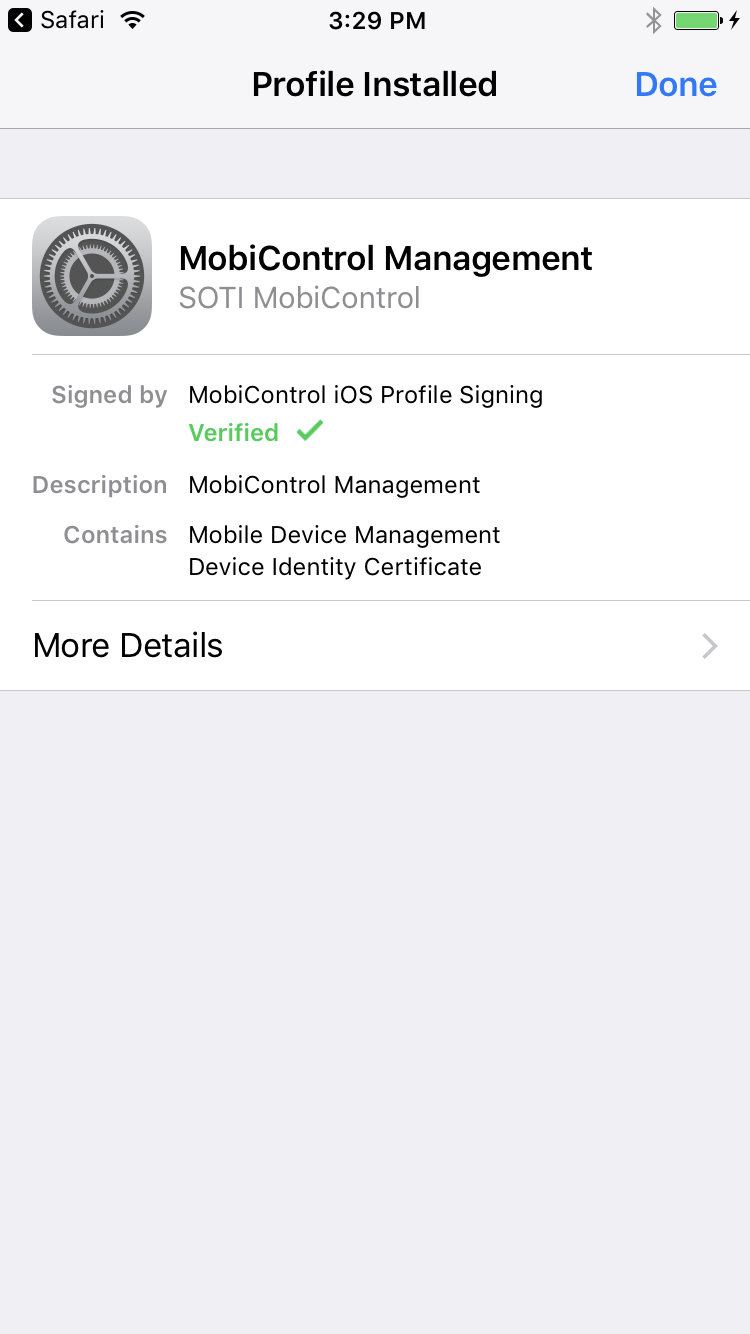
The installation process of the MobiControl Device Enrollment Profile includes several automatic steps that require no user interaction. Once the profile has finished installing on your device, tap Done.
 13
13
MobiControl Device Enrollment Profile Successfully Installed
- Finish Enrollment
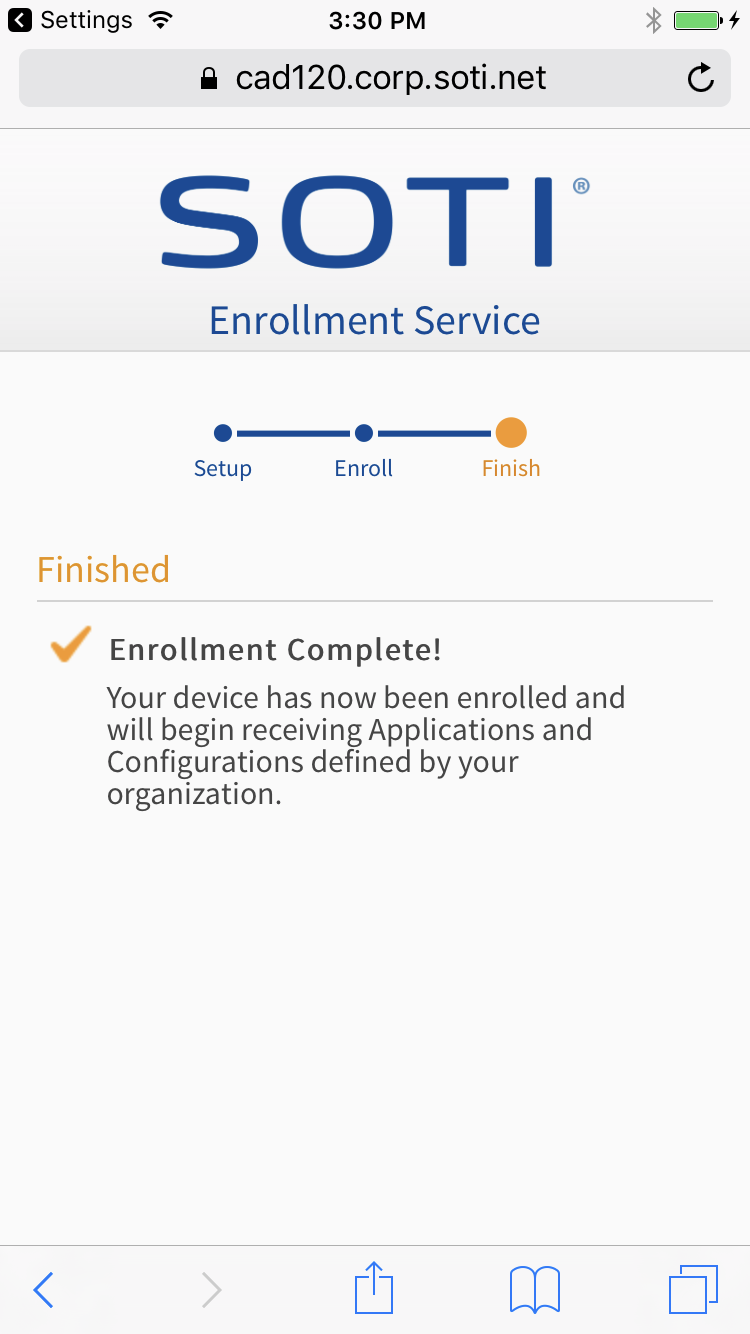
Congratulations! You have successfully enrolled your iOS device into MobiControl.
 13
13
Successful Enrollment