
|
Android+ Creating File Sync Rules |
File sync rules allow you to synchronize files and folders between your devices and a server. File collection, also referred to as file uploading, is a very convenient method for gathering information from devices, for example a transaction log file. File dissemination, also referred to as file downloading, is a quick and easy way to send one or more files to a set of devices such as an updated product listing or configuration file.
- Start the wizard.
Select the Rules view (tab), then click Rule, point to Create Rule, and click File Sync Rule. Enter a meaningful name for the rule.
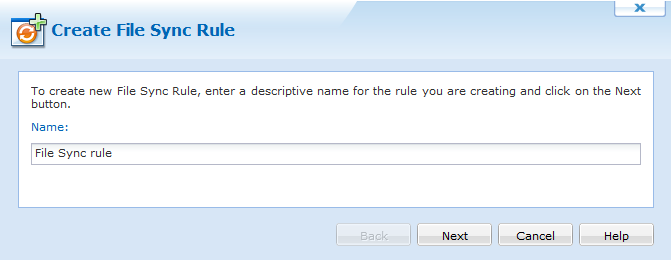
First page of the Create File Sync Rule Wizard
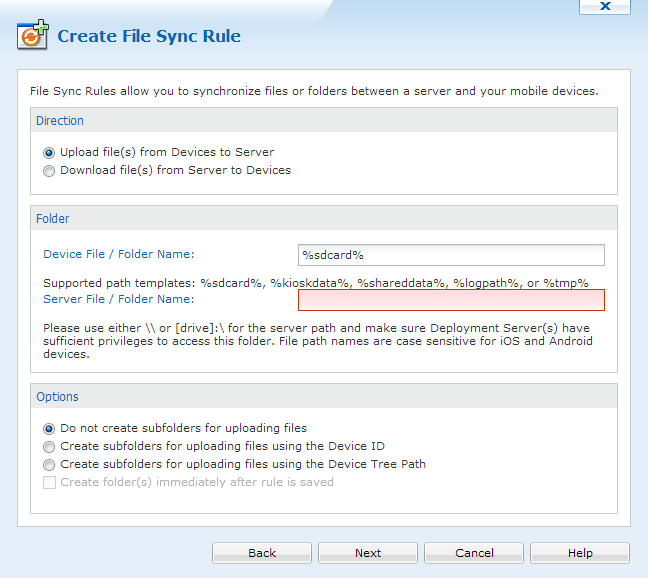
The following table describes the fields of this page of the wizard:
- Upload (File collection) The rule will be used to upload files from the devices to a server.
- Download (File dissemination) The rule will be used to download files from the server to devices.
- A single shared folder, meaning files could potentially be overwritten if they have the same name.
- A per-device subfolder, named using the device ID (i.e {00135304-41D7-019E-5800-0050BF3F5173})
- A per-device subfolder, named using the device tree path (i.e.
.\Management Devices\Device 0001) - A single shared folder, meaning all devices get the same file(s).
- A per-device subfolder, named using the device ID (i.e. {00135304-41D7-019E-5800-0050BF3F5173})
- A per-device subfolder, named using the device tree path (i.e.
.\Management Devices\Device 0001)
| Field Name | Description |
|---|---|
| Direction |
|
| Device File/Folder | Specifies the complete file system path to the files or folders being synchronized on the device. %sdcard% is a global variable that is used to specify the device's primary shared/external storage directory (traditionally an SD card, but now usually an internal storage directory). %sdcard% is set to the value returned by the android.os.Environment.getExternalStorageDirectory() method. |
| Server File/Folder |
It is important that the Deployment Servers have sufficient permission to read and write to the source or destination UNC path. Best practice is to run the Deployment Server under its own Active Directory user profile. Specifies the complete file system path to the files or folders being synchronized on the server It is strongly recommended that a UNC (Universal Naming Convention) path be used. A local path
(i.e. If a different user name or password is needed to access a UNC path location, please use the following syntax: |
| Server-side Folder Options |
For upload rules, files collected from the devices can be written to: For download rules, files disseminated from the server can be read from: When the Create folder(s) immediately after rule is saved option is enabled, the server-side folders will be created immediately after the file sync rule is saved. This allows adding files to the folders on the servers that are synchronized with the devices when the file sync event occurs. |
| Create folder(s) immediately after rule is saved | When the Create folder(s) immediately after rule is saved option is enabled, the server-side folders will be created immediately after the file sync rule is saved. This allows adding files to the folders on the servers that are synchronized with the devices when the file sync event occurs. |
| Field Name | Description |
|---|---|
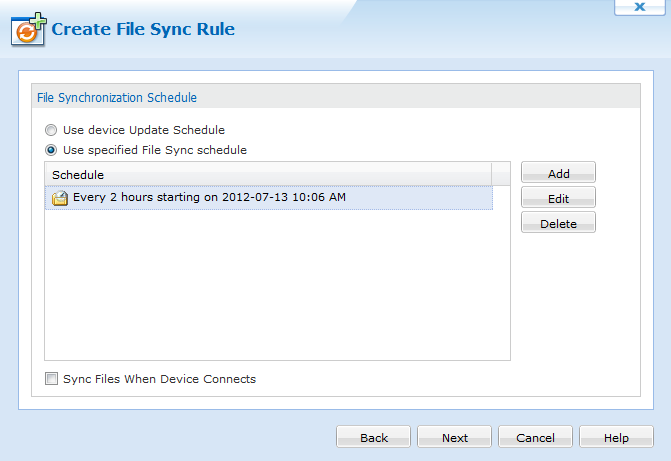
| Use Device Update Schedule | By default, the device update schedule (specified by the file sync rule used to add the devices to the system) triggers file synchronization |
| Use Specified File Sync Schedule |
If you specify a file synchronization schedule in this dialog box, only that schedule will be used, and the device synchronization schedule will not trigger file synchronization. To Specify the custom schedule click the Add button. Please see the File Synchronization Schedule page for more information about creating a custom file sync schedule. |
- Review summarized information
Review information on the file sync rule summary page. This page gives you an opportunity to review the settings of the file sync rule before committing them. If you wish to make any corrections, click the Back button. Clicking the Advanced button allows additional File sync rule configuration.
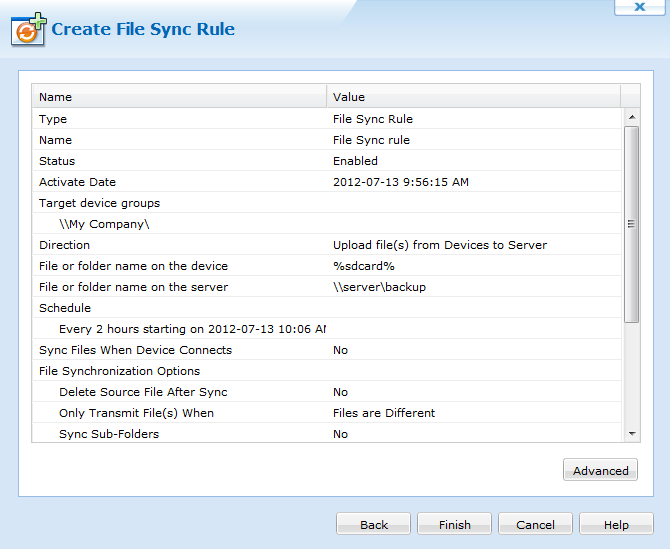
Summary page
- Advanced options
-
The Always Transmit option will cause file(s) to be uploaded or downloaded regardless of whether or not the source and target are different or the same.
-
The Files are different option will cause file(s) to be uploaded or downloaded only if the source file is different from the destination file.
-
The Source file is newer option will cause file(s) to be uploaded or downloaded only if the source file has a more recent date-time stamp.
-
The Destination file does not exist option will cause file(s) will cause file(s) to be uploaded or downloaded only if the destination file does not exist.
- ActiveSync
- LAN
- WiFi
- Cellular
- Cellular While Roaming
The following table describes the file synchronization options on this page of the Create File Sync Rule Wizard. By default, the file sync rule will be activated immediately upon completion of the wizard. If you wish to delay the activation you can modify the activate date. A deactivate date can optionally be entered to specify a date from which the rule will be disabled.
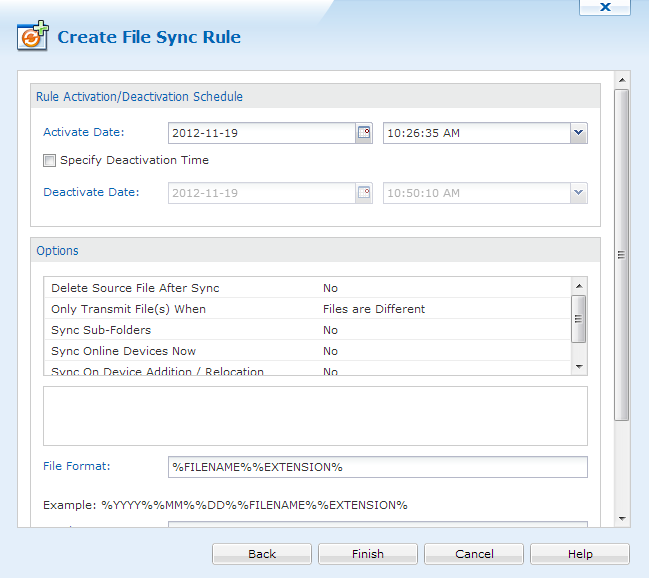
File synchronization options
| Field Name | Description |
|---|---|
| Delete Source File After Sync | (This applies only to upload rules.) When selected, the source file(s) on the device are transmitted to the server and then deleted from the device. |
| Only Transmit File(s) when |
|
| Sync Sub-Folders | Synchronize files in sub-folders in addition to the files located in the target folder |
| Sync Online Devices Now |
File synchronization will be executed immediately following the completion of the wizard for online devices. |
| Sync On Device Addition or Relocation |
Perform file synchronization when a device is added or relocated to a device tree group for which this rule has been configured This setting is useful to easily invoke file synchronization when a device is moved from one group to another in the device tree. |
| Network Restriction | Choose which networks file synchronization should take place over:
|
Click the Scripts button to configure file synchronization scripts.
File Synchronization Scripts
File synchronization scripts provide flexibility in automating actions on the server before the file sync or on the device pre or post file synchronization. Server side script can be configured under Server Actions section. You can set a delayed file sync by providing time (in seconds) under Start File Sync option.
 Note:
Note:
Under Server Actions, you can specify only Non-UI scripts such as batch files [.bat] or command line executable file [.exe]. Moreover, these scripts should have Read/Write access for MobiControl, in order to execute. Otherwise, File sync rule may fail.
 Example: Run executable on server
MobiControl contains plenty of server side utilities used to manage devices in the deployment server. One of these utilities is a device move. If this utility is ran before the file sync, we can ensure that all the devices are in the proper location before syncing the files down. For additional help with this utility and more, please contact us.
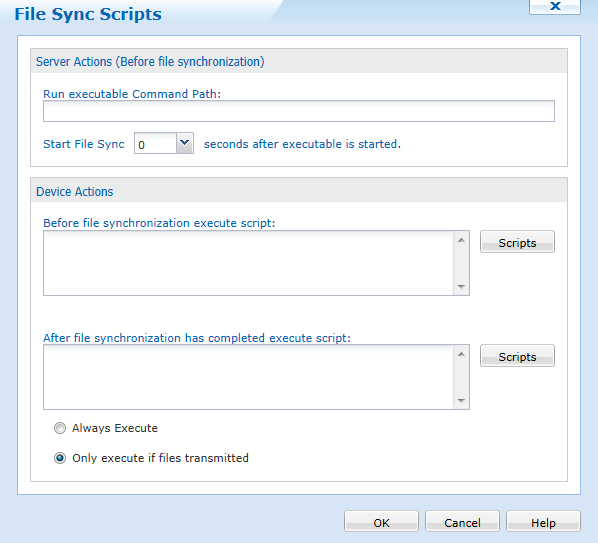
File synchronization advanced options
| Field Name | Description |
|---|---|
| Always execute | Will execute the script every time there is a scheduled sync, even if the files are updated or not |
| Only execute if files transmitted |
Will execute the script when files have been updated by the sync schedule |
| Scripts | Will allow you to import previously created scripts |