
|
iOS WiFi |
With MobiControl's WiFi policy, we are able to configure the WiFi connection on iOS devices.
This offers a way to safely and quickly configure the wireless connection on one or hundreds of devices.

WiFi Policy dialog box
If more than one network is needed to be configured, selecting  will create an additional profile.
| Field Name | Description |
|---|---|
| Network Name | The name of the network which the device should connect to. Also is the name of the Wireless Policy. |
| Auto Join Network | Selecting this will enable the device to auto connect to this network. |
| Hidden Network | Select whether the network is hidden or not. |
| Security Type | The security protocol currently being used on the network. We can select WEP, WPA/WPA2, Any (Personal), WEP Enterprise, WPA/WPA2 Enterprise, Any (Enterprise) or None. |
| Password | The password to connect to the network. |
| Enterprise Settings | If 802.1x Enterprise is selected as the security type, clicking the text box will bring up the Enterprise settings page. See below for more information on the Enterprise settings panel. |
| Proxy | MobiControl offers proxies to be automatically configured, or to manually configure them. If automatic is selected, then enter a URL in the URL field. If manual is set, then we must enter data in the Proxy Server, Username, and Password fields. |
| URL | If automatic is selected as the proxy setting, enter the URL of the proxy here. |
| Proxy Server | If manual is selected, enter the name of the proxy server here. |
| Username | If manual is selected, enter the username for authentication here. |
| Password | If manual is selected, enter the password here. |
When any Enterprise option is selected as the Security type, click the Enterprise Settings text field. The following pop up will show.
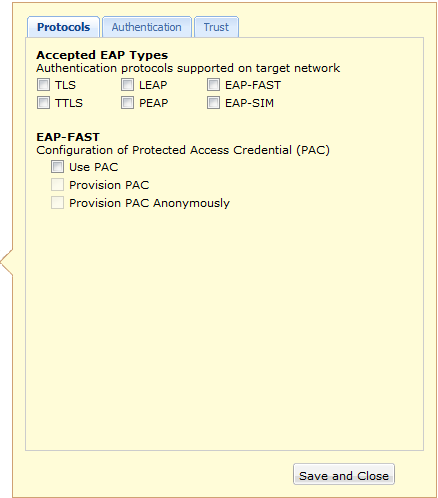
Enterprise Settings
On the Protocols page, we can select TLS, LEAP, EAP-FAST, TTLS, PEAP and/or EAP-SIM.
Clicking Authentication brings more options on how to configure the Enterprise settings.
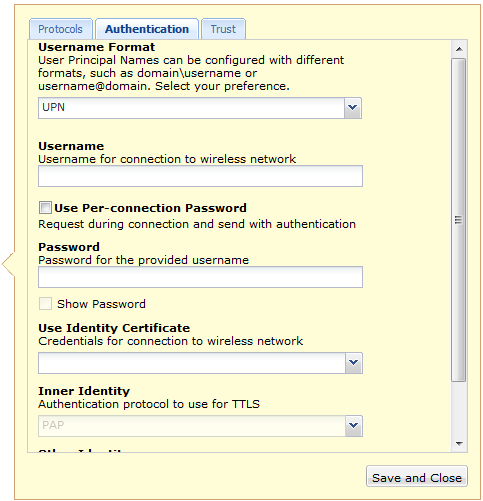
Authentication Settings
| Field Name | Description |
|---|---|
| Username Format | The format which the user name should appear as. We can select UPN, Domain\Username, Username or we can prompt the user or use a static user name. |
| Username | If static is used, then enter the user name here. |
| Use Per-connection Password | When this is checked, a password will be |
| Password | If static is used, then enter the password here. |
| Use Identity Certificate | When a certificate is imported through the certificate manager, then we can select it through here. Please see the iOS Certificates page for more information on the Certificate manager. |
| Inner Identity | Inner Identity |
| Other Identity | Other Identity |
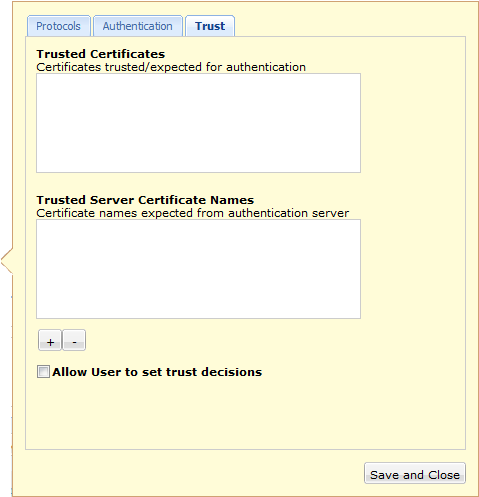
Trust Settings
Once everything is configured, just click Save and close and the pop up will close.
If a wireless configuration is not needed anymore, just select  . After all configurations are done, click
  .
.