POP3 Email Configuration |
With MobiControl, you can now configure POP3 Email settings for your Apple iOS device. Use a Profile to add a POP3 email configuration to your iOS devices.
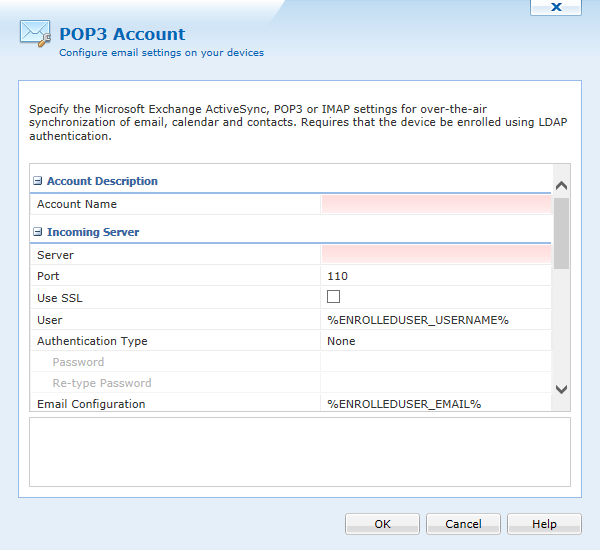
Incoming Server Settings
| Option | Description |
|---|---|
| Account Name | Enter the account name of your organization. |
| Server |
Enter the IP address or hostname for the POP3 email server. Note: This field is case-sensitive. |
| Port | Enter the incoming (POP3) mail port for the account. 110 is the default port for POP3 |
| Use SSL | This option allows the end user to select whether or not SSL is used for communication with the Email server. |
| User | Enter the user name associated with your Email account. |
| Authentication Type | Select the type of authentication to be used for this account. Options are:
|
| Password | Enter the account password here. |
| Re-type Password | Re-type the account password here to verify accuracy. |
| Email Configuration | Enter the Email address associated with the email account. |
Outgoing Server Settings
| Option | Description |
|---|---|
| Server |
Enter your SMTP server address. Note: This field is case-sensitive. |
| Port | Enter the incoming (SMTP) mail port for the account. 25 is the default port for SMTP (Outgoing mail) |
| Use SSL | This option allows the end user to select whether or not SSL is used for communication with the Email server. |
| User | Enter the user name associated with your Email account. Auto and Use Incoming Server Password/Phrase is selected by default. This option will use the information provided in the Incoming Server settings automatically for outgoing Email. Once the checkmark is removed you can then specify a different account or passphrase for outgoing Email. |
| Authentication Type | Select the type of authentication to be used for this account. Options are:
|
| Password | Enter the account password here. |
| Re-type Password | Re-type the account password here to verify accuracy. |
| Enter the Email address associated with your Email account. |
iOS 5 and 6 only options
| Option | Description |
|---|---|
| Allow Moving Messages Between Email Accounts | Permits the users to move Email messages between the different configured Email accounts on the device. |
| Allow 3rd Party Applications to Send Email | Permits 3rd party applications on the device to use this Email account for sending Email. |
| Enable S/MIME | Allows you to utilize the following S/MIME cryptographic security services for Emails accounts:
S/MIME specifies the MIME type application/pkcs7-mime (smime-type "enveloped-data") for data enveloping (encrypting) where the whole (prepared) MIME entity to be enveloped is encrypted and packed into an object which subsequently is inserted into an application/pkcs7-mime MIME entity. |
| Signing Certificate | Select the existing S/MIME Signing Certificate from the certificate library on the device. |
| Encryption Certificate | Select the existing S/MIME Encryption Certificate from the certificate library on the device. |