
|
Installing the APNS Certificate |
With MobiControl v10, we can now generate and sign the APNS certificate through the web console in a few steps.
Installing the APNS certificate through the Web Console
- Log into the MobiControl Web Console and go to the All Devices tab.
- Click the Servers tab near the bottom of the Web Console. Once in the Servers tab click the
 icon beside the APNS Topic string as seen below.
 - A new window will appears and from here, the APNS Certificate can be created. Click Download the Certificate Signing Request (CSR) to download the signedCSR.plist file. With this file, we can go to https://identity.apple.com/pushcert and upload the signedCSR.plist file.
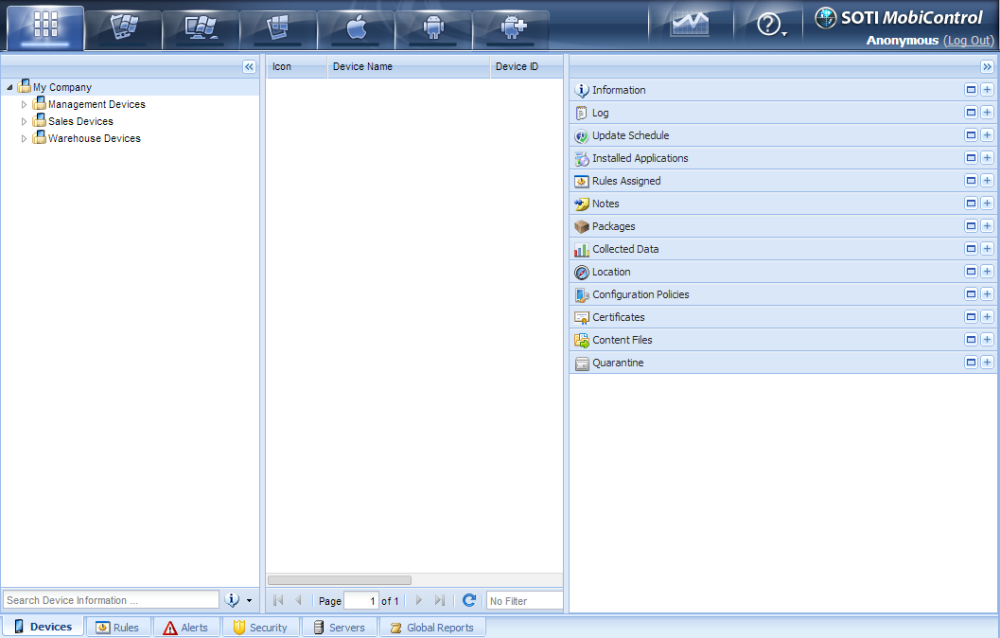
All Devices tab
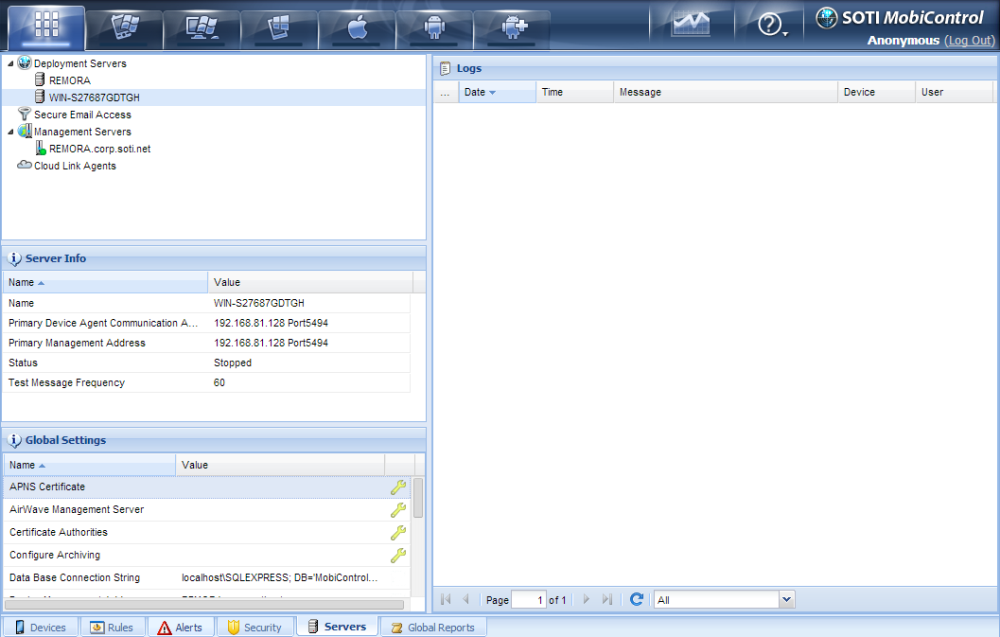
The Servers tab
Important:
If you are renewing an APNS certificate, please ensure that renew is selected rather than create new certificate. If a new APNS certificate is imported with a different topic string, all iOS devices must be re-enrolled to receive any updated configurations.
After uploading the signedCSR.plist file, we can download the MDM_SOTIInc._Certificate.pem. This file can then be uploaded into the iOS APNS Certificate Generator.

Adding the APNS certificate.
The APNS certificate is now uploaded to the MobiControl database through the web console and is now able to enroll iOS devices.
Please see the Adding iOS Devices page for more information on how to enroll your iOS device.
Note:
No password required for [.pem] certificate but if you are using [.pfx] you need to provide certificate password.
Installing the APNS certificate with the MobiControl Administration Utility
Note:
It is recommended to use the iOS APNS Certificate Generator to import the APNS certificate.
- Open the MobiControl Administration Utility. This is located in the install folder for MobiControl. The default location for 64 bit machines is C:\Program Files (x86)\SOTI\MobiControl. For 32 bit machines, it is located at C:\Program Files\SOTI\MobiControl.
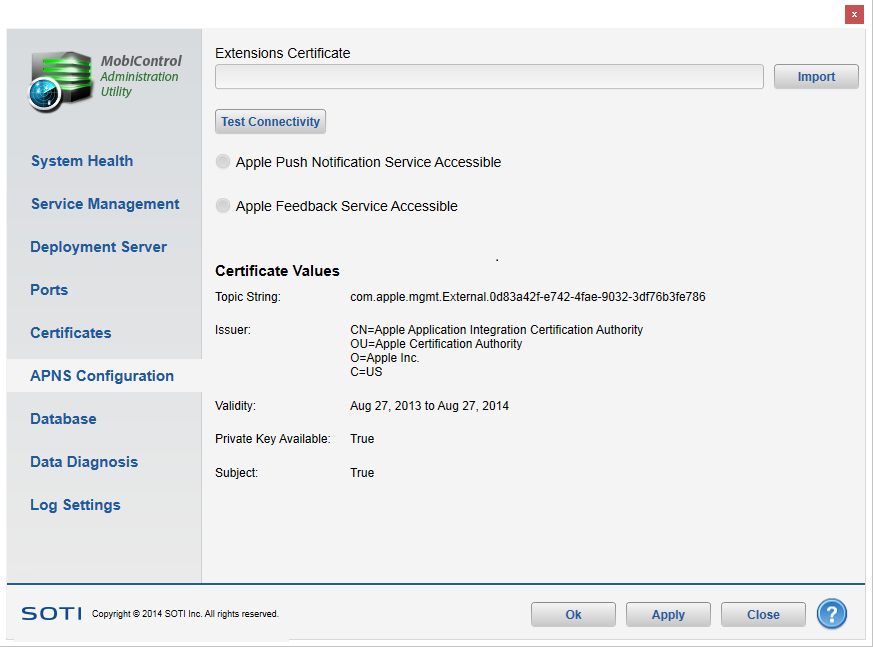
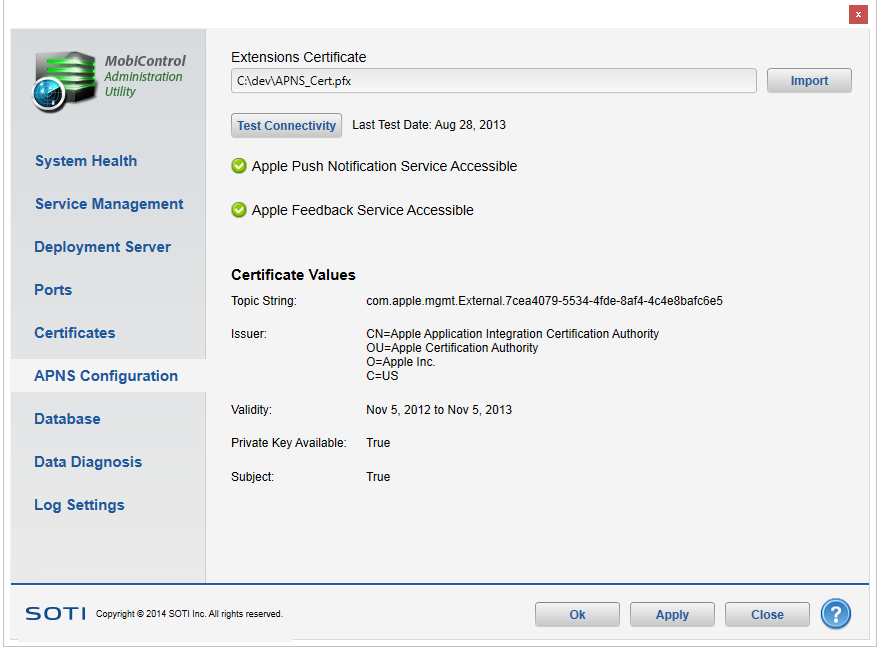
- Once the MobiControl Administration Utility is opened, go to the APNS Configuration tab on the left hand side.
- In the APNS Configuration Panel, click Import and browse to the APNS Certificate that was exported during the request process. This should be a .pfx or a .p12 file.
Enter the password that was set up for this certificate. - After the certificate has been imported, click the Test Connectivity button. The Apple Push Notification Service and Apple Feedback Service lights should show up green
 .
. - Click
 , and you are now ready to enroll your iOS devices.
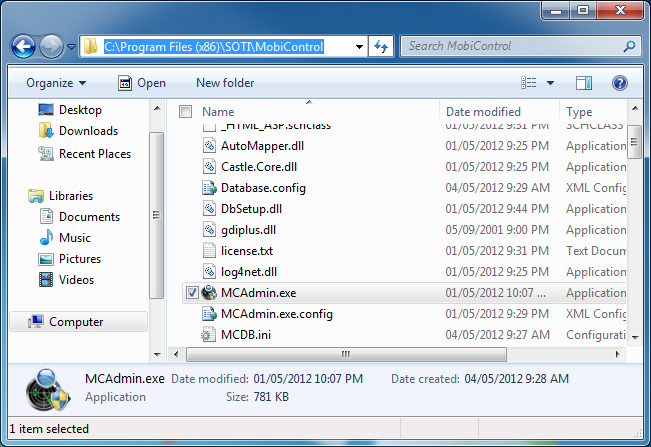
Administration Utility
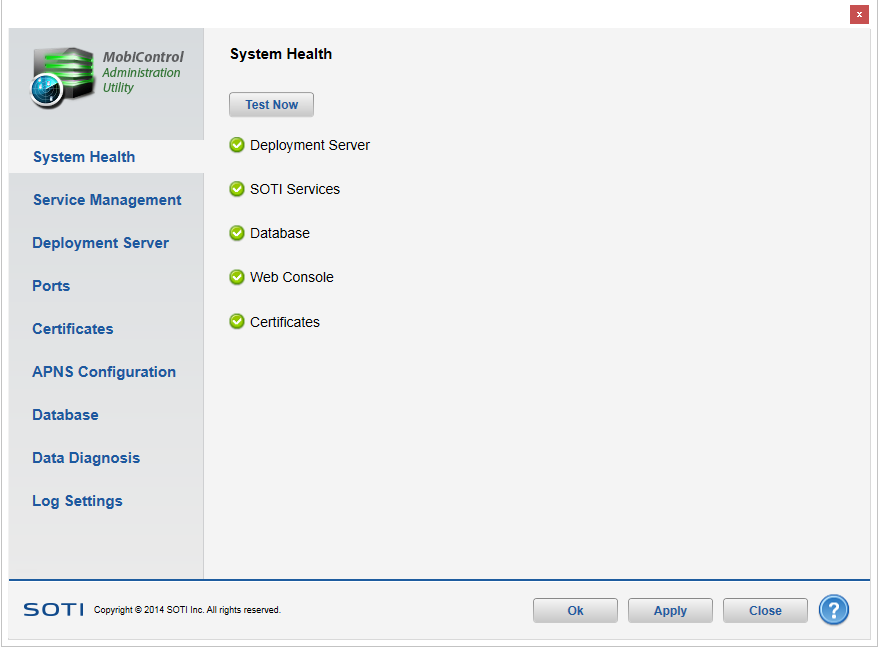
The MobiControl Administration Utility
APNS Configuration
Please see the Adding iOS Devices page for more information on how to enroll your iOS device.