
|
|
Upgrading MobiControl |
The following steps outline the procedures for upgrading an existing MobiControl installation. Please read all of these instructions before proceeding.
Once the Manager and
For example, if after enabling a few test devices for which problems are found with the agent, the upgrade can be "rolled back" and the majority of devices will avoid the failed upgrade.
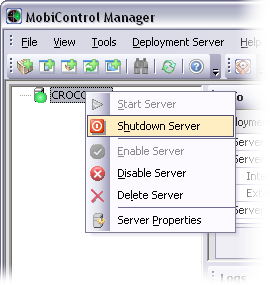
This is only applicable to MobiControl versions 2.06 and earlier. To back up your file store, use the Microsoft File Explorer to copy the contents of the file store to a backup folder.
This step is optional, since the MobiControl
To back up your database using OSQL, you must log in, specify the back-up command, then execute it.
 Example:
C:\> osql -Usa -P123456
1:>BACKUP DATABASE MobiControlDB TO DISK='C:\\mydir\\mybackup.bak'
2:>GO
1:>QUIT
Further information about the OSQL utility is provided online by Microsoft at http://support.microsoft.com/default.aspx?scid=kb;en-us;325003.
If you are running the full Microsoft SQL Server, you can backup your database using the Backup tool provided with Microsoft SQL Server Enterprise Manager. Optionally, you may use a third-party back-up utility.
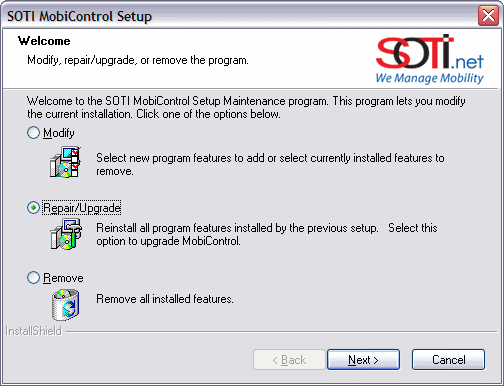
Select the Repair/Upgrade option and follow the setup
instructions in the
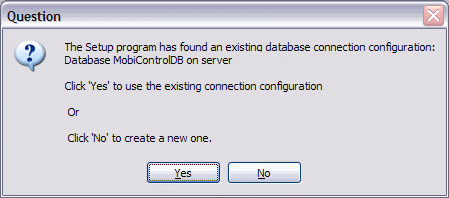
In the dialog box about the existing database connection configuration, select Yes.
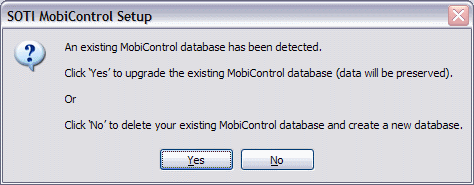
The next dialog box prompts for keeping the old database or getting rid of it and creating a new one. Since we are upgrading, we want to keep the existing database, so select Yes.
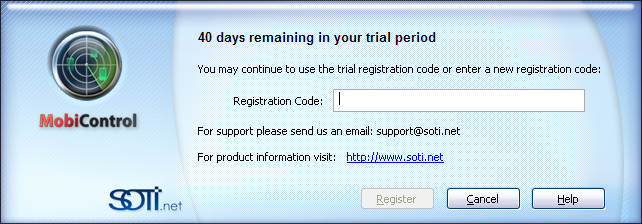
Another dialog box will appear only if you have a registration code that is an older format. To exchange it
and get a new registration code, you must
The default option is set to Yes. If you select No, please specify a folder to which to back up.
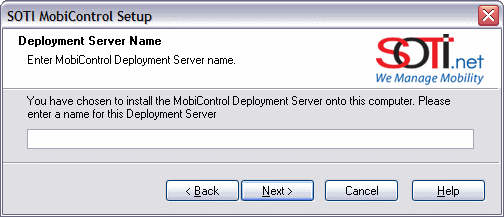
A box will be pre-filled with your existing
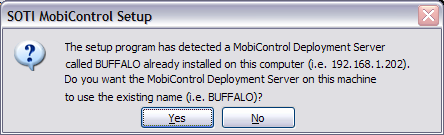
Select Yes to use the
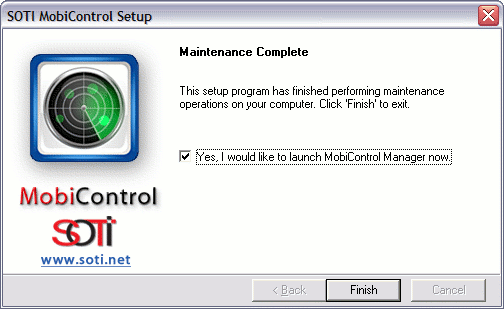
Repeat steps 4-7 on each computer that has MobiControl Manager,
Package Studio or a
Click the
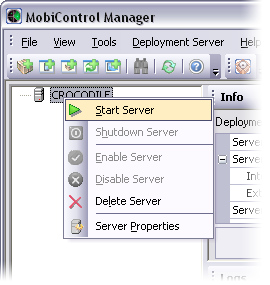
Re-start
Important:
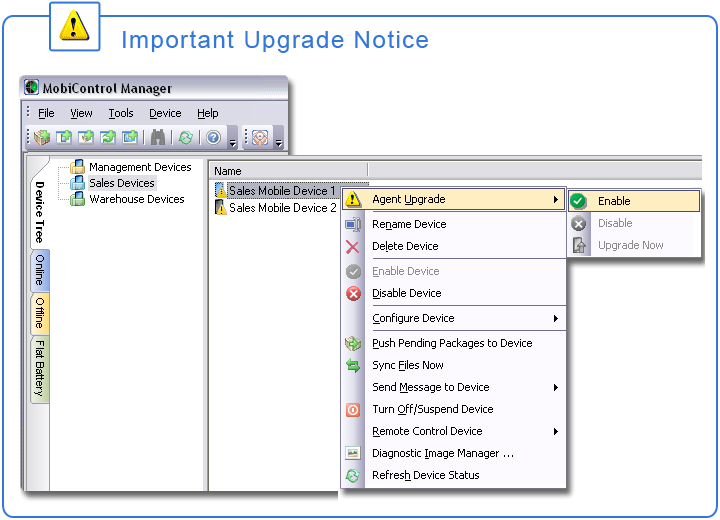
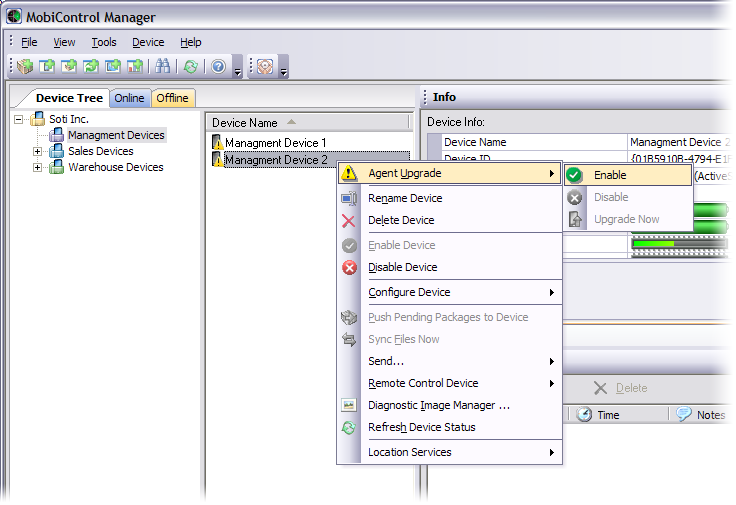
At this point, all the devices in the device tree will appear with a warning sign. This is an indication
that agent upgrade must be enabled in order for the automatic upgrade of the
Right-click on a device, select
Agent Upgrade, and click Enable. If the device is already online, select Upgrade Now. If the device is not yet online, there is
no need to select Upgrade Now, as the new agent will be automatically delivered upon connection to the
 Note:
Note:
As part of the upgrade process, the device will disconnect from the MobiControl server and go into the offline state. The upgrade will proceed on the device while it is disconnected, and then upon completion it will automatically re-connect and return to the online state. When the device goes offline, the warning sign will re-appear on the device icon in the device tree. This is normal, and done intentionally to prevent the device from repeating its attempt to upgrade if the upgrade process fails on the device. When the upgrade is successful, the warning sign will automatically disappear when the device returns online.
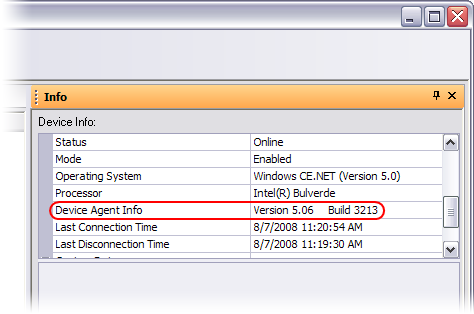
When the device returns online, verify the build number by selecting the device
and looking at the Info panel. If there is any conflict with the version you have installed (compare
to the version information in the Manager's about window), and the version currently on the device, or if there are
any error messages in the log panel, please
Try remote controlling it. Verify the
MobiControl configuration by checking for installed packages,
Enable one group at a time in the device tree, and verify the devices in each group have been updated successfully.
The device menu option Agent Upgrade will automatically disappear once all devices have been upgraded. In the event problems are detected during upgrade, select Agent Upgrade and click Disable to prevent the upgrade from taking place on devices for which upgrade has been enabled, but has not yet taken place. If the upgrade does not complete successfully after one attempt (three attempts in Windows Mobile 5 and above) the upgrade agent will disable itself and you will have to enable it again to continue the upgrade process.
If you experience any difficulties or unexpected behavior,