
|
Samsung Android Application Catalog Android |
To Deploy applications to Android devices, you need to create an Application Catalog Rule. The user will then access the catalog, using their device, to view and download available applications.

Google Android Tab
The six steps below describe how the Create Application Catalog Rule Wizard can be used to create an Application Catalog Rule:
- Start the wizard.
Select the Rules Tab, from the Google Android Tab, then Right-Click the Application Catalog Rules folder and select Create Application Catalog Rule. The first page of the Create Application Catalog Rule page will be displayed.
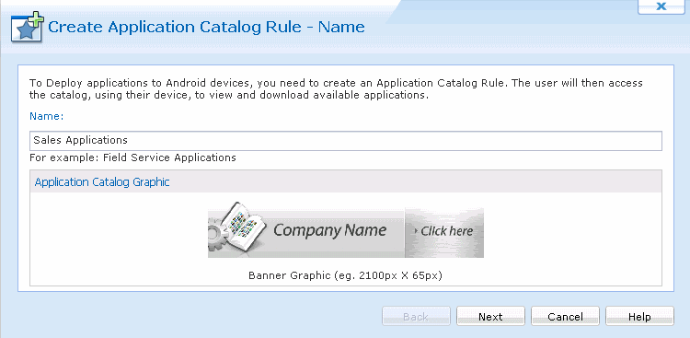
Enter a descriptive name for the Application Catalog Rule you are creating and choose a Banner Graphic, then click Next.. A Banner Graphic must be 2100 pixels by 65 pixels and must be a picture file (Jpeg, Jpg, png, and gif).
- Configure the device group.
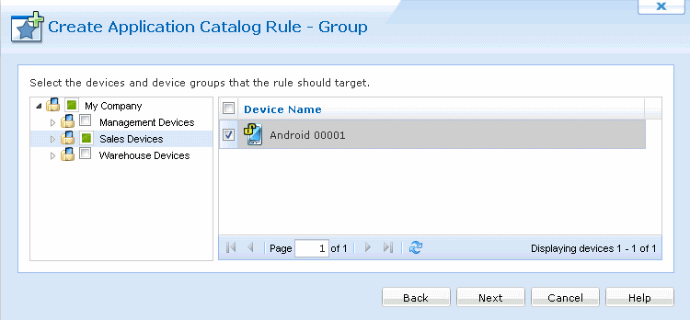
Device Group Selection page
First, select to which device group the devices configured by this rule will be added. The dialog box below displays the current device tree. Select the group where devices need to be inserted and then click Next. After selecting a device group click on the Next button.
- Configure Applications List.
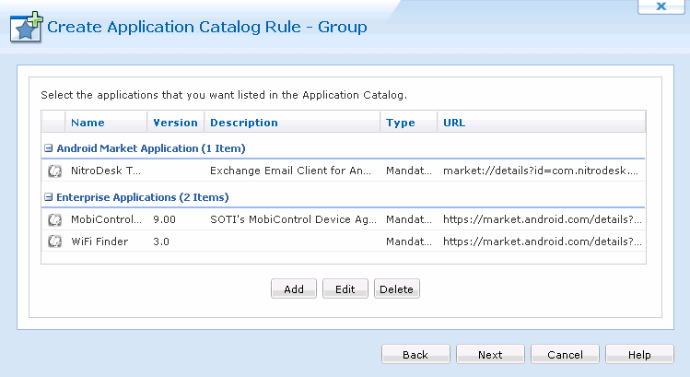
Application Catalog List
Click the Add button to add Applications to the Application Catalog list.
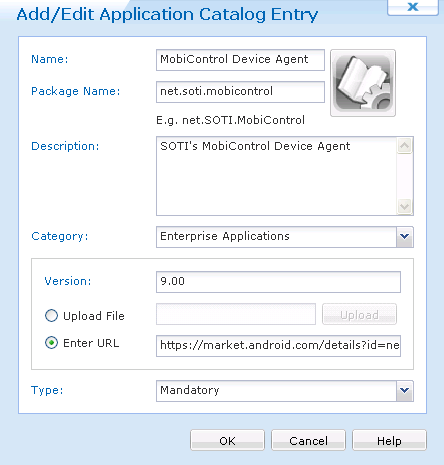
Application Entry Page
Section Name Description Name Name of the application added to the Application Catalog Package Name Unique Application Domain Identifier Version Current version of the Application added to the Application Catalog List Description Descriptive information of the Application Category Select between Android Market Application or Enterprise Applications URL Global Access URL or Application Type Select between Mandatory or Suggested - Review summarized information.
The Application Catalog Summary page summarizes the settings configured on the previous pages of the wizard.
If you are satisfied with the configured Applications List, click on the Finish button to create the device rule, otherwise use the Back button to go to previous screens and make adjustments.
- Advanced Settings.
The Advanced Settings button allows you to specify when the Application Catalog Rule is valid from.
Once you have made the changes, click Next.
- Application Catalog Preview
Browse the Application Catalog preview to ensure all Applications have been successfully added.
First page of the Create Add Devices Rule Wizard
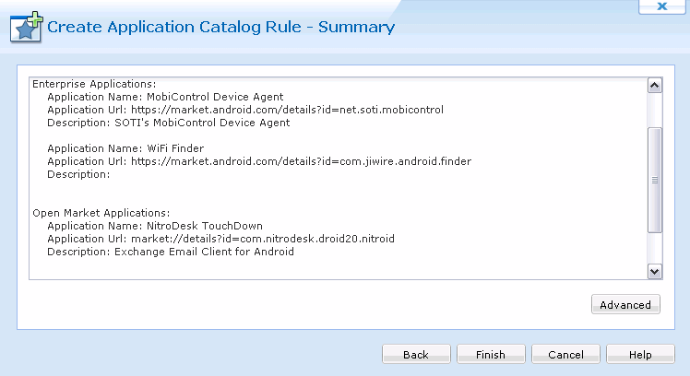
Applications Summary Page
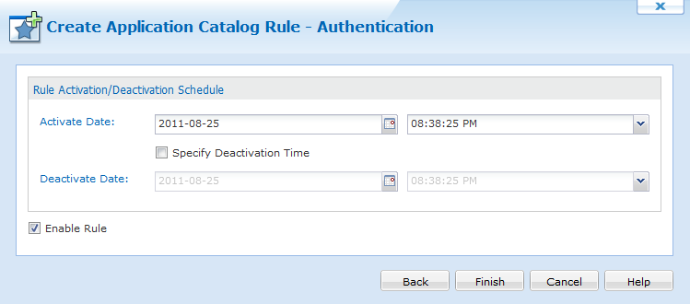
Advanced Settings Page
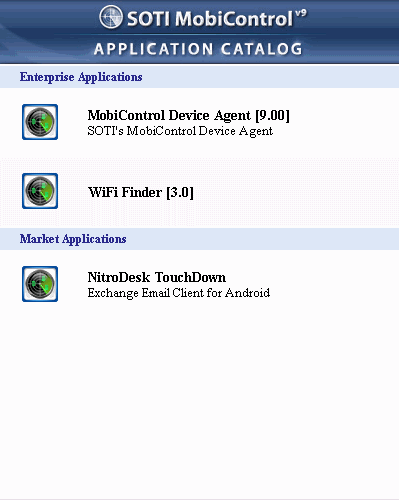
Application Catalog Page
 Note:
Note:
In a production environment typically a trusted SSL certificate is used already, but during demo/evaluations it is common to use the MobiControl generated SSL certificate, which will result in the Android device not being able to download Enterprise APK's.
If MobiControl is configured with a trusted SSL certificate (e.g. VeriSign, GoDaddy, etc.) then the Android device will be able to download Enterprise APK files.