
|
Adding Samsung Android Devices |
To Add Google Android Devices you need to create an 'Add Devices Rule' and then download the installation files to the mobile device. Alternately, you may Publish your Add Devices Rule to the Enrollment Service and provide the Enrollment ID to the mobile user.
Add devices rules allow MobiControl to name devices, place devices in the appropriate device group, and to generate a customized Enrollment ID that, when enrolled by the user, allows MobiControl to manage the devices.
To create an add devices rule, select the Google Android Tab within MobiControl Web Console, then select the Rules Tab. Right-Click the Add Devices Rules folder and select Create Add Devices Rules.

Samsung Android Tab
The six steps below describe how the Create Add Devices Rule Wizard can be used to create an add devices rule:
- Start the wizard.
Select the Rules Tab, from the Google Android Tab, then Right-Click the Add Devices Rules folder and select Create Add Devices Rules. The first page of the Create Add Devices Rule Wizard will be displayed.
Enter a descriptive name for the add devices rule you are creating and click Next.
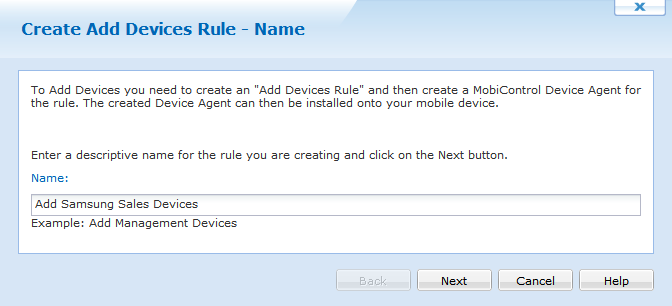
First page of the Create Add Devices Rule Wizard
- Configure the device group.
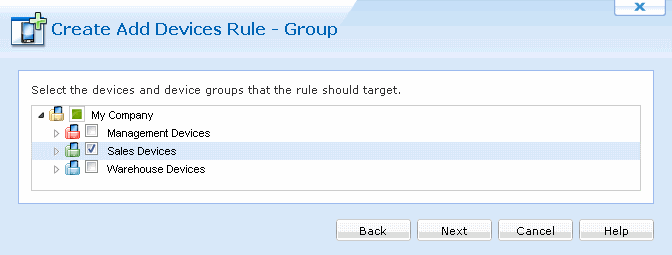
Device Group Selection page
First, select to which device group the devices configured by this rule will be added. The dialog box below displays the current device tree. Select the group where devices need to be inserted and then click Next. After selecting a device group click on the Next button.
- Configure authentication options.
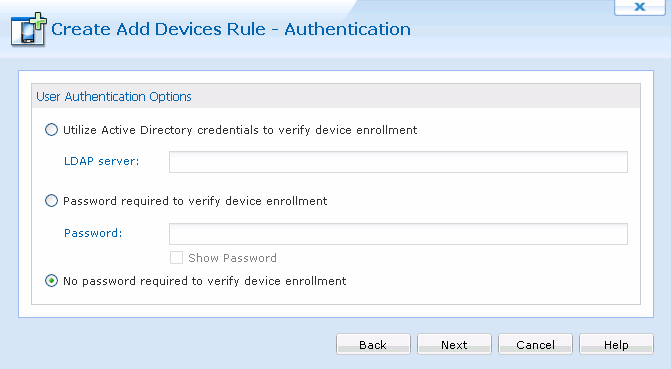
User Enrollment Authentication
Select a user authentication method for enrolling devices. A password may be set to ensure unwanted devices are unable to enroll in your network.
- Review summarized
information.
The Rule Summary Information page summarizes the settings configured on the previous pages of the wizard.
If you are satisfied with the configured settings, click on the Finish button to create the device rule, otherwise use the Back button to go to previous screens and make adjustments.
Selecting the "Publish To Enrollment Service" option allows all of your Add devices rule options to be saved in the cloud and accessed by devices via an Enrollment ID. The Enrollment ID contains the information used for the Device Agent to get back to your company's Deployment Server. The Enrollment ID is entered in the Device Agent. The Device Agent is available from the Android Market by searching for MobiControl
- Advanced Settings.
The Advanced Settings button allows you to specify which devices are to be configured by this rule. By default, MobiControl will use this rule to configure only those devices that are running a Device Agent created specifically for this device rule. By using advanced settings filters, you can broaden or further restrict which devices get configured by this rule when they connect to MobiControl.
Once you have made the changes, click Next.
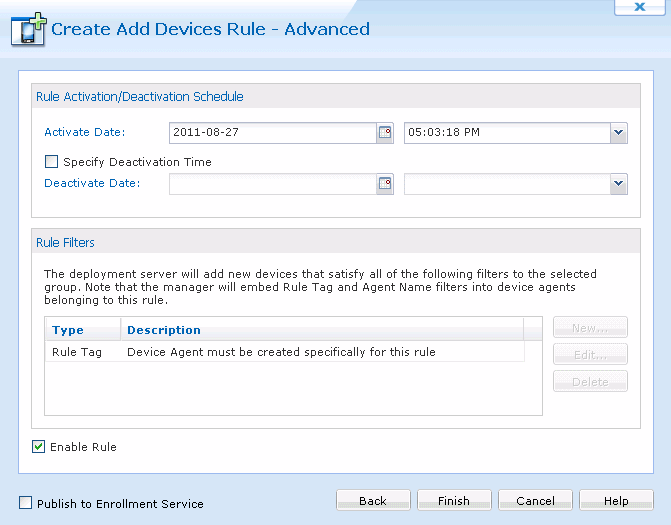
Advanced Settings Page
- Download the MobiControl Android files
If you have chosen not to create an Enrollment ID, and use the MobiControl Device Agent from the Android Market, then to enroll a Google Android device, download and place the Google Android Installation Files onto the Root of the SD Card and install the SD card in the mobile device. From the mobile device, using a file browser, locate the APK file and tap the file to install.
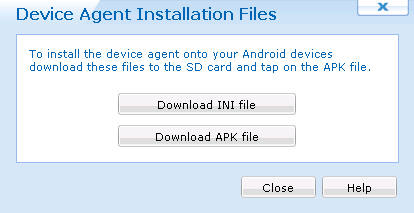
Device Agent Installation Files page
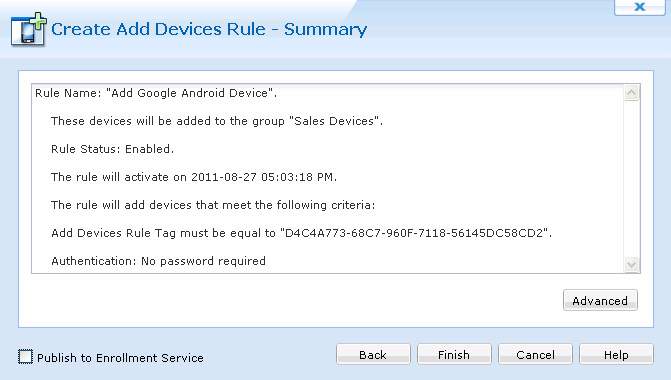
Rule Summary Page