
|
Device Filters |
Device filters allow you to create a customized view of the devices in your deployment. These are useful for quickly identifying sets of devices based on their status or settings. For example, the Online filter only displays the devices that are currently online.
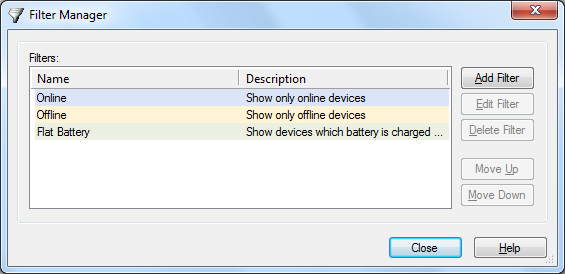
Filter Manager dialog box
To edit existing filters or add new ones select Filter Manager from the Tools menu.
| Field Name | Description |
|---|---|
| Filters | Lists the filters that are configured in the
system. Filters are stored in the central database and are
shared by all users of MobiControl Manager.
If you define multiple filter entries for 1 filter, the conditions are logical, meaning, that they're added together and ALL conditions must be met in order for a device to be listed in the filtered view. |
| Add Filter |
Select this button to create a new filter. The Edit Filter dialog box will be displayed. Please see the Adding or Editing a Device Filter section below. |
| Edit Filter |
Select this button to edit an existing filter. The Edit Filter dialog box will be displayed. Please see the Adding or Editing a Device Filter section below. |
| Move Up/Down |
Use the Move Up and Move Down buttons to adjust the order the filter tabs appear in the Manager window. |
 Note:
Note: Adding or Editing a Device Filter
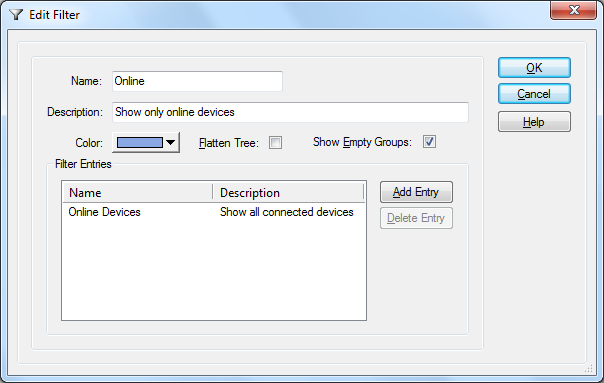
Edit Filter dialog box
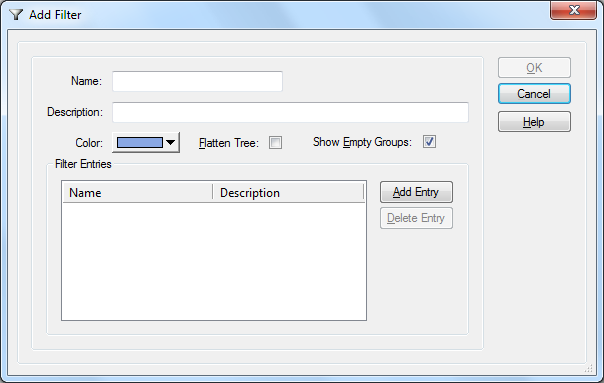
Add Filter dialog box
| Field Name | Description |
|---|---|
| Name |
Enter a descriptive name for the filter.
Use a short name to minimize the length of the tab label, allowing for multiple tab labels to be visible without scrolling. |
| Description |
a one-line description for the filter |
| Color |
Colors distinguish the selected filter. |
| Flatten Tree |
Hides the standard device tree groups and displays only a list of the devices. This is useful when you know your filter will only reveal a small set of devices and you are not interested about the group to which they belong. |
| Show Empty Groups |
Uncheck this box to hide empty groups in the filtered view. |
| Filter Entries |
Lists the actual filter types and parameters that constitute the filter. You can have multiple entries. For example, you can filter for all online devices in a certain IP subnet. |
| Add Entry |
Select this button to add a filter entry. A pop-up menu is displayed with a list of filter types that can be specified. Configure the chosen filter entry and then click OK to return to this dialog box. The options available are:
|
| Delete Entry |
Deletes a filter entry |
 Tip:
Tip: Example: