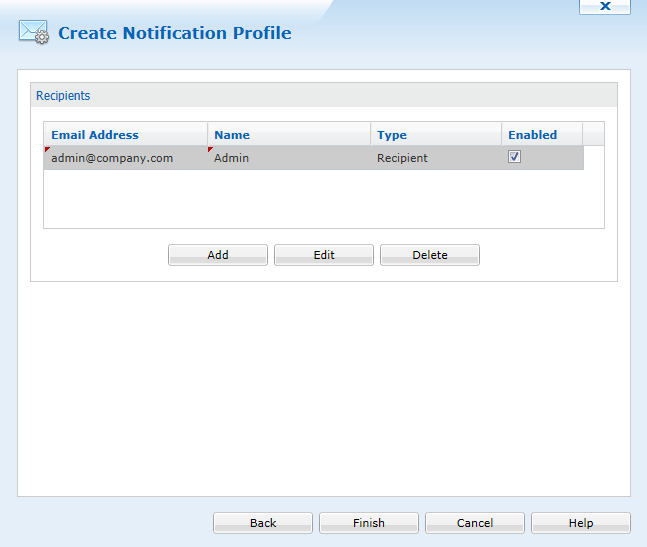
|
SMTP Notification Profile |
When you configure an alert, you have the ability to get notified by sending an email to a user or users indicating the particular event. A Notification Profile allows you to configure the sending email server settings as well as the contents of the message.
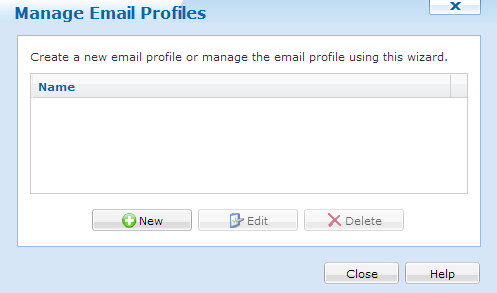
From the Manage Profiles dialog, you have the ability to select an existing profile, create a new profile, edit or delete an already existing profile.
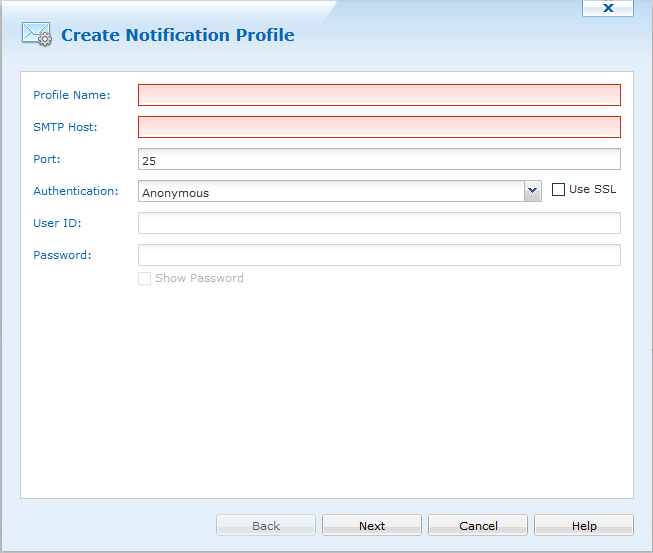
If no email notification profile exists, you’ll need to specify a Profile Name, the SMTP Host, Port, and give the option of different levels of Authentication within the Create Notification Profile dialog. You have the option of having an Anonymous, basic, or NTLM authentication and the ability to enable the use of SSL.
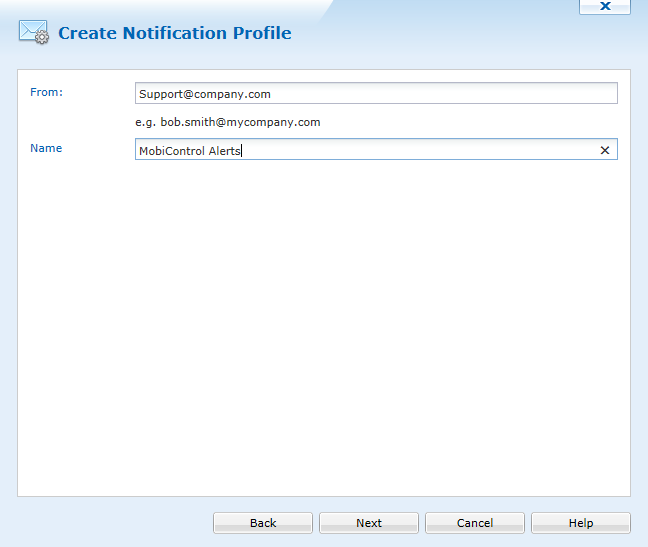
The Message dialog allows you to specify both the Subject and the Message. Variables can be added to both the Subject and the Message as shown in the screen shot above. The entire list of variables that can be used are described below:
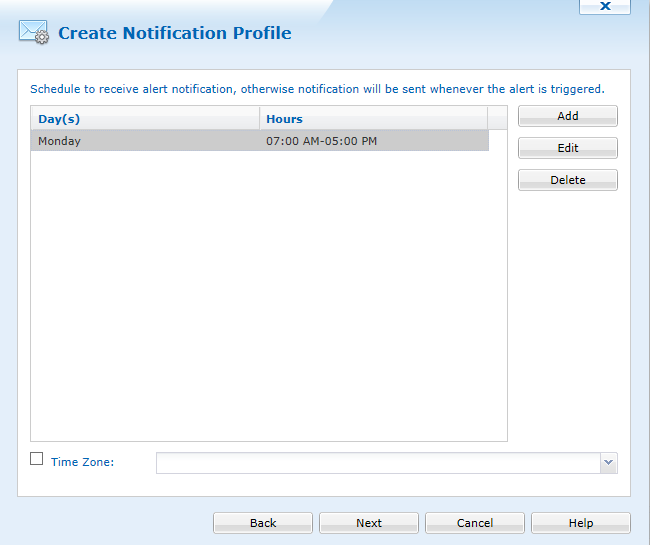
The Schedule dialog allows you to specify when the emails will be sent to the recipients.
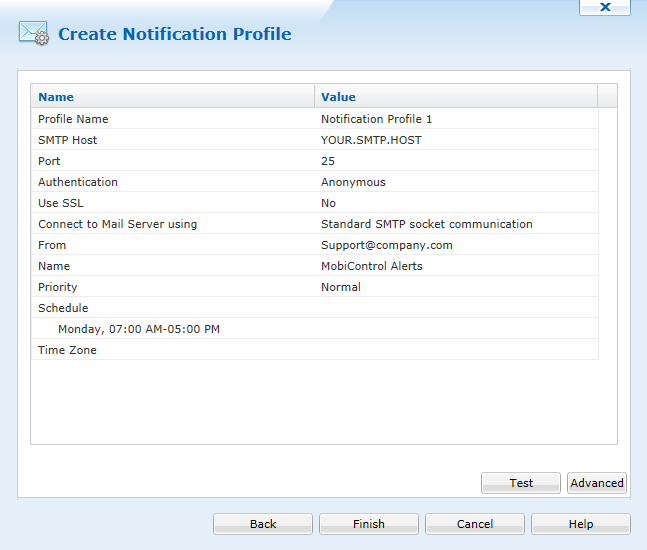
The Create Notification Profile Summary Information page summarizes the settings configured on the previous pages of the wizard. If you are satisfied with the configured settings, click on the Finish button to create the Notification Profile, otherwise use the Back button to go to previous screens and make adjustments. The Test button will send a test email to the recipients to ensure the settings are correct, clicking advanced will allow you to specify email addresses that will always be emailed when this profile is triggered.