
|
iOS LDAP Configuration |
Setting up the LDAP configuration enables devices to download the company contacts currently configured in LDAP. Once configured, information from LDAP will be placed on the contacts app.
Note:
This does not set up LDAP authentication so that users can unlock devices; it only gives a list of contacts in the company directory.
To access the LDAP configuration dialog box, click the Add button in the Add Profile dialog box, then click LDAP under the Email, Contacts & Calendars heading.
Below, we will go over each field included in the LDAP configuration:
| Field Name | Description |
|---|---|
| Account Description | The name of this LDAP configuration |
| Account Username | The account name used to query LDAP |
| Account Password | The password for the account used for querying LDAP |
| Account HostName | The location of the LDAP server |
| Use SSL | If enabled, SSL will be used for all communications |
| Search Settings | Search settings allows us to search specific directories in LDAP. Clicking the text field box opens up a pop up. Clicking search settings below expands a greater explanation of this feature. |
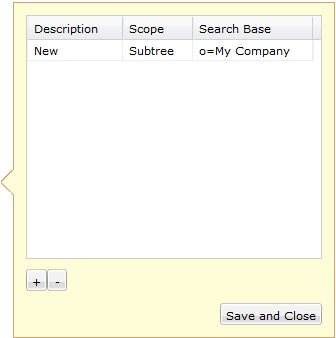
Search settings dialog
To add a new search LDAP search, click  . When clicked, a new menu item will appear. Here we can add a description, the scope and search base.
With scope, we can select Base, One Level or Subtree. Search base is tells MobiControl where to actually search in LDAP.
If a search setting isn't needed any more click  .
.
Once the settings are configured, click save and close.
If more than one LDAP configuration is needed, just click  . If one isn't needed any more click
  .
.
When all configurations are complete, click  to save and close the window.