
Device Authentication Configuration dialog box
|
The Authentication configuration allows administrators to set up device-side, password-based user authentication. This configuration also allows administrators to create authentication actions, device-side scripts that execute when user authentication either succeeds or fails. For example, an administrator might create a script that locks the device for 30 minutes if authentication fails 3 times in a row.
To add an Authentication configuration to a profile, in the Add Profile dialog box, on the Configurations tab, click Add, then select Authentication to open the Authentication dialog box where you can define the configuration. Note that the Authentication dialog box may appear different based on platform you have selected.
Device Authentication Configuration dialog box
Administrators can configure an administrator password and a user password through authentication dialog. When the administrator password is entered, the device is unlocked so that the
administrator has complete access to the device. When a user password is entered, the user will have access to only those programs that the administrator has
configured. An administrator can allow users to run all programs or only specific programs.
To specify an administrator password, click the Configure button. Enter the desired password in the provided text box and click OK. The configuration of the Administrator password is a prerequisite for all the other security configurations.
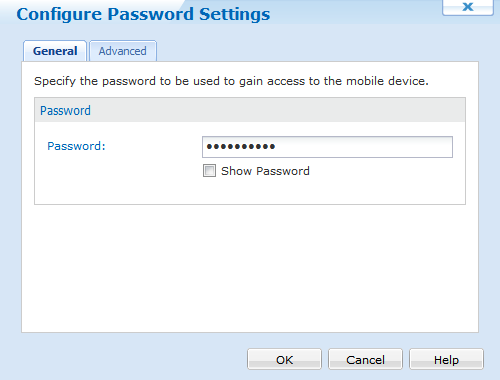
General tab to Configure Administrator Password
You can specify actions for administrator events. For example, you may wish to wipe all the data on the device if there are 10 consecutive failed log-in attempts. To create, edit, or remove an action, click on the Advanced tab of the Configure Password Settings dialog box. To add an action, click the Add button. This event can be either a successful login or a certain number of failed attempts. After you have made your selection in Event section, chose one of the action script under Action section.
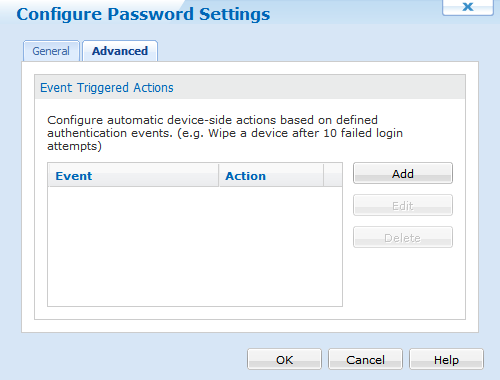
Advanced tab of the Configure Password Settings dialog box
For more details
You must specify an administrator password before you can specify a user password.
There are four options with regard to user authentication:
| Field Name | Description |
|---|---|
| No Authentication | No user authentication is set. Any user can access the mobile device without any authentication. |
| Standard User Authentication | The administrator must specify a password for the user to enter to access the mobile device. This password is unique to
|
| User Directory Authentication | Administrator can enforce Active Directory authentication for the users on enrolled mobile devices. The end-user must enter their
Active Directory credentials when trying to login to the device. If the administrator changes their Active Directory profile, the changes are propagated down
to the mobile device with |
| Prompt for password if device is unused for |
It is necessary for the device to be soft reset (i.e. powered off and back on) for the change to take effect. Further, the time value only works with Windows Mobile 5 (or greater) devices. On all other platforms, enabling this setting will cause the device to prompt for a password after device emerges from sleep mode. This option can be used with both Standard and User Directory Authentication. When this option is enabled, if the mobile device is unused for the specified period of time, then the user will be prompted to enter the password again and authenticate their identity.
|
For more information about User Authentication
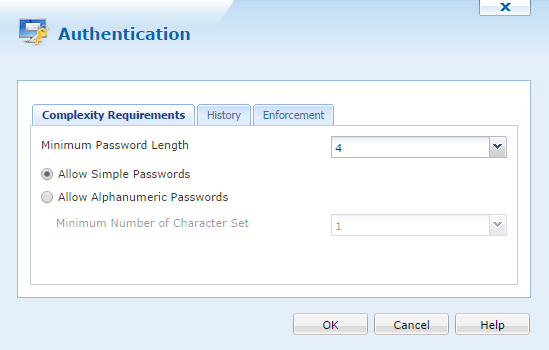
Windows Modern Authentication dialog box
| Field Name | Description |
|---|---|
| Minimum Password/PIN Length |
Specify how long the user password must be on Device. |
| Allow Simple Passwords or PINs |
User can chose simple password with no restriction on selection. |
| Windows Desktop Only Average or Good complexity | Users must use uppercase characters as well as lowercase characters and numbers in Good complexity. |
| Windows Phone Only Enforce Complex Passwords by Including the Following: |
User must comply to using certain characters depending on the level selected:
|
| Field Name | Description |
|---|---|
| Password Expiry |
This is will prompt user to change their password after specified number of days. |
| Number of Unique passwords |
Specifies how many passwords must be unique before the same password can be used again. |
| Field Name | Description |
|---|---|
| Maximum Duration of Inactivity Before Screen Lock in Minutes | Specifies maximum duration (in minutes) of Inactivity before screen locks automatically. |
| Maximum Number of Failed Password Attempts Before Device Wipe |
Specifies how many time an incorrect password can be entered before the device is wiped. |
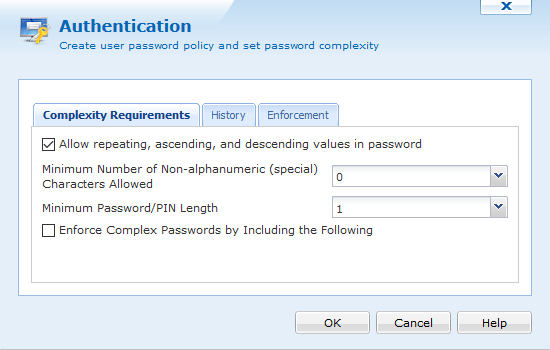
iOS Authentication dialog box
| Field Name | Description |
|---|---|
| Allow repeating, ascending, and descending values |
Allows the user to create a password that contains repeating, ascending, and descending values, such as 1234, or 1111 |
| Minimum Number of Non-alphanumeric |
Requires the user to have numbers, letters and special character in their password. |
| Minimum Password Length | Requires the user to have minimum number of characters in their password. |
| Allow Alphanumeric passwords | Requires the user to have Alphanumeric password. |
| Field Name | Description |
|---|---|
| Password Expiry |
This is will prompt user to change their password after specified number of days. |
| Number of Unique passwords |
Specifies how many passwords must be unique before the same password can be used again. |
| Field Name | Description |
|---|---|
| Auto Lock | Specifies how long before the device will lock after inactivity |
| Password Lock |
Specifies how long the device can be locked for before requiring the user to re-enter their password |
| Maximum # of failed attempts |
Specifies how many time an incorrect password can be entered before the device is wiped |
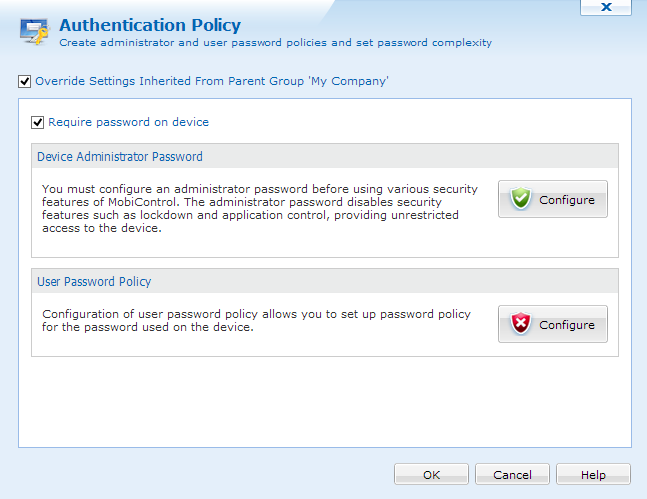
To configure device administrator password, click Configure button in the administrator password section. Enter the desired password and click OK.The configuration of the Administrator password is a prerequisite for all the other security configurations on device side.
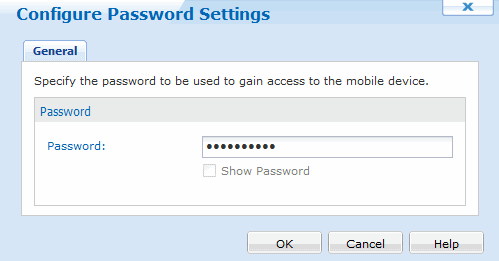
To specify a user password, first ensure that a Device Administrator Password has been setup, and then click the Configure button under user password policy section. This will bring up the dialog box below. Enter the desired password policy configuration in the provided sections, and clickOK.
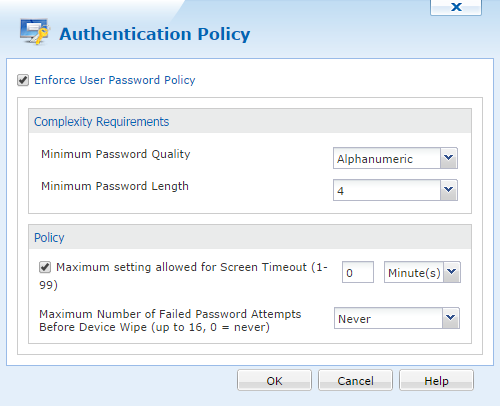
To configure a user password, first ensure that the Enforce User Password Policy box is checked. The Complexity section allows you to specify the password complexity requirements for the user password on the Android device.
| Field Name | Description |
|---|---|
| Minimum Password Quality | Specify the password quality by requiring Numbers, Letters, or Number and Letters. |
| Minimum Password Length | Specify how long the user password must be on the Android Device. |
The Policy section allows you to specify the password policy requirements for the user password on the Android device.
| Field Name | Description |
|---|---|
| Auto Lock screen | Specifies how long before the device will lock after inactivity. |
| Device Wipe | Specifies how many time an incorrect password can be entered before the device gets wiped. |
To configure device administrator password, click Configure button in the administrator password section. Enter the desired password and click OK.The configuration of the Administrator password is a prerequisite for all the other security configurations on device side.
To specify a user password, first ensure that a Device Administrator Password has been setup, and then click the Configure button under user password policy section. This will bring up the dialog box below. Enter the desired password policy configuration in the provided sections, and click OK.
Note
Some device features are not compatible with all MDM versions. Browse the tables available on our Vendor Compatibility Matrix page to determine which features are supported by your MDM version.

To configure a user password, first ensure that the Enforce User Password Policy box is checked. The Complexity section allows you to specify the password complexity requirements for the user password on the Android device.
| Field Name | Description |
|---|---|
| Minimum Password Quality | Specify the password quality by requiring Numbers, Letters, or Number and Letters. |
| Minimum Password Length | Specify how long the user password must be on the device. |
| Minimum number of complex characters allowed | Specify how many special characters are required for the user password. |
The History section allows you to specify the password history requirements for the user password on the Android device.
| Field Name | Description |
|---|---|
| Maximum password age | This is will prompt user to change their password after specified number of days. |
| Number of unique passwords before reuse | Specifies how many passwords must be unique before the same password can be used again. |
The Policy section allows you to specify the password policy requirements for the user password on the Android device.
| Field Name | Description |
|---|---|
| Time lapse before device auto-locks | Specify how long the device will stay unlocked while off. The device will automatically lock again after the expired time. |
| Maximum number of failed password attempts before device wipe. | Specify how many times an incorrect password can be entered on the device before it automatically wipes itself. |
 Note:
Note: